Your account
Password and Security
Change your password and set up two-factor authentication.
Keeping your account secure protects your clients' data and your studio's bookings. The Security page lets you update your password and add a second layer of protection using an authenticator app — so even if your password is ever compromised, your account stays locked down.
Changing Your Password
- Go to Settings → Security.
- Under the Password section, enter your Current password.
- Enter your new password in the field below.
- Click Save.
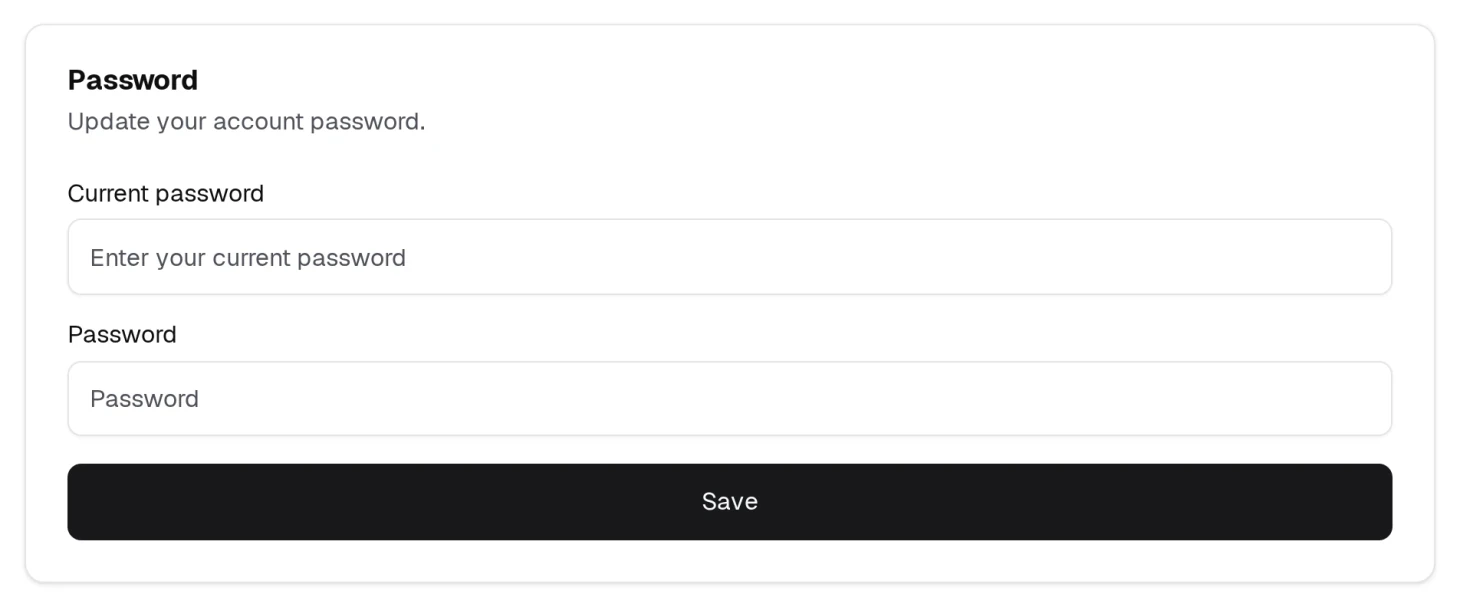
You'll see a success message when the change is saved.
If BukaTime asks you to re-authenticate before saving, click Re-authenticate, sign in again, and then return to the Security page to complete your change. This is a safety step for sensitive account updates.
Signing In With a Text Message
The Mobile number card at the top of the page is not a contact detail — it is a way to sign in. Save a number here and you can log in with a code texted to you instead of a password.
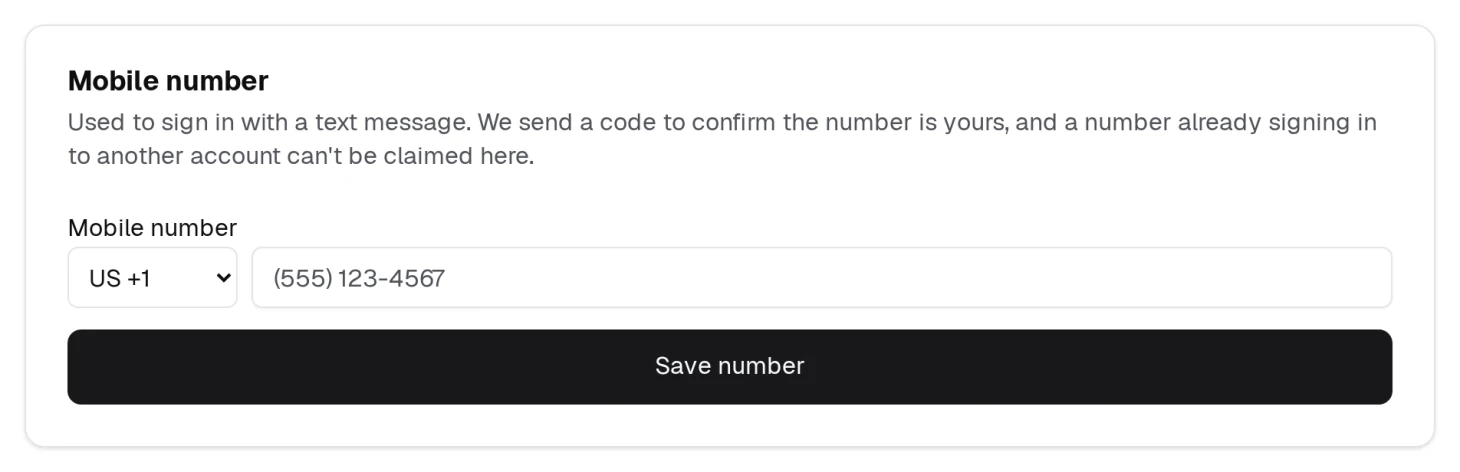
- Pick your country code and type the number.
- Click Save number.
- BukaTime texts you a code to confirm the number is yours.
A number that already signs in to another BukaTime account cannot be claimed here. This is separate from the phone number on your staff profile, and separate again from the numbers on your clients.
Two-Factor Authentication (Authenticator App)
Two-factor authentication (2FA) adds a one-time code from your phone as a second step when you sign in. It's one of the best things you can do for account security.
Setting up 2FA
- Go to Settings → Security.
- Under Authenticator (TOTP), click Show TOTP setup.
- Open your authenticator app (such as Google Authenticator, Authy, or 1Password) and scan the QR code shown on screen.
- If you can't scan the QR code, your app may let you enter the setup key displayed below the QR code manually.
- Enter the six-digit code from your authenticator app into Verify code.
- Click Save to finish.
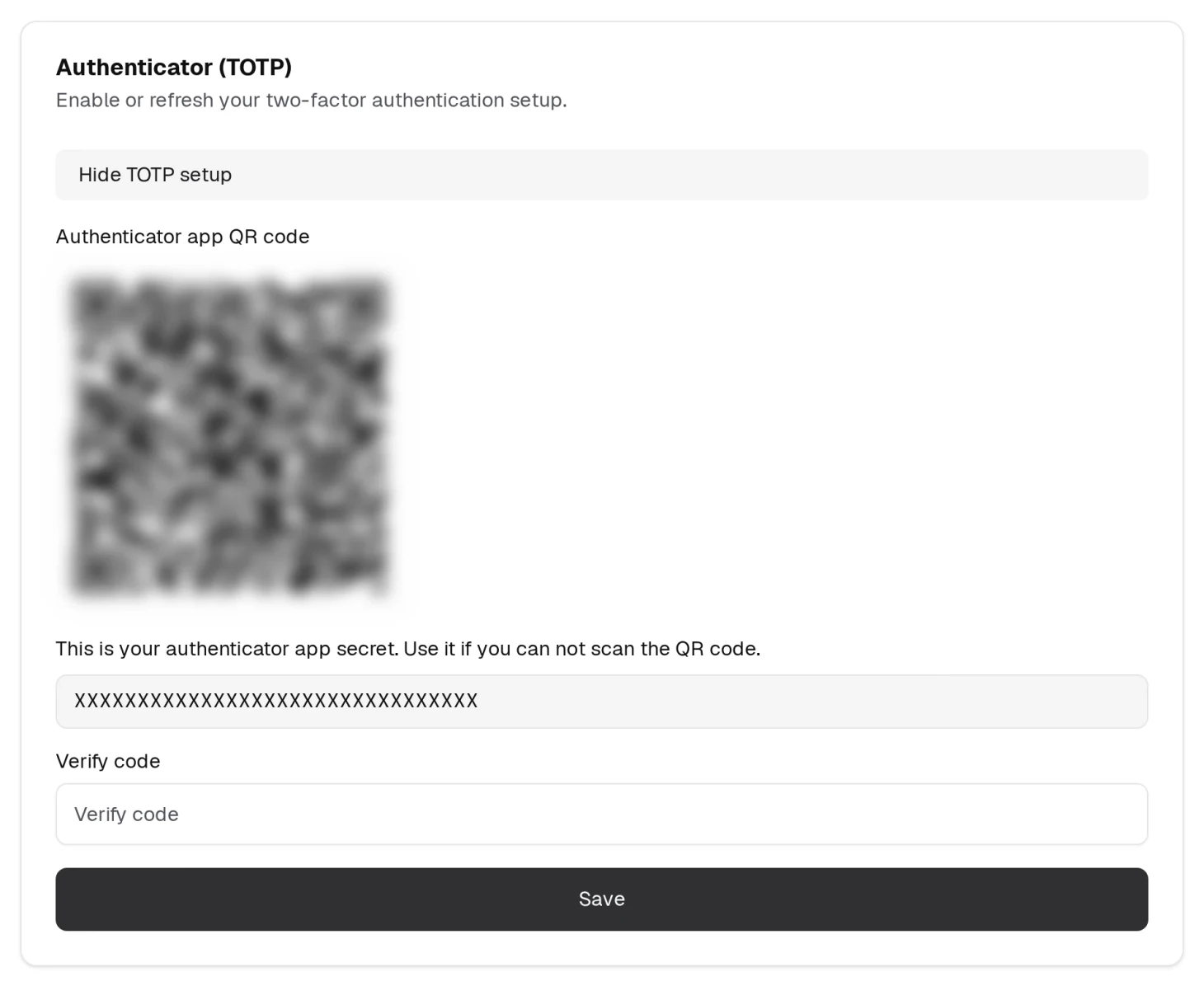
Once set up, you'll be asked for a code from your authenticator app each time you sign in.
Refreshing your 2FA setup
If you get a new phone or need to re-link your authenticator app, follow the same steps above. Scanning the new QR code replaces your previous setup.