Day to day
Dashboard and Analytics
Overview of the dashboard metrics, trend charts, and setup readiness widget.
The Dashboard is your studio's performance overview. It shows appointment numbers at a glance so you can spot busy periods, slow weeks, and growth trends without digging through your calendar. New studios see a setup guide here first — analytics appear once real appointment data is ready.
Accessing the Dashboard
Click the Home icon (or your studio name) at the top of the sidebar to go to the Dashboard.
Your Day at a Glance
The top of the Dashboard is the part you work from. It opens on today: how many appointments you have, what they are worth at their booked prices, and how many hours are still free.
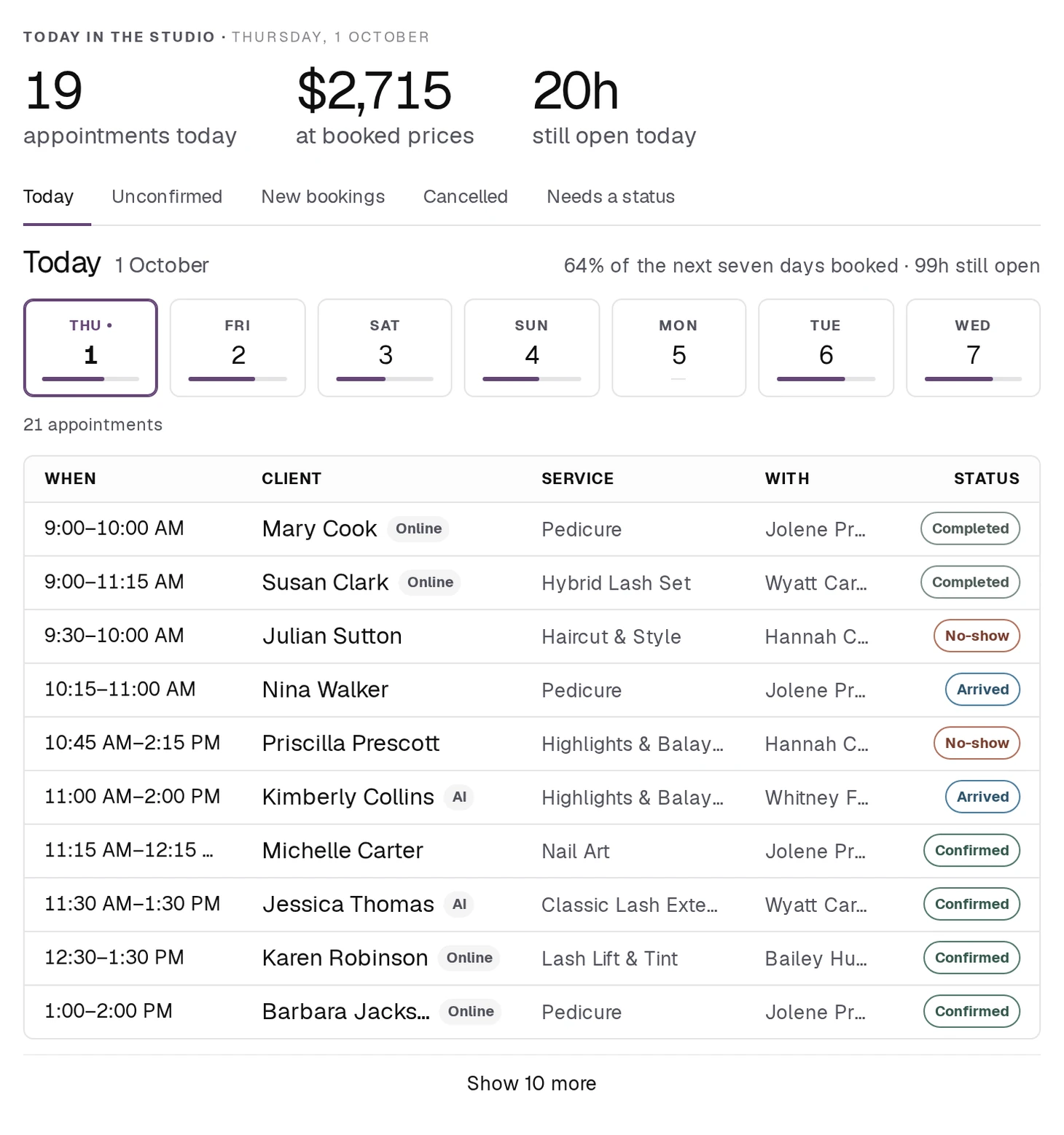
Under those numbers is the week. Each day shows how full it is against the hours your team works, so a quiet Thursday is visible before anyone asks. Click a day to see its appointments; the list starts at your next one rather than at the top of the morning.
The row of filters above it switches that list to the ones worth chasing — Unconfirmed, New bookings, Cancelled, and Needs a status for appointments that finished without an outcome recorded.
The percentage counts your team's working hours, not the clock. A day nobody is rostered on shows as closed rather than empty, and a studio that has not set working hours yet sees no percentage at all.
Key Metrics
Running the studio, you get four cards:
| Card | What it shows |
|---|---|
| Scheduled this week | Appointments booked for the current week, with a bar per day |
| Service value this week | What those bookings are worth at their booked prices, Monday to now |
| Booked without you | The share that arrived through your own site or the AI assistant rather than being entered by hand |
| New clients this month | First-time clients, against how many visits came from returning ones |
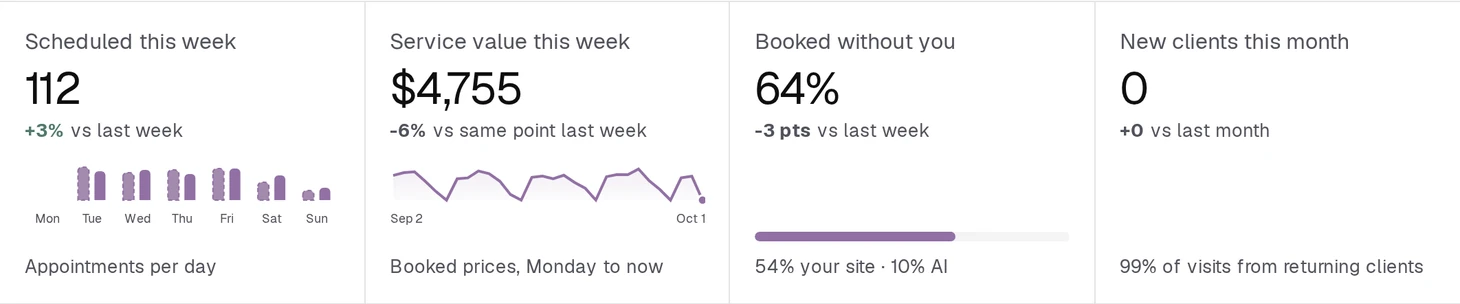
Each card carries its change against the previous period, so you can see at a glance whether you are up or down.
Service value counts Monday to now, not the whole week. On a Tuesday morning it is close to nothing, and on a Sunday evening it is the full week. It is not a forecast.
Viewing your own numbers rather than the studio's — a provider looking at their own dashboard — you get a shorter set instead: Scheduled this week and Clients seen this month.
The Charts
There is no separate charts section. Each card carries its own small chart, under the number it belongs to:
- Scheduled this week shows a bar per day, Monday to Sunday, so you can see which days carry the week.
- Service value this week shows the last 30 days as a line, so a quiet stretch or a run of good weeks is visible at a glance.
- Booked without you shows a filled bar, split underneath into how much came from your own site and how much from the AI assistant.
They are read alongside the number, not instead of it.
Setup Readiness Widget
If your studio has not gone live yet, a setup section appears on the dashboard instead of the analytics. It asks How would you like to start? and offers three ways in:
- Set up your studio — create your services, team, and availability step by step.
- Bring your existing records — import your client list, services, team, and appointment history.
- Send us your export — have BukaTime migrate your records for you.
Once you choose, a Setup checklist shows what is left, and analytics take its place when your studio is live. The paths, the checklist, the guided tour, and what makes a studio bookable are covered in Getting Your Studio Ready to Take Bookings.
Installing BukaTime as a Mobile App (PWA)
If you are using BukaTime in a mobile browser, a prompt may appear to Add to Home Screen. This installs BukaTime as a progressive web app (PWA), giving you an app-like experience without downloading from an app store.
- Tap the Install button in the notification that appears.
- Confirm on the browser or OS dialog.
- BukaTime appears on your home screen and launches like a native app.
Related
- Getting Your Studio Ready to Take BookingsWhat a new studio sees after signing up: the three ways to start, the setup checklist, the guided tour, and what makes the studio bookable.
- Creating and Managing AppointmentsCreate, edit, move, and cancel appointments on the calendar.
- General SettingsYour studio's name, its web address, and where you are.
- Managing Your SubscriptionChange plan, update payment details, and read your invoices.