Day to day
What Your Clients See When They Book
The booking journey on your website from the client's side: choosing a service and provider, picking a time, signing in, and what they can change afterwards.
When a client says "it wouldn't let me book" or "how do I move my appointment?", this is the page to check. It walks through your booking site the way a client meets it, step by step, and ends with what they can do for themselves afterwards, so you know which questions are theirs to fix and which are yours.
Clients reach the same journey from your BukaTime website, from a Book now link, or from the booking widget on your own site. Most of them are on a phone, so the pictures below are phone-sized.
1. Choosing a Service
The Services page lists everything on your menu, grouped by category. Each service shows its options with their length and price, and the header reads "Pick a service to see available times."
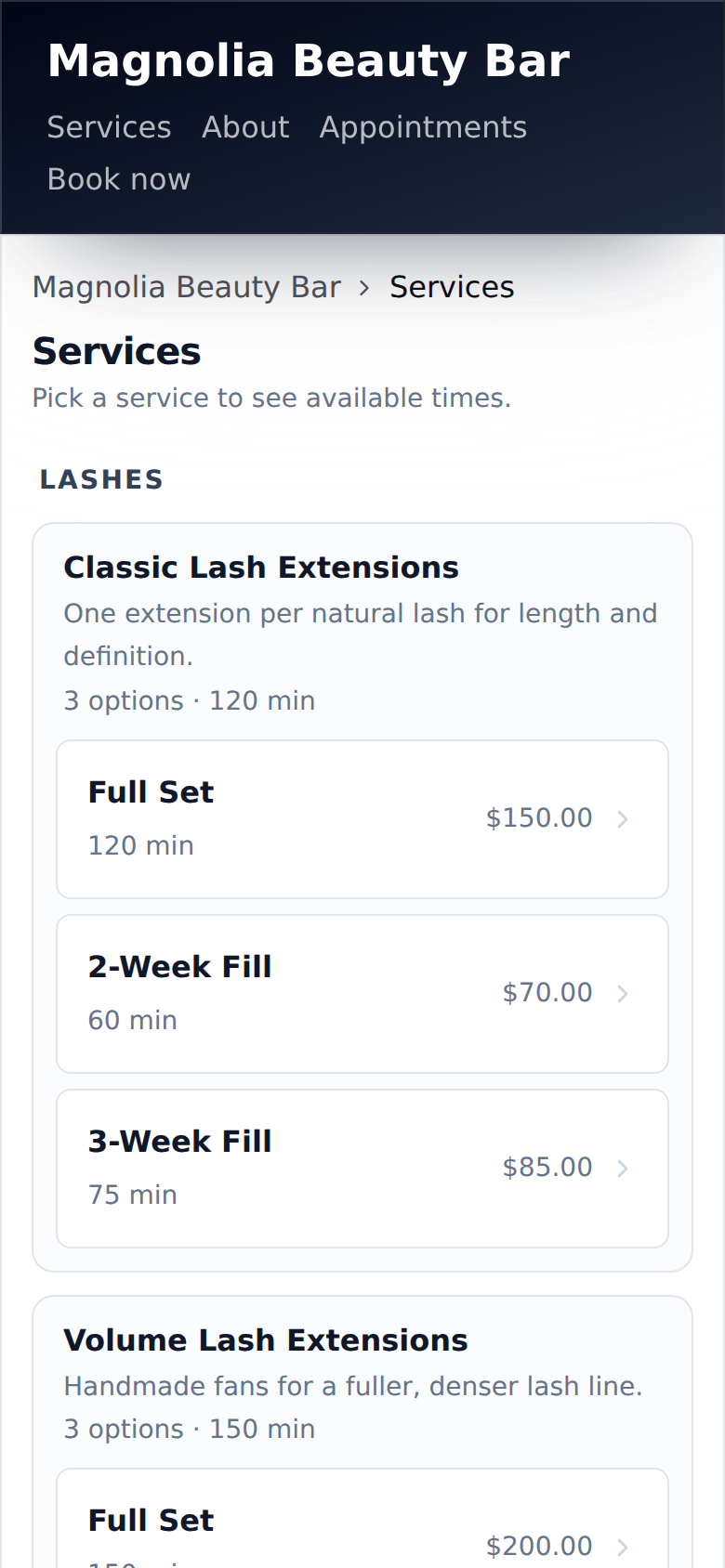
Tapping an option opens the booking page with that service already chosen. The names and prices come straight from your menu, so what a client sees is what you set up in Creating Services and Variants.
2. Choosing a Provider and a Day
The booking page has two drop-downs at the top: Service and Provider. The client can change the service here without going back.
The Provider list holds Any Provider plus each team member who can do the option the client chose. Changing the option changes the list: someone who does a Classic manicure but not a Builder Gel manicure disappears when the client switches. That is driven by Assigning Services to Staff.
Any Provider shows every opening across your team, so it always offers the most times. Naming a person shows only that person's openings.
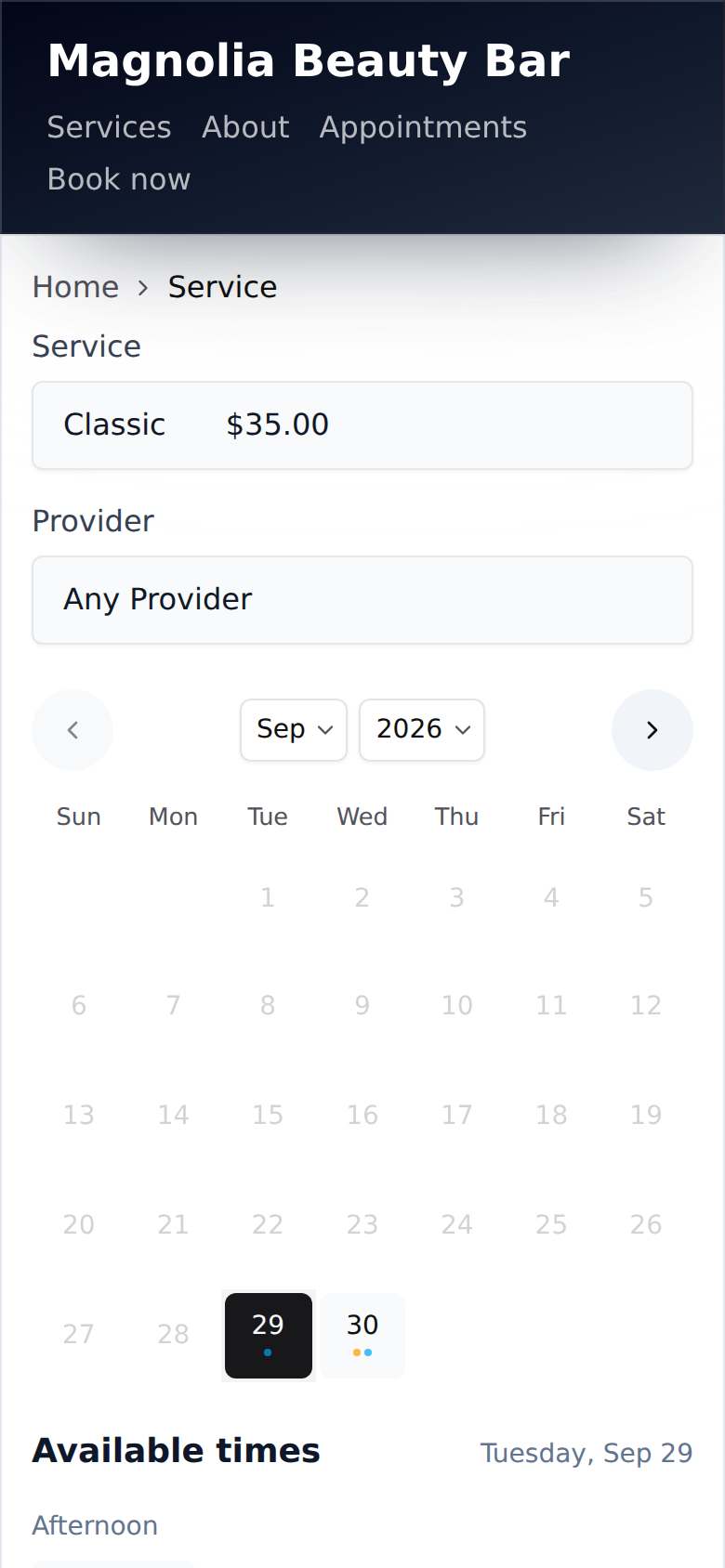
Below that is a calendar. Days with nothing bookable are greyed out and can't be tapped. Small dots under a day show whether it has morning openings, evening openings, or both.
3. Picking a Time
Under Available times the client sees the openings for the chosen day, grouped into Morning and Afternoon. Tapping a time fills in a summary card: Your appointment with the service, date, time, length and provider. Continue takes them on.
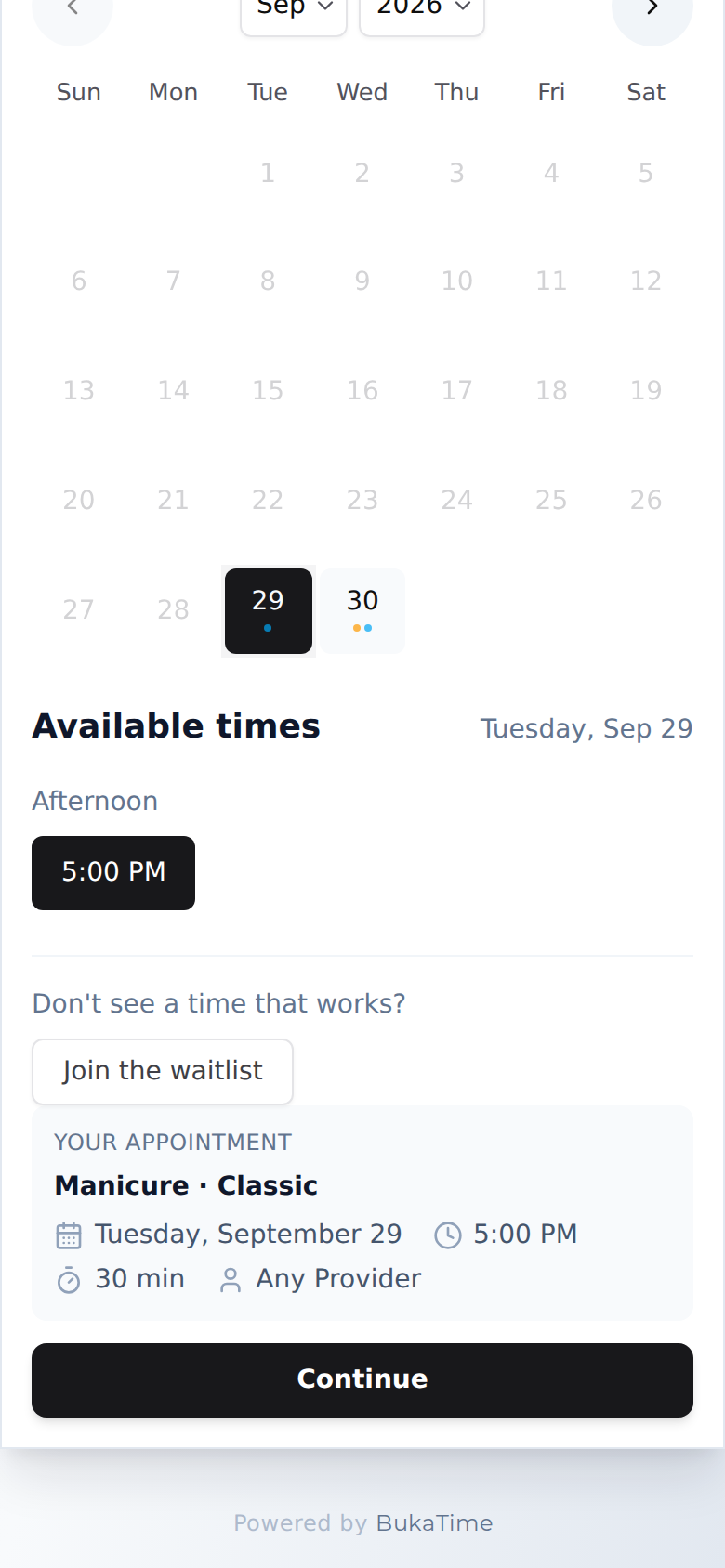
If the chosen day is full, the client is told there are no times and offered the next available date as a button. Under the times sits "Don't see a time that works?" with Join the waitlist, covered in Managing the Waitlist.
Which openings appear depends on your booking rules: minimum notice, how far ahead clients can book, and your hours.
4. Signing In
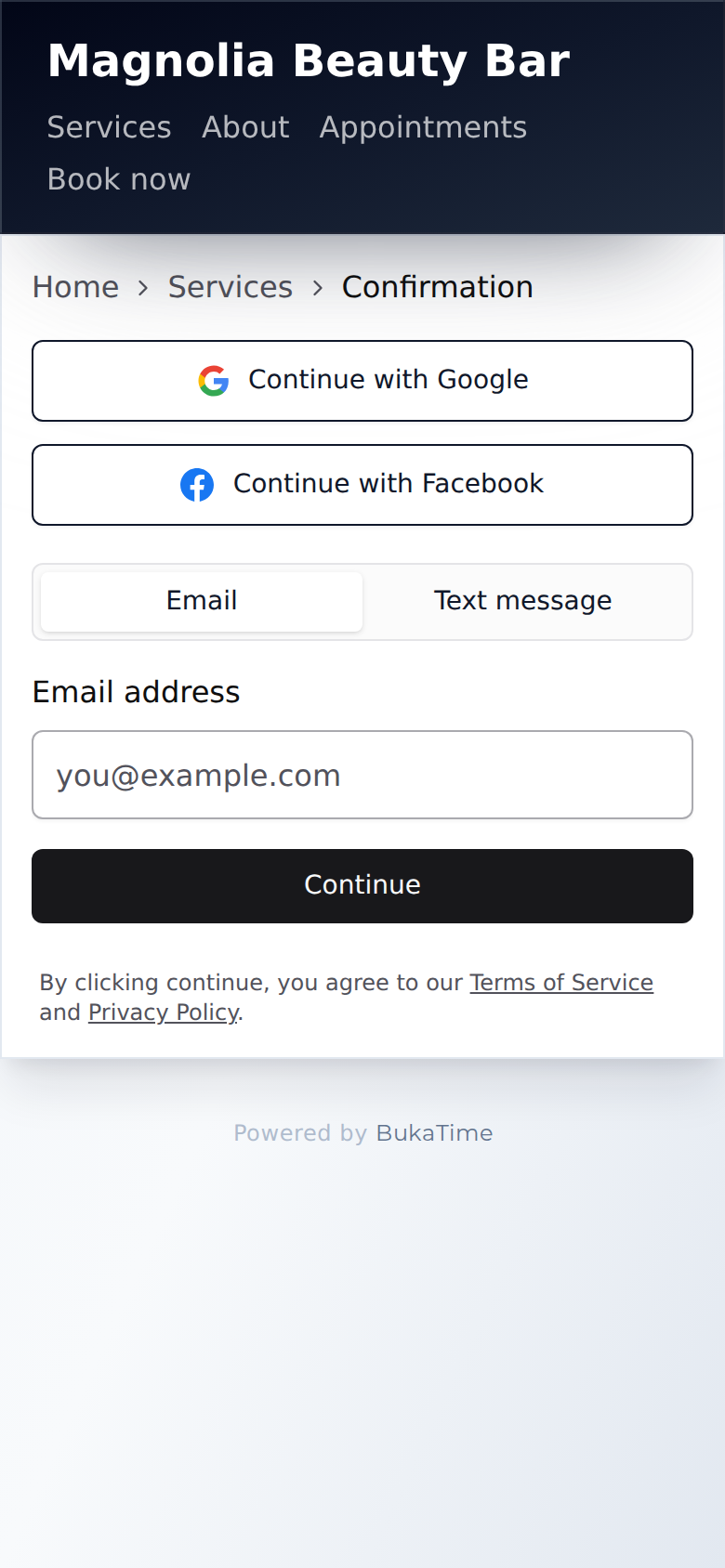
Booking needs a sign-in, so that every appointment belongs to a real client record and later messages reach the right person. The client sees three ways in:
- Continue with Google
- Continue with Facebook
- Continue with Email or Text
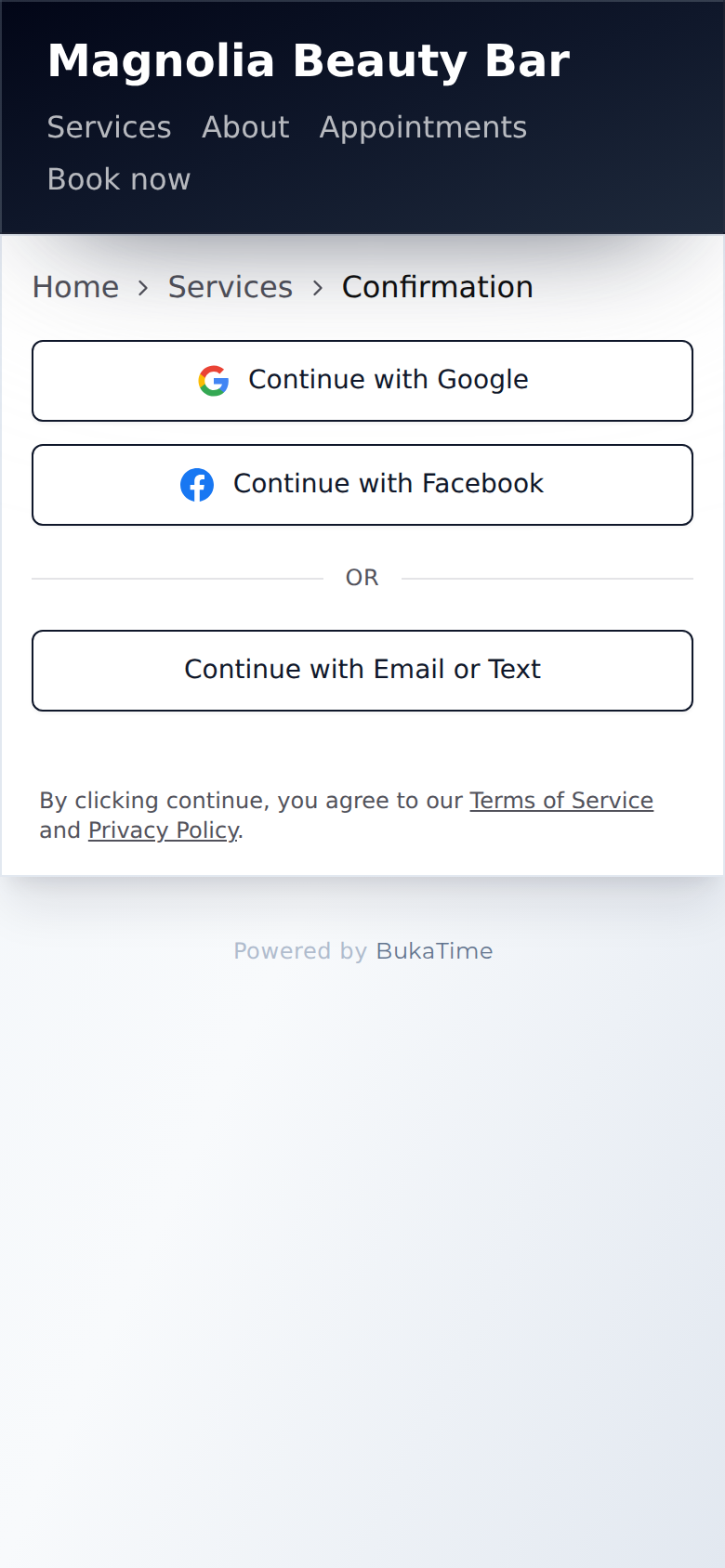
Continue with Email or Text opens a switch between Email and Text message. The client enters an address or a mobile number and taps Continue. They are sent a code, type it into Confirmation code, and the appointment continues. Change channel takes them back if they picked the wrong one.
A returning client who signs in with the same email, number or Google account lands on their existing record, with their history where they left it. If they sign in with a new email or number, it is added to the record they already have rather than creating a second client.
5. Confirming the Booking
Once signed in, the client sees a short final step with a Complete booking button. Depending on your setup it also asks for:
- First name and Last name, marked optional, if you don't already have a name for them.
- Mobile number, if your booking rules require a phone number and they signed in with an email.
- Share a note for their provider, an optional message.
- Your booking and cancellation policy, if you have written one.
If someone else took the time while they were signing in, the button changes to Pick another time and sends them back to choose again.
After booking, the client sees Booking submitted with calendar buttons (Google Calendar and Apple Calendar) and a View appointments button. Whether the appointment starts as confirmed or waits for the client to confirm depends on Require confirmation for new appointments in Booking Rules; see What the Appointment Statuses Mean.
What Clients Can Do Afterwards
Appointments in the header of your booking site opens Your appointments. A signed-out client sees Sign in to view appointments with the same choices as above.
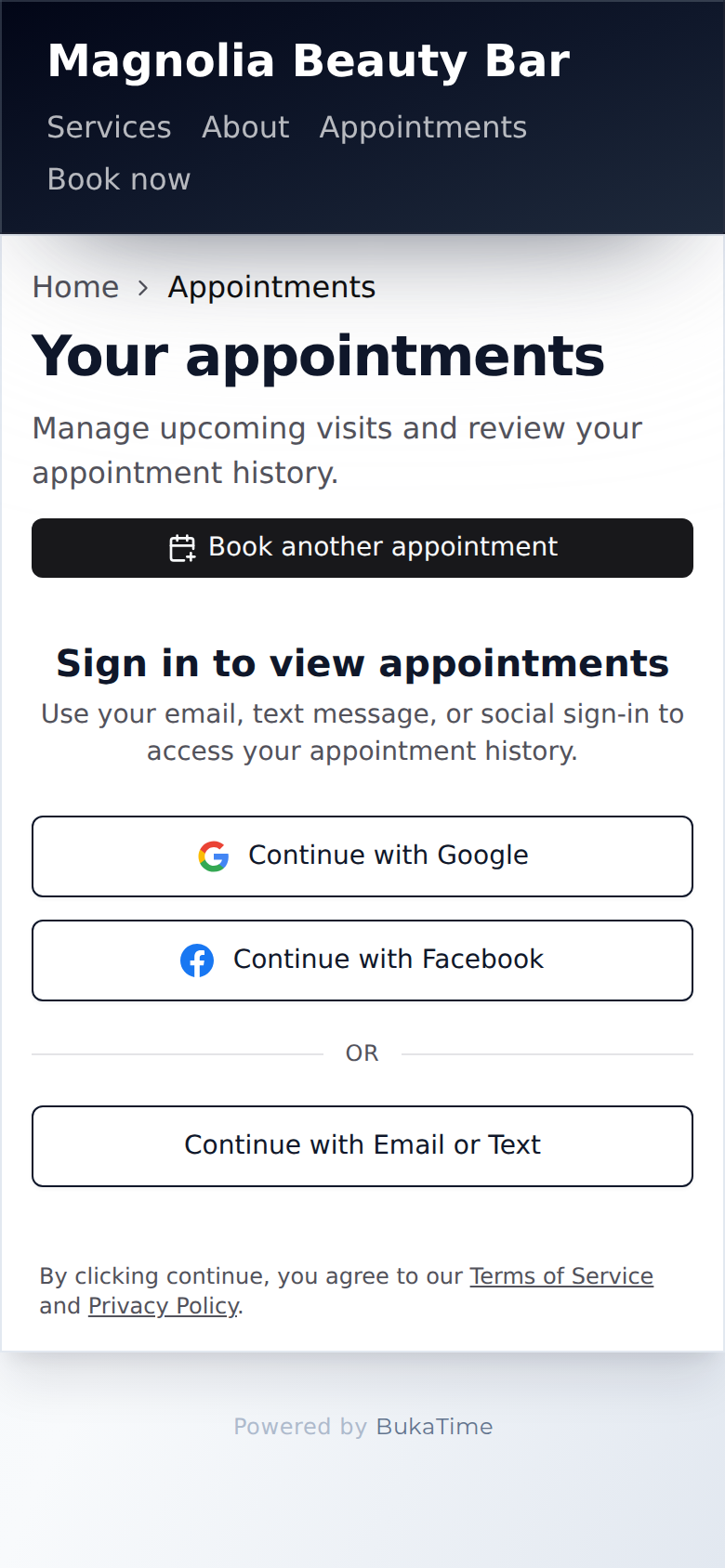
Once signed in, they see Upcoming and Past lists. Each upcoming card carries a status label and the hint "Add note or reschedule". Tapping one opens Appointment details, where they can:
| They want to | What they do |
|---|---|
| Move it | Tap Reschedule. It opens the booking page with a "Rescheduling…" banner. They pick a new day, time or provider, review the old and new side by side under Review change, then tap Confirm reschedule. |
| Cancel it | Tap Cancel appointment. A Cancel this appointment? box shows your cancellation policy, with Keep appointment and Cancel appointment buttons. It can't be undone. |
| Tell you something | Tap Add (or Edit) beside Notes. |
| Say they're coming | When your confirmation rules ask, Confirm attendance or Can't make it appear here too. |
Only upcoming appointments can be changed; past and cancelled ones are read-only. A cancelled appointment is marked as cancelled, and if you cancelled it, the client sees "This appointment was canceled by the studio" along with any note you left.
Clients can't edit the service or the length themselves. To change those, they book again or ask you.
Reminder links
Reminder messages can carry a link to a Confirm your appointment page with two buttons, Yes, I'll be there and I need to cancel. A link that has been replaced, for example after a reschedule, says "This link is no longer active" and reassures the client that their visit still stands.
Waitlist offers
A client you offered an opening to gets a text with a link. On that page they tap Book this appointment to take the slot. If someone else got there first, or time ran out, they see "This offer is no longer active". The owner's side is in Managing the Waitlist.
Tips
- Do a test booking on your own phone once a quarter, stopping at the sign-in step, so you know exactly what clients see.
- If a client says a team member is missing, check that the person is assigned to the exact option the client chose, not just the service.
- Tell clients who ask "how do I cancel?" to use Appointments in your site's header, not to message you.
Common Mistakes
- Expecting Any Provider to hide gaps. It shows the union of your team, so a day can look open even though the client's favourite stylist is off.
- Assuming a client can rebook a cancelled appointment from its page. They start a new booking with Book another appointment.
- Forgetting the sign-in. A client who "can't find their appointment" is usually signed in with a different email or number than the one they booked with. Ask which one they used.
Frequently Asked Questions
Do clients need a password? No. They use Google, Facebook, or a one-time code by email or text.
Can a client book without signing in? No. The sign-in step comes before Complete booking.
Why can't a client see a time I know is free? Openings follow your booking rules, your hours, and who is assigned to that option.
Can a client cancel right before their appointment? The Cancel appointment button stays on an upcoming appointment, and your cancellation policy is shown in the dialog beside it. Cancelling also frees the slot, which can trigger a waitlist match.
Related
- Managing the WaitlistFill cancellations fast by keeping a list of clients ready to book.
- Booking Rules and Scheduling DefaultsHow much notice you need, how far ahead clients can book, how tightly the day packs, and who has to confirm.
- Adding the Booking Widget to Your WebsiteDrop the booking widget onto your own site in minutes.
- Your BukaTime WebsiteEvery studio gets a working site on day one — here is how to make it yours.
- What the Appointment Statuses MeanEvery status an appointment can hold, what each one means, and who sets it.
- Assigning Services to StaffDecide who can perform which service, and what that changes.