Day to day
What Your BukaTime Alerts Mean
The alerts that appear in your inbox and the bell, what each one is telling you, and what makes it go away.
Your inbox holds two kinds of things. One is your clients' conversations. The other is BukaTime, a single sender that raises alerts about your studio: a client nobody has answered, a team member clients cannot book, a switch that is stopping messages from going out.
Most of these alerts are different from a normal notification. They describe something that is wrong right now, so they stay until the problem is fixed. This page explains where to find them, what each one means, and where to go to clear it.
Where Alerts Appear
Alerts show up in two places, and they are the same alerts.
The BukaTime thread. Open Messages. Among your client conversations you will see one row called BukaTime, labelled Business inbox. Its preview shows the most important alert, and its count shows how many need you. Open it to see every alert as a card.
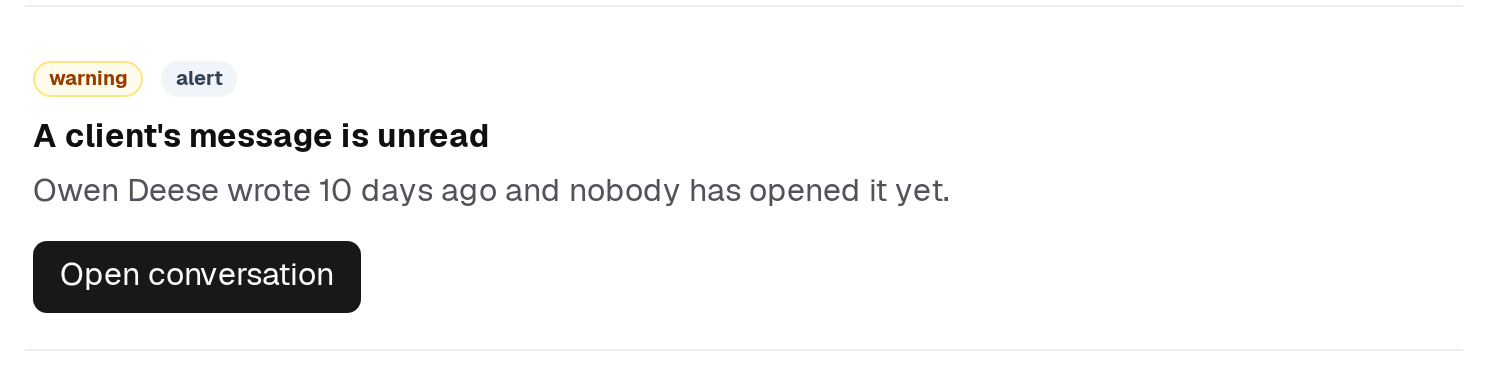
Each card has a severity (critical, warning or notice), a title, one or two sentences on what is wrong, and usually a button that takes you to the right screen. When there is nothing to show, the thread says Nothing from BukaTime.
The bell. The bell in the top-right corner carries a red count of what needs attention. Open it for a short list, newest first. Click a row to go straight to the place that fixes it.
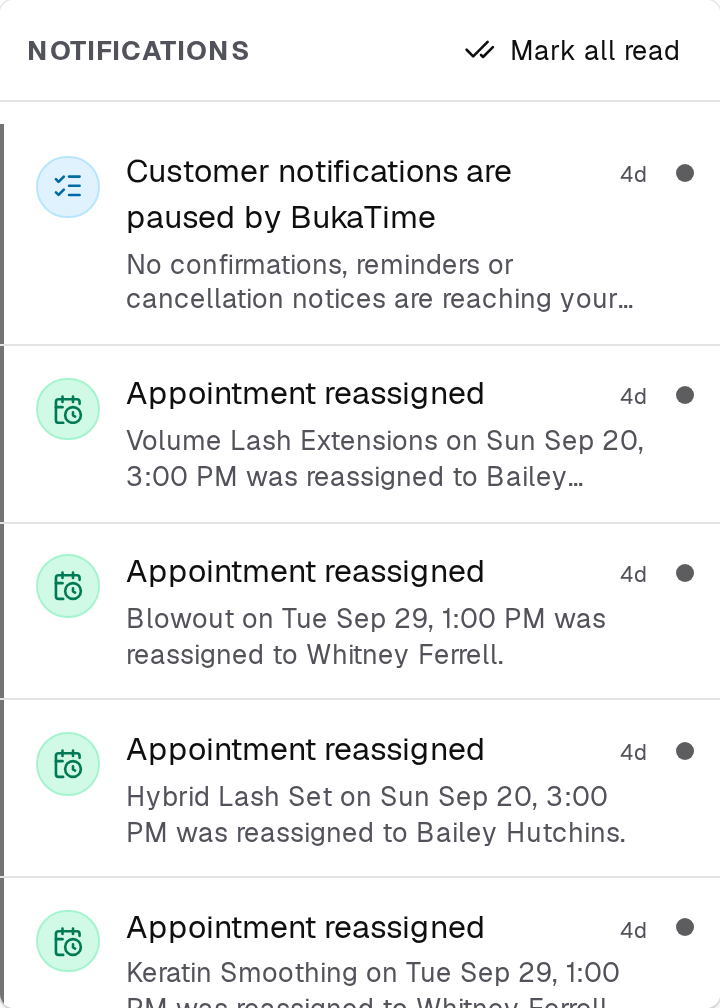
Opening the bell does not mark your clients' messages as read. Mark all read only clears the bell's own dots. The bell is a quick glance, so use the BukaTime thread when you want to work through everything.
Why Most Alerts Have No Dismiss Button
Most alerts have no Complete, Done or Snooze button, and that is on purpose. They report the studio's current state, so dismissing one would not fix anything and it would only come back. An alert clears itself as soon as the underlying problem is fixed. Fix it, and the card disappears.
A few kinds are different. You can act on those yourself, and the tables below say which.
Alerts About Booking
These mean clients cannot book, or cannot book everything. They rank first because they cost you appointments.
| Alert | What it means | What clears it |
|---|---|---|
| Booking URL missing | Your studio has no web address for online booking | Set your address in General Settings |
| No active provider | Nobody on your team is switched on for bookings | Add or activate someone: Creating and Activating a Staff Member |
| No bookable services | You have no services on your menu | Creating Services and Variants |
| Provider not assigned to services | Nobody is set up to perform any service | Assigning Services to Staff |
| Some options have no provider | At least one service option has nobody who can do it | Assigning Services to Staff |
| Availability not set | Nobody bookable has working hours | Managing Staff Availability and Hours |
| Availability not set for a team member | That person is switched on for bookings but has no weekly hours, so clients cannot book them. The button reads Review staff | Set their hours: Managing Staff Availability and Hours |
A brand-new studio does not see all of these at once. Setup steps are held back until you have chosen a setup path, and a studio that was already working sees any new gap straight away.
Alerts About Messages Not Going Out
| Alert | What it means | What clears it |
|---|---|---|
| Client notifications are off | Your own notification switch is off, so clients get no confirmations, reminders or change notices. The button reads Review notifications | Turn the ones you want on: Setting Up Client Notifications |
| Automatic messages are paused by BukaTime support | Support has stopped your automatic messages. Your own settings cannot lift it. The button reads Contact support | Contact support |
| Customer notifications are paused by BukaTime | A platform-wide pause. There is no button, and nothing on your side needs changing | It clears when BukaTime lifts the pause |
| SMS budget almost used | You are close to your monthly text allowance. The button reads Review billing | It clears when the count drops or your allowance grows: Managing Your Subscription |
| Texts are billing as overage | You have used your included texts, and further ones are charged per text | It clears once you are back under your included texts, for example when your allowance grows |
| Some client texts weren't delivered | Your text allowance is used up, so texts to clients have been blocked in the last day. The button reads Review billing | Add a payment method or upgrade: Managing Your Subscription. It clears once texts stop being blocked |
| Email budget almost used | You are approaching the daily limit on outgoing email | It clears on its own once the volume drops back below the warning level |
If a client says they never got a message and none of these is showing, work through Why a Client Didn't Get Their Reminder.
Alerts About Clients Waiting
| Alert | What it means | What clears it |
|---|---|---|
| A client's message is unread | A client wrote at least a few hours ago and nobody has opened it. The button reads Open conversation | Open the conversation, or reply |
| The assistant handed a conversation to you | The AI receptionist could not finish a client's request and told them someone would follow up | Reply to the client |
| A client is waiting and has heard nothing | As above, but the message telling them so never reached them. This is the most urgent alert | Reply to the client |
| A client never confirmed their appointment | You asked a client to confirm and they did not answer in time | Follow up in the conversation |
| A client never came back on an offer | The assistant offered times and the client never picked one | Follow up in the conversation |
The three that involve the assistant only appear on the Plus plan. See Messaging Clients for how to reply, and The AI Receptionist for what the assistant does.
Once someone has opened an unread message, the alert stands down, because you have looked at it and judged it. The assistant hand-off alerts are stricter. Reading does not clear them, since the client was promised a person. Only a reply from you does.
Alerts You Can Act On Yourself
These are the exceptions. They do not report a live fault, so they offer buttons.
| Alert | What it is | What you can do |
|---|---|---|
| Unanswered customer question (Plus) | A client asked something the assistant did not know | Press Answer in conversation, write your answer once, and it is used from then on. It has Snooze, but no Complete. See Knowledge Base in The AI Receptionist |
| Is this answer still true? (Plus) | A saved answer has expired | Press Review answers, then confirm it or remove it |
| A one-off notice from BukaTime | A message BukaTime support writes to your studio, with its own title | Read it, then Complete it, or Snooze it to hide it for a week |
Complete keeps the card in the thread, greyed out and marked completed, as a record.
Other Alerts You May See
- Finish import review appears while an import is waiting for you to check its preview. Nothing from it is saved until you confirm. See Importing Clients from a CSV.
- Migration help requested, Migration help — send us your export and Migration in progress track a request you made for help moving your records. They clear when the request is closed.
- A count of open slots that have waitlist matches appears when a cancellation could be filled. See Managing the Waitlist.
Common Mistakes
- Looking for a Dismiss button. Most alerts do not have one. Fix the cause and the alert goes.
- Treating the bell as a to-do list. It is a glance. Marking a row read hides the dot and does not fix the problem.
- Assuming an alert is a mistake because you fixed the problem a minute ago. Some alerts refresh in the background, so give it a short while.
FAQ
An alert says nothing on my side needs changing. Should I do something?
No. Customer notifications are paused by BukaTime is a platform-wide pause that BukaTime lifts.
I fixed the problem and the alert is still there.
Alerts re-check the studio's state regularly, not the instant you save. Give it a moment and refresh the page.
Why does the bell show a number when the BukaTime thread looks empty?
The bell also counts unread client messages and other activity, such as new online bookings. The number and the thread do not have to match.
Related
- Messaging ClientsRead and reply to client conversations.
- Why a Client Didn't Get Their ReminderWork out why a message never arrived, in the order worth checking.
- Setting Up Client NotificationsChoose which confirmations and reminders your clients receive.
- Managing Staff Availability and HoursSet when each team member works.
- The AI ReceptionistHow it handles the messages your clients send, and how much it does on its own.