Day to day
Managing Busy Times
Blocking off time on the calendar for breaks, vacations, and other non-bookable periods.
Busy times are blocks on the calendar that mark someone as unavailable — without creating an appointment. Use them for breaks, internal meetings, training, a day off, or any non-bookable time.
Even the busiest studios have time that's off-limits for client bookings — a lunch break, a supplier delivery, a team huddle. Busy times let you block those moments right on the calendar so they're visible to everyone at a glance and clients can't be accidentally booked in.
Creating a Busy Time
Go to the Calendar and click an empty slot in the column you want to block. A small menu offers the two things you can put there.
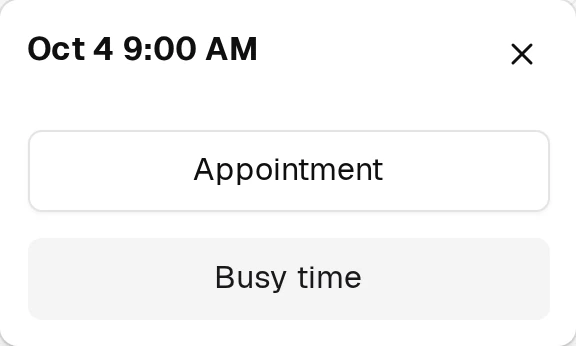
Choose Busy time and the form opens, already filled in with the day and time you clicked.
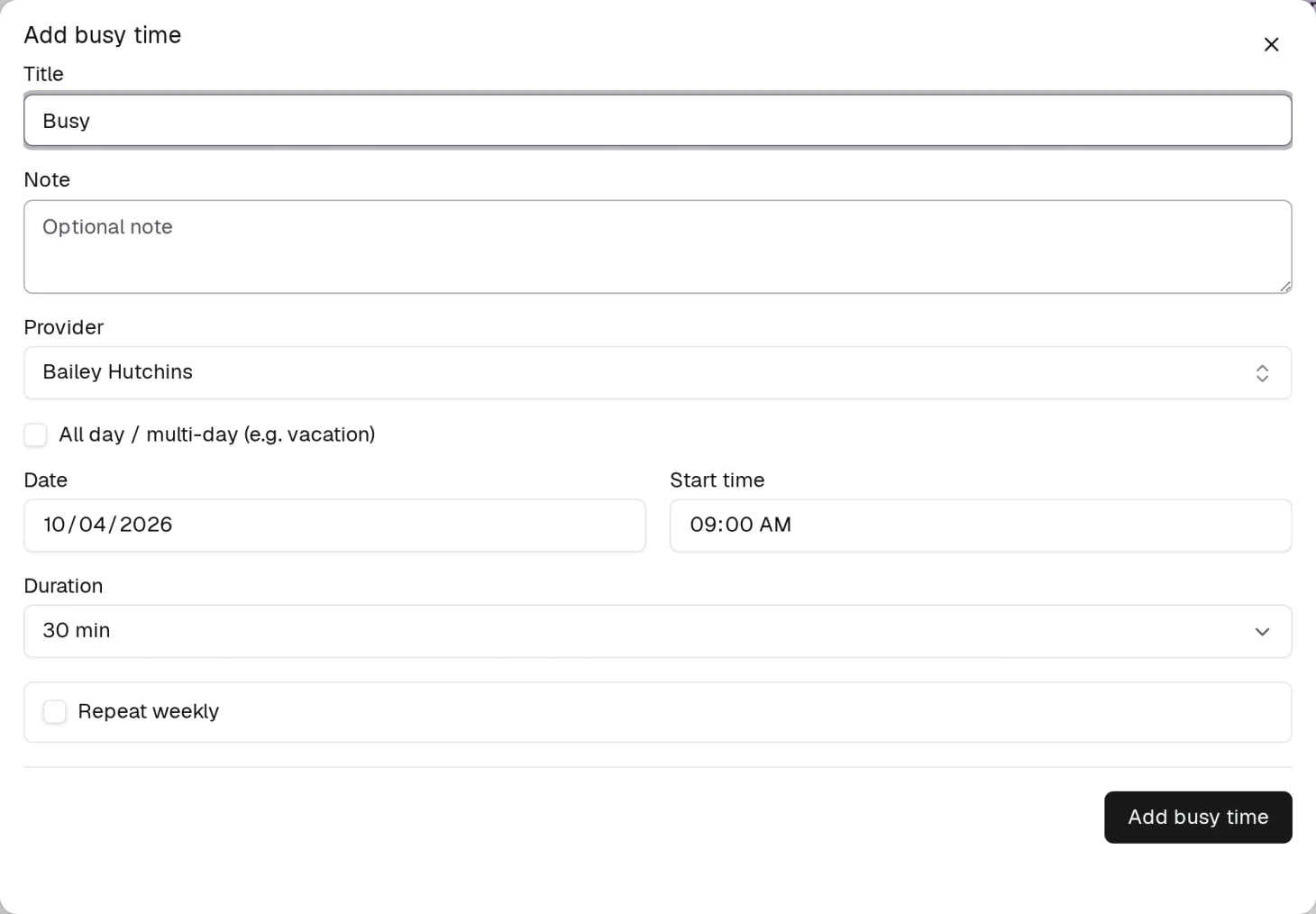
| Field | What it does |
|---|---|
| Title | The label on the block. Starts as "Busy" — change it to "Lunch", "Team meeting", "Training". |
| Note | Optional, internal. Nobody outside the studio sees it. |
| Provider | Who is blocked. Leave it on All staff to close the whole studio for that time. |
| All day / multi-day (e.g. vacation) | Swaps Start time and Duration for a Start date and an End date, and blocks those days whole. |
| Date and Start time | When the block begins. |
| Duration | How long it runs, from 15 minutes upward. There is no end-time field — you set a length, not a finish. |
Then click Add busy time. The block appears on the calendar as a shaded area, and clients cannot book into it.
Repeating it every week
A lunch break is not a one-off. Tick Repeat weekly and the single block becomes a standing one.
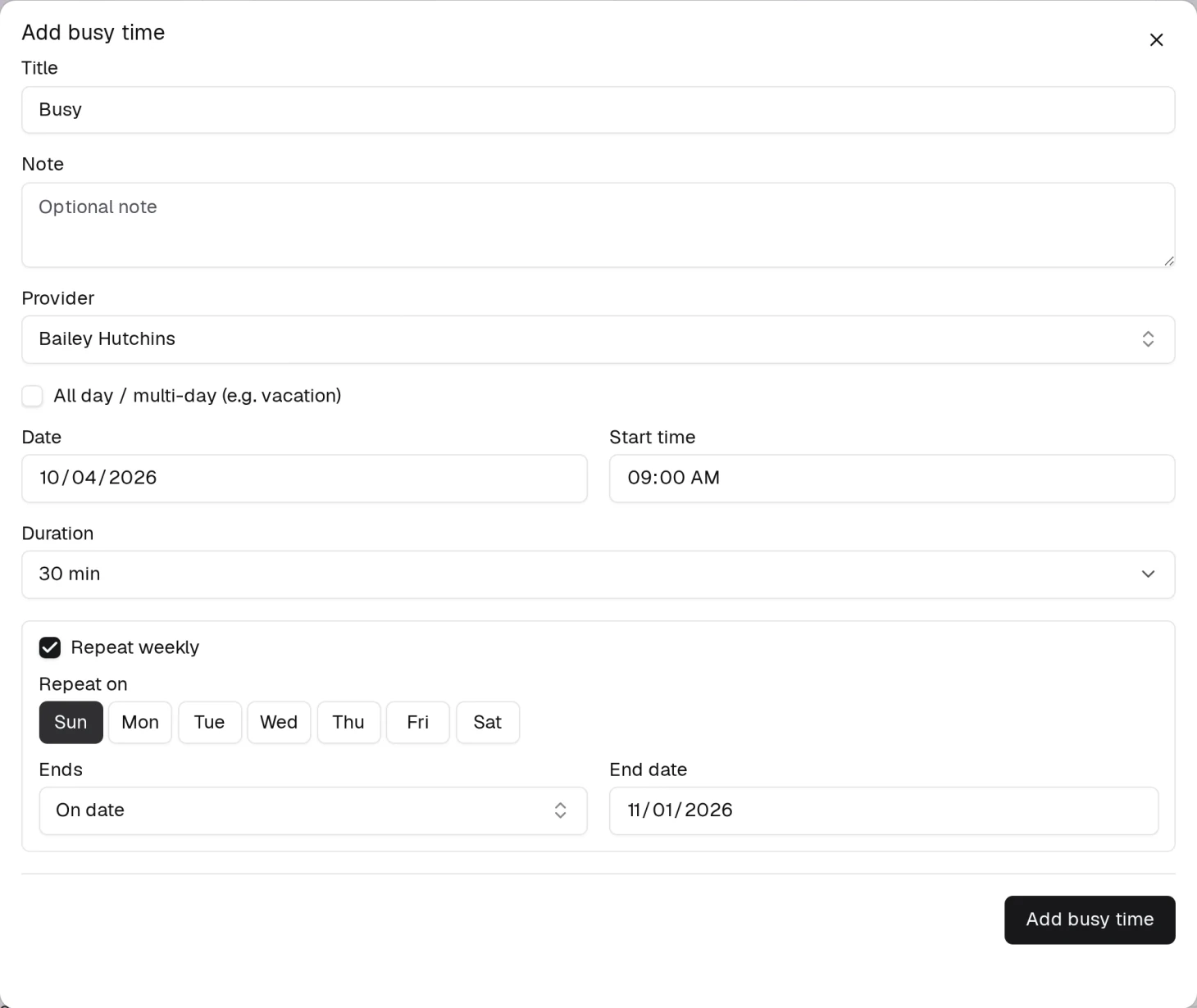
- Repeat on — the days it lands on. The day you clicked is selected for you; tick as many more as you like.
- Ends — either On date, with the last day the repeat runs, or After N times, with a number of occurrences.
You have to give it an end. Leave the date blank and the form says so and will not save.
Repeating is a create-time choice: you set it when you add the block, and it is not offered when you open an existing one. It is also not offered on a multi-day all-day block, which already spans its own days.
Editing a Busy Time
Click the block on the calendar. The same form opens with its values in it, and the button now reads Save. There is no separate Edit step — the click is the edit.
Unlike an appointment, a busy block cannot be dragged to a new time. Open it and change the date, start time or duration instead.
Deleting a Busy Time
Open the block and use the delete action at the bottom left of the form, then confirm.
For a one-off block it reads Delete busy time. For one that repeats, you get a choice:
- Delete this occurrence — removes just this week's, and leaves the rest of the series standing.
- Delete all in series — removes every occurrence, past and future. It cannot be undone.
The time becomes available for bookings again.
Busy Times vs. Working Hours
| Working Hours | Busy Time | |
|---|---|---|
| Set in | Staff profile → Weekly Hours | Calendar |
| Scope | Recurring weekly template | A slot, a run of days, or a weekly repeat |
| Purpose | Define regular availability | Block time inside that availability |
| Effect | Defines the bookable window | Removes time from within the window |
Use Working Hours for the shape of a normal week — see Staff Availability and Working Hours. Use Busy Times for what interrupts it.
A vacation is the case where the two look similar and the answer is clear: tick All day / multi-day, set the first and last day, and leave the weekly hours alone. You do not want to rewrite someone's schedule for a fortnight and have to remember to put it back.