BukaTime includes a built-in messaging system to communicate with clients by email or SMS, and to manage ongoing conversation threads.
Chasing clients by phone or juggling a personal inbox makes it hard to keep a clear record of what was said and when. Having all your client conversations in one place means the whole team is on the same page, every reply is logged, and nothing important gets buried in someone's personal inbox.
Sending a New Message
Every outbound message is written in the same dialog, wherever you start it from: the + in the top-right toolbar of the Messages page, or the Message button on a client's profile. Email or SMS is a choice you make inside the dialog, not before you open it.
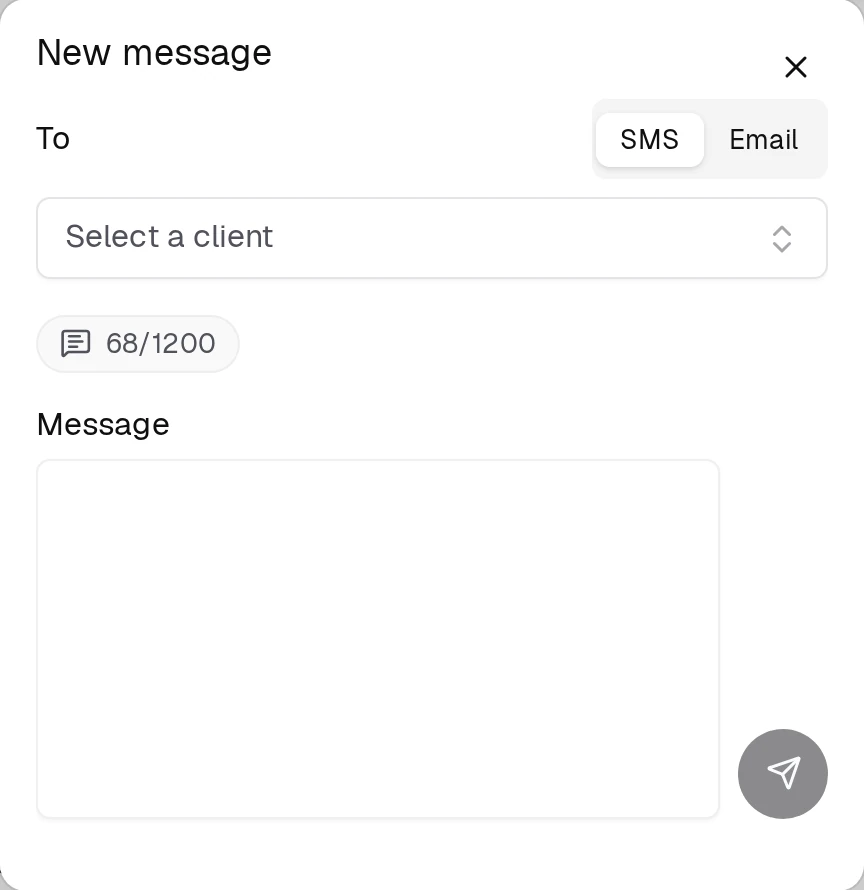
- Click + in the toolbar.
- Choose the client from the To picker. You can search it by name, email or phone.
- The SMS / Email switch sits on the To row, and the address the message will go to is shown just under it.
- Write the message and send it with the round arrow button at the bottom right of the message box.
BukaTime picks the channel for you as soon as you choose a client: SMS if they have a phone number on file, Email if they do not. Switch it yourself at any point — your choice sticks for the rest of the message.
If you have already exchanged messages with that client on the chosen channel, an Open conversation link appears under the address. It takes you to the existing thread, where everything said so far is in one place.
Email adds a subject
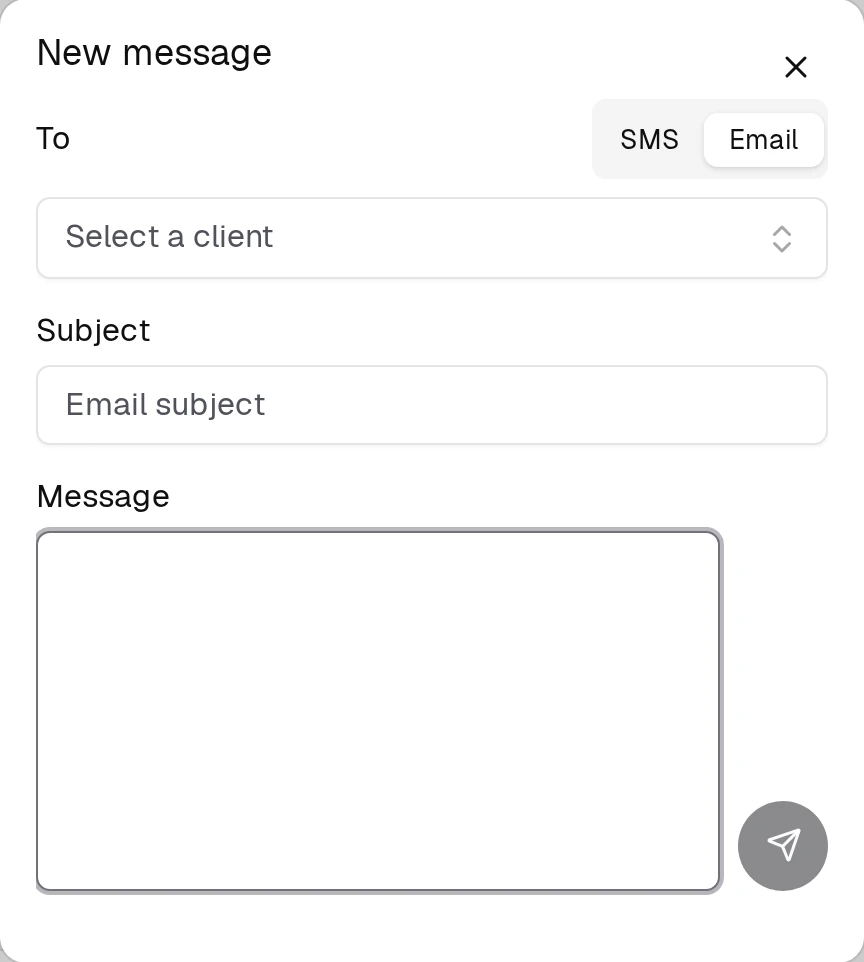
Switching to Email puts a Subject field above the message. That is the only structural difference between the two channels — everything else about the dialog is the same.
SMS and your monthly allowance
On SMS a counter appears above the message — sent this month / your monthly allowance. It is there so you can see what is left before you send.
A channel a client cannot receive on is switched off: no phone number on file disables SMS, no email address disables Email. Hover the disabled one and it tells you which detail is missing — add it on the client's profile.
The Messages Page
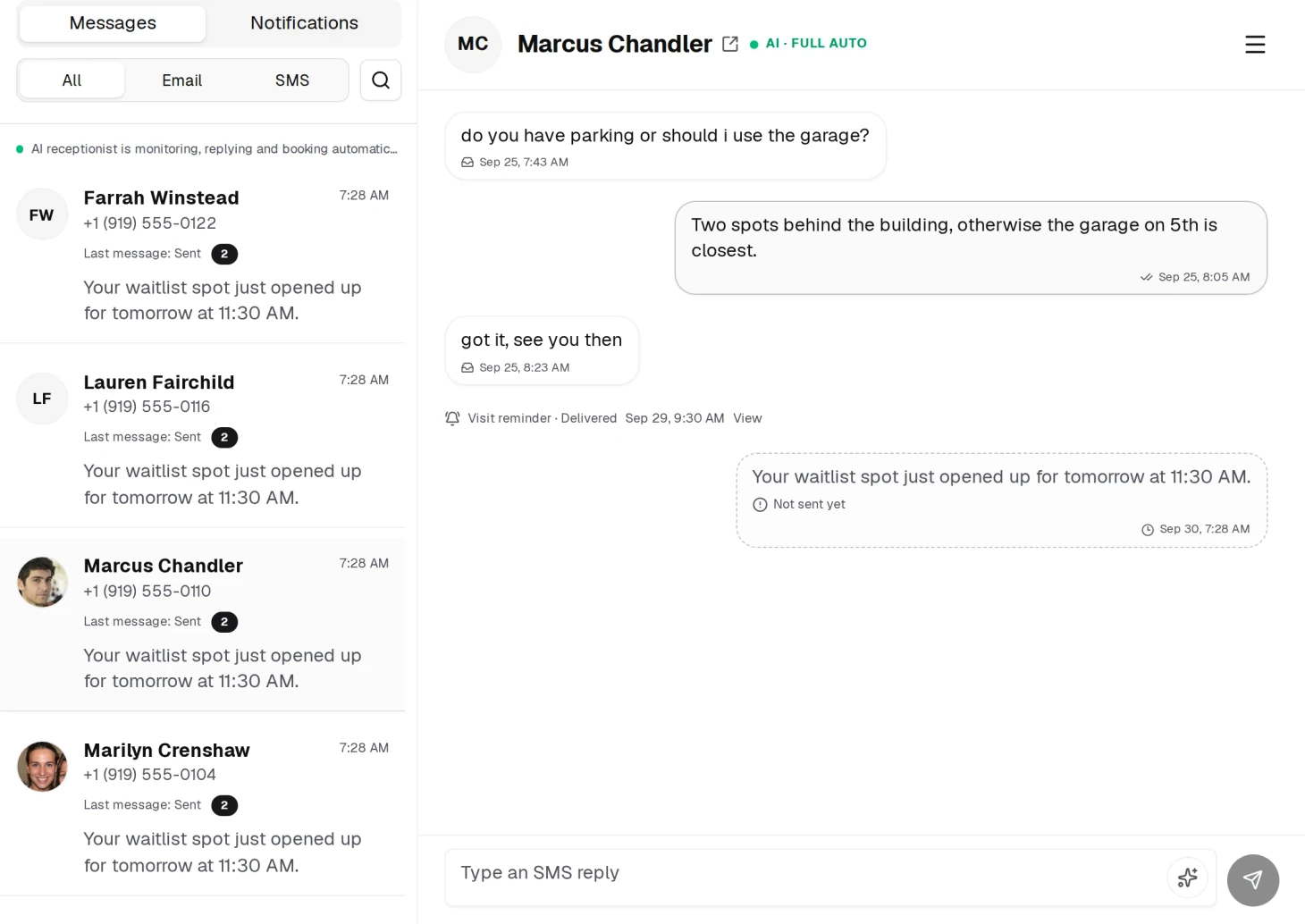
The Messages page is a communication workspace with:
- Thread list (left panel) — All conversation threads, showing the client name, last message preview, and unread indicator.
- Active thread (right panel) — The full conversation with the selected client.
Finding a Conversation
The magnifier at the top of the thread list opens a search box — filter by client name, email or phone number.
Beside it is a three-way filter — All, Email, SMS — that narrows the list to one channel. It is not the same control as the Messages / Notifications tabs above it, which switch the whole list between client conversations and the automated notifications your studio has sent, listed by recipient.
Reading a Thread
- Go to Messages.
- Click a thread from the list.
- The full conversation history appears on the right.
Replying to a Message
- Open the thread.
- Type your reply in the message input at the bottom.
- Send it with the arrow button beside the input.
Logging a Message Received Outside the App
Sometimes a client texts your personal number, calls in, or sends a message through a channel you don't have connected. You can keep those conversations in the record too:
- Open the client's conversation thread.
- Click Log inbound in the toolbar.
- Paste or summarize what the client sent.
- Click Save.
The message is added to the thread with an inbound label so the history stays complete.
AI Suggestions
When an inbound message arrives, the AI assistant reads it and may propose an action — for example, confirming an appointment, rescheduling, or sending a drafted reply. When a suggestion is pending, it appears above the reply form inside the open thread.
You can:
- Review the proposed action and the draft reply.
- Edit the draft reply before sending.
- Click Approve & send to carry out the action and send the reply.
- Click Reject (or Dismiss) to ignore the suggestion and handle the message yourself.
If your studio's AI usage allowance is reached, new inbound messages are not classified until it resets. A banner in the affected thread tells you. Your messages still arrive — you answer them yourself in the meantime.
Automated Notifications
BukaTime can automatically send messages to clients at key moments:
| Trigger | Notification |
|---|---|
| Appointment created | Booking confirmation |
| Appointment rescheduled, reassigned, or cancelled | Change notice (if Appointment changes is on and the per-change Notify client box is checked) |
| Appointment upcoming | Reminder message |
| Appointment reminder deadline | Request for the client to confirm they are attending |
Enabling/Disabling Notifications
- Per studio — Go to Studio Configuration → Notifications and toggle Appointment changes and Appointment reminders. See Client Notifications for the full reference.
- Per client — On the client's profile, toggle Skip confirmations and SMS marketing.
Appointment Reminders
If Appointment reminders is enabled for your studio:
- Clients receive a message before their appointment (48 hours before, by default).
- They are asked to confirm they will attend via a link.
- The deadline for confirmation is shown in the message (24 hours before the appointment, by default).
- Their response is logged in the appointment record.
Thread Management
From within a thread, you can:
- Archive the thread to keep your inbox tidy without deleting the history.
- View thread settings for participant information.
Related
- What Your BukaTime Alerts MeanThe alerts in your inbox and the bell, what each one means, and what makes it go away.
- Why a Client Didn't Get Their ReminderWork out why a message never arrived, in the order worth checking.
- Client Profiles and Visit HistoryEverything you have on a client, in one place.
- Setting Up Client NotificationsChoose which confirmations and reminders your clients receive.