Day to day
Managing the Waitlist
Capture clients when nothing fits right now, let them tell you who they want to see, and turn cancellations into filled slots.
The Waitlist is a running list of clients who want an appointment but couldn't get a time — or a person — that worked for them. Instead of turning them away, you keep what they told you: the service, who they'd like to see, and when they're free. When a cancellation opens up a matching slot, BukaTime finds them for you.
Losing a client because you were fully booked is frustrating, but it happens. The waitlist gives that client somewhere to land instead of walking away, and gives you a warm lead the moment a slot frees up — no digging through notes or trying to remember who called last week.
Joining the Waitlist — What the Client Sees
On your booking page, once a client has picked a service and nothing on the calendar works for them, they see "Don't see a time that works?" with a Join the waitlist button. This opens a short form:
- Who would you like to see? Each staff member who can perform the service is listed by name, alongside Any Provider. This is the most important question on the form, and it changes what the client gets:
- Choosing a specific person means BukaTime only reaches out to them when that person's calendar opens up — never about someone else's cancellation they didn't ask for. This is the right choice for a client loyal to one stylist.
- Choosing Any Provider means they'll hear about the soonest opening with anyone on your team — faster, but not tied to one person.
- Dates that work for you. A date range the client would accept, with one-click shortcuts — Next 7 days, Next 2 weeks, Next month — or they can pick exact dates. Leaving it empty means any date works.
- Times that suit you. Optional — narrows further within the date range by day and time (for example, weekday mornings only). A client can add more than one window, or leave this blank too.
- A free-text note for anything else worth knowing.
Once submitted, they see "You're on the waitlist," followed by a plain statement of what to expect: that they'll hear as soon as a matching time opens with their chosen provider, or with anyone, depending on what they picked.
Why the provider question matters. Before this, the waitlist form never asked who the client wanted — it silently assumed "anyone," even for a client who'd only see one stylist. Asking outright means a client waiting for their regular stylist isn't bothered about openings with someone else, and you're not chasing a match that was never going to book.
The Waitlist Page
Go to Waitlist in the left sidebar to see everyone currently waiting.
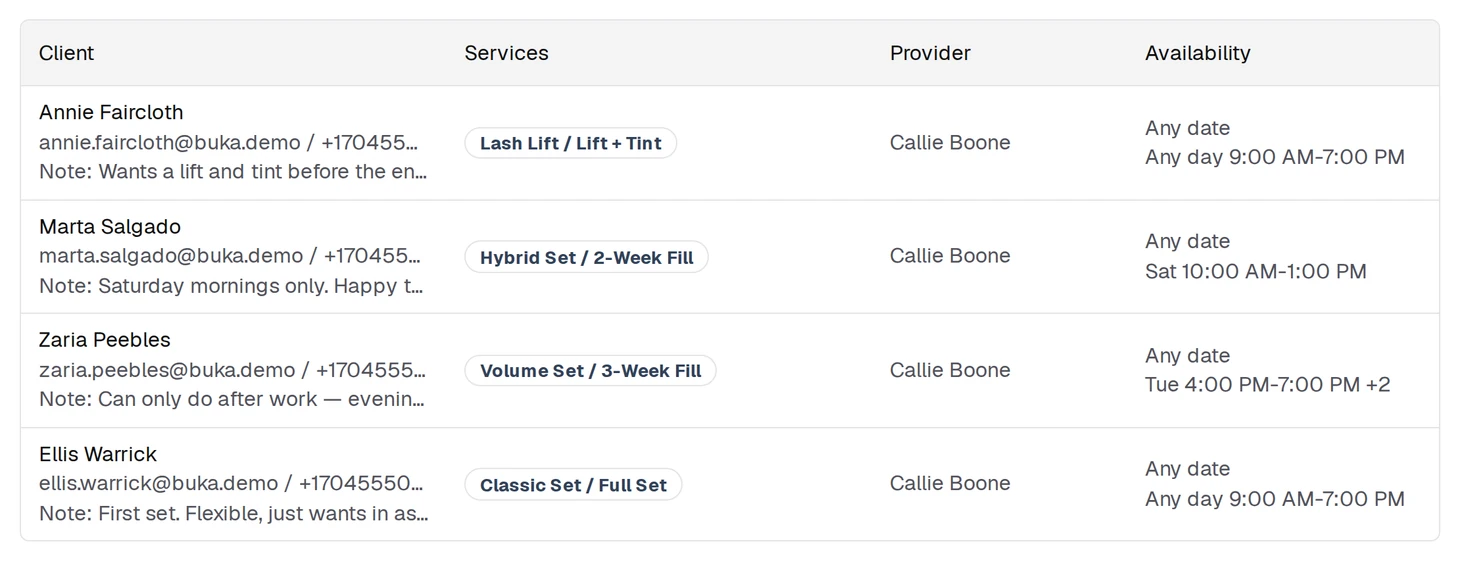
Each row shows:
| Column | What it means |
|---|---|
| Client | Name, email, or phone of the waiting client |
| Services | The service (and variant, if applicable) they want |
| Provider | Who they'd like to see, or Any provider if they have no preference |
| Availability | The dates and time windows they told you work for them |
The page header shows how many clients are actively waiting, and a Search clients bar filters the list by name, email, or phone.
Adding a Client Yourself
Not every waiting client comes through the booking page — a call-in or a walk-in works too.
- Click Add to waitlist (top right).
- Choose the client, then tap each row to fill it in: a note, the provider (or leave it as Any provider), the dates and times that work, and one or more services.
- Click Add to waitlist to save.
What You Can Do With a Waiting Client
Click a client's row to open their entry. It shows who they're waiting for, their services and total time, the dates and times they're free, and any note. Every one of those is also where you change it: tap a row, change it, and click Save (or Discard). The arrow next to their name opens their full client profile.
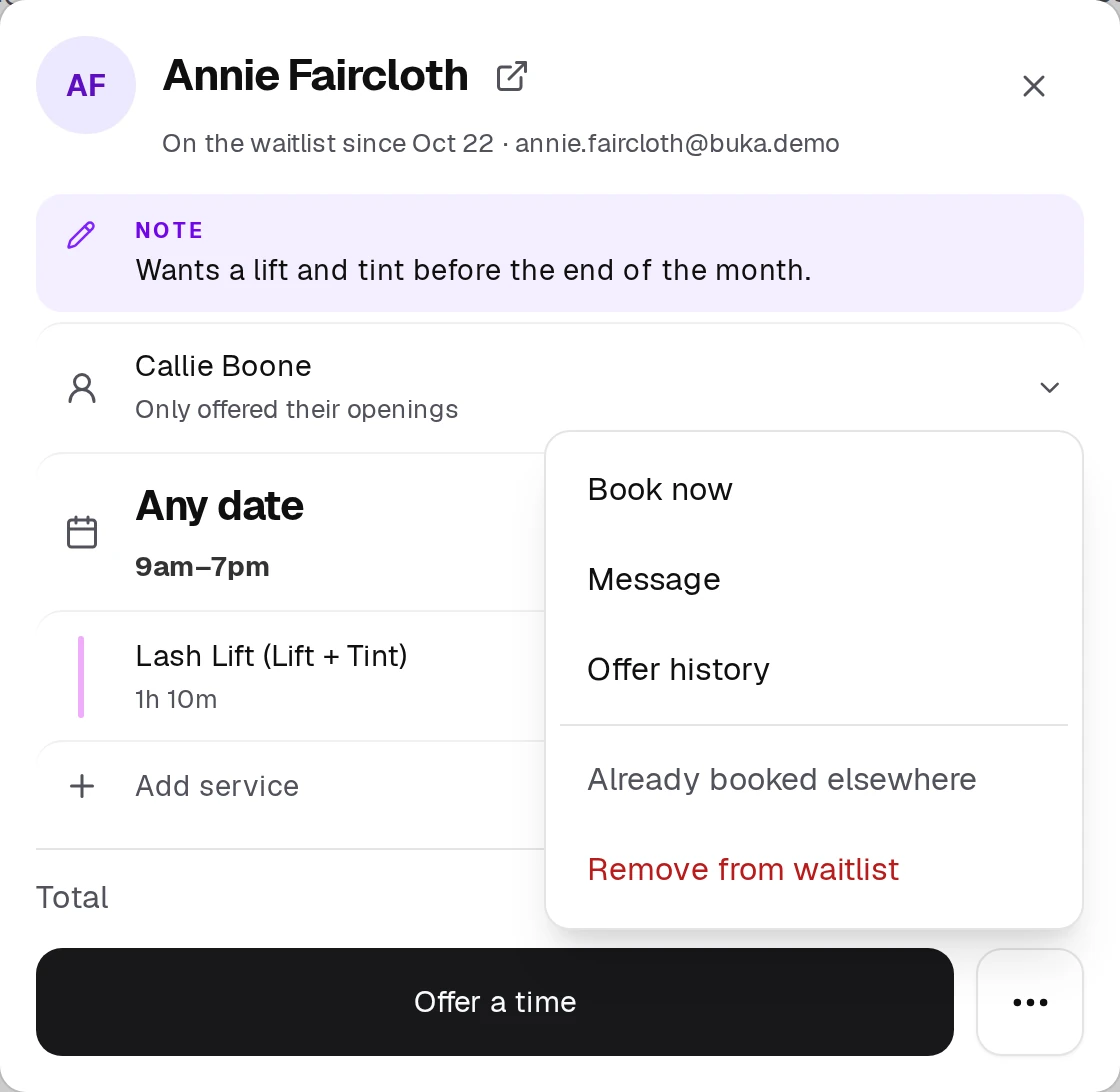
When nothing is being changed, the button at the bottom is Offer a time, because it asks the client before anything is booked. ⋯ holds the rest:
| Action | What it does |
|---|---|
| Offer a time | Texts this client a specific slot to confirm, without waiting for a cancellation. You pick the provider (locked to the person they named, if they named one), date, and start time — BukaTime works out the end time from their services and only lets you offer a slot that provider can actually work. |
| Book now | Opens the calendar with the appointment form already filled in — client, services, and their chosen provider — ready to save. Use it when the client has already said yes, for example on the phone. A successful booking takes them off the waitlist automatically. |
| Message | Opens a message to this client with them already selected, so you can send an SMS or email directly. |
| Offer history | Shows every slot ever offered to this client, when it was sent, and what happened to it. |
| Already booked elsewhere | Takes them off the list without creating an appointment, for when a client found a slot another way. |
| Remove from waitlist | Takes them off the list entirely, after you confirm. It can't be undone; you'd add them again. |
Offers go out by text, so for a client with no phone number on file, Book now is the main button and Offer a time isn't shown.
You can't edit a client while an offer is out to them. If a client currently has a text sitting in their pocket with a slot on it, editing the entry, Book now and Offer a time are all blocked until they confirm it or it expires. This keeps the offer they're looking at from quietly changing underneath them.
When a Cancellation Opens a Slot
You don't have to remember who was waiting — BukaTime does the matching for you.
- When a booked appointment is cancelled, BukaTime looks for waiting clients who fit the newly open slot: right service, right provider (or no preference stated), and it falls inside the dates and times they said work for them.
- A banner appears at the top of the Waitlist page: "N openings have clients ready to book" with a Review matches button.
- Click it to open Clients for this opening — a ranked list of matching clients with a Send offer button next to each one. Nothing goes out automatically; you choose who gets the offer.
- That client gets a text with a link and a countdown. Whoever confirms first gets the slot — the appointment books itself the moment they tap Book this appointment on their end.
- If nobody confirms in time, the offer expires and the slot is free to offer to someone else.
Setting How Long an Offer Stays Open
When you text a client an opening, they have a set time to claim it. If they don't, the offer expires and the opening is yours to offer to someone else — nobody else is texted automatically. That time depends on how soon the opening starts, and you set it once for the whole studio.
- Go to Studio Configuration → Waitlist.
- Under Time to claim an offer, each row is one case: an opening less than 24 hours away, 24 to 48 hours away, or more than 48 hours away. Pick how long the client has to claim it, from 15 minutes up to two days.
- Click Save changes.
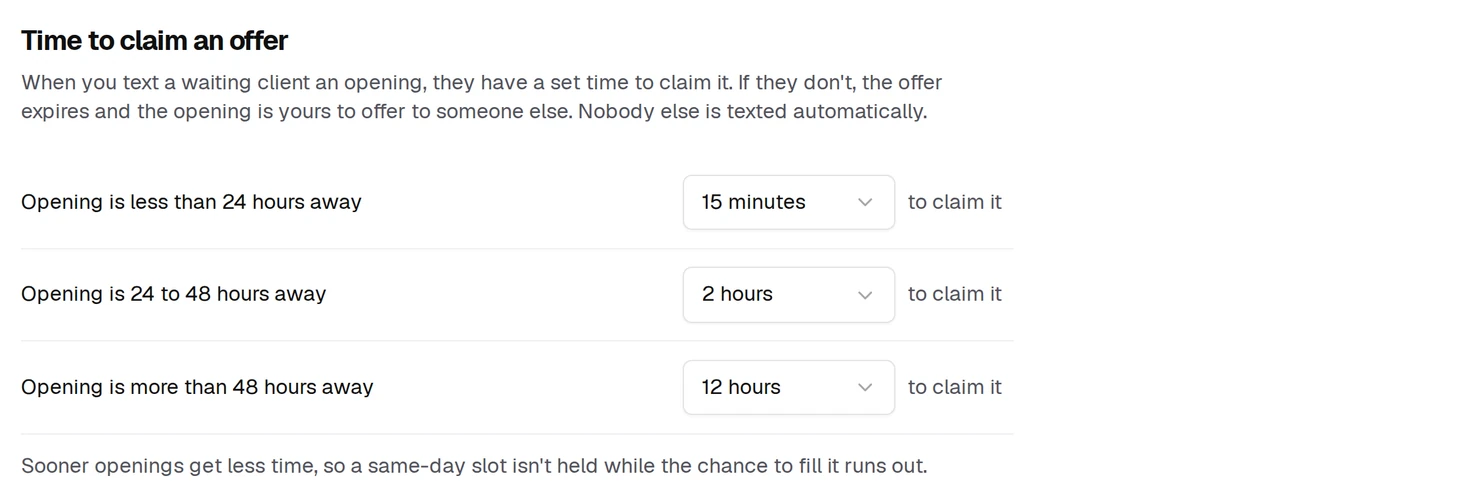
Sooner openings get less time. If a same-day slot were held for hours, it could pass before you had the chance to offer it to anyone else.
Tips
- Ask "who would you like to see?" like you mean it — a waiting client with no one named will only ever be offered the soonest opening with anyone, which isn't always what they actually wanted.
- Check the Review matches banner after any cancellation before you rebook the slot yourself — a waiting client may already be a match.
- Use Offer a time to reach out proactively when you notice an opening coming up, rather than waiting on a cancellation to trigger a match.
Common Mistakes
- Treating the provider question as optional. It's the reason the waitlist works for a client loyal to one stylist — skipping it means they'll only ever hear about openings with anyone, which may not be a match they want.
- Trying to edit a client mid-offer. If a text is currently out to them, editing is blocked until they confirm or the offer expires — this isn't a bug, it's there so the offer never changes on them mid-read.
- Assuming offer timing can be set per client. It can't — how long an offer stays open is one studio-wide setting under Studio Configuration → Waitlist, based on how soon the slot itself is.
Frequently Asked Questions
Will I be told automatically when a spot opens up for someone on the waitlist? Yes — a banner appears on the Waitlist page after a cancellation with matching clients ready to review. You still choose who to send the offer to; nothing is texted automatically.
Can a client change their mind about who they want to see? Yes — open their entry, tap the provider, services, dates or times, and click Save, as long as they don't currently have an offer out.
What happens if two waiting clients could both take the same opening? You'll see all of them ranked in the Clients for this opening list and choose who to send the offer to. If that offer isn't confirmed before it expires, the slot reopens so you can offer it to the next person.
Does the waitlist cost extra? No. The waitlist is included with every BukaTime plan and is on for every studio — you'll find Waitlist in the left sidebar.
Related
- Creating and Managing AppointmentsCreate, edit, move, and cancel appointments on the calendar.
- Adding and Managing ClientsAdd a client and keep their details up to date.
- Messaging ClientsRead and reply to client conversations.
- Setting Up Client NotificationsChoose which confirmations and reminders your clients receive.