Day to day
Client Profiles and Visit History
Viewing a client's profile and their complete visit history.
Each client has a profile page that consolidates their contact information, preferences, notes, and full appointment history in one place.
When a returning client books again, you want to know instantly how many times they've been in, what they had last time, and whether there's anything important to remember — allergies, a preferred staff member, a note from last visit. Having all of that on one page means you're never caught unprepared.
Accessing a Client Profile
- Go to Clients in the left sidebar.
- Search for the client by name, email, or phone.
- Click their row to open their profile.
You can also reach a client profile by clicking the client's name inside an appointment on the calendar.
Contact Details
The top section of the profile shows the client's editable contact details, with the visit summary beside it:
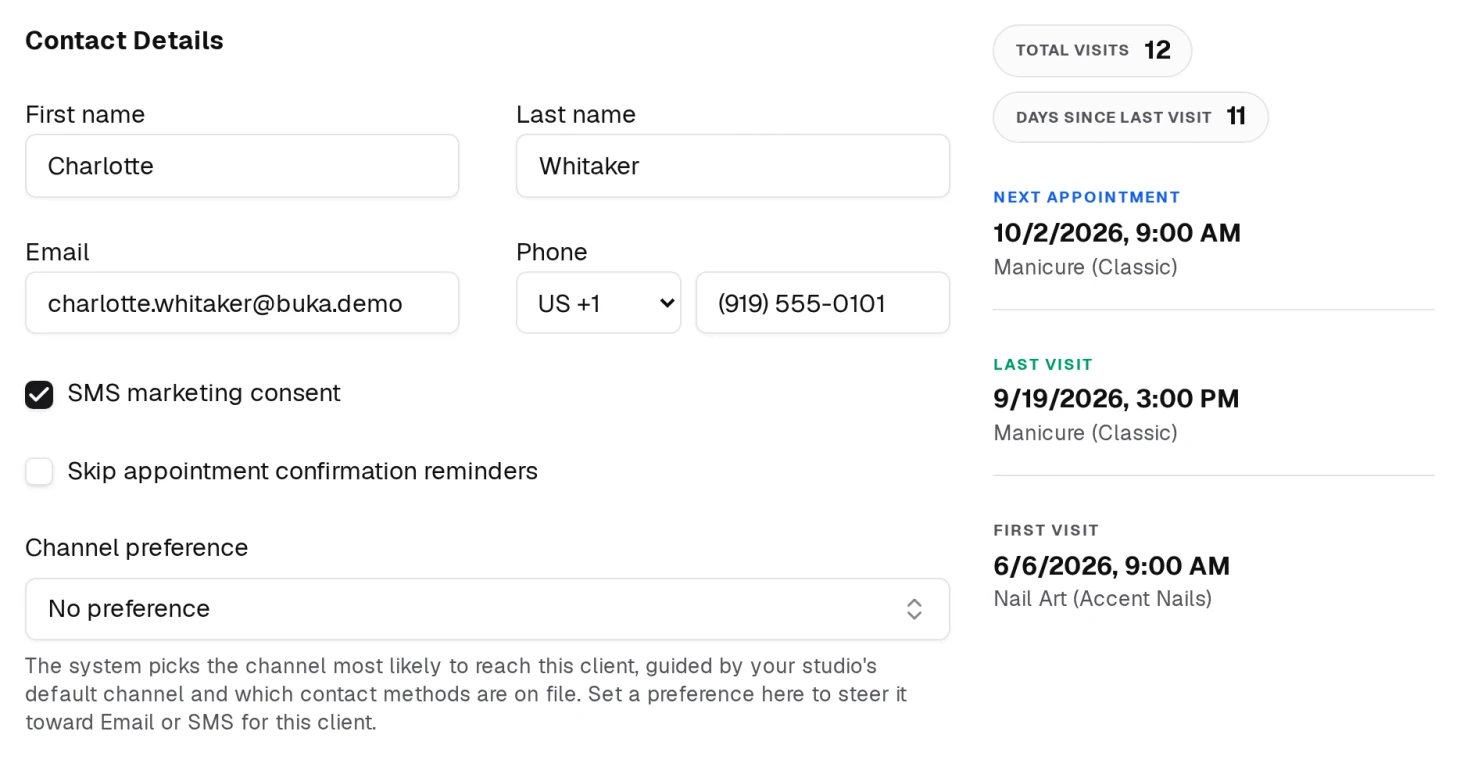
| Field | Notes |
|---|---|
| First name | Editable inline |
| Last name | Editable inline |
| Editable; required if originally set | |
| Phone | Editable with country code; required if originally set |
Make any changes directly in the fields. When you edit something, Save and Undo buttons appear in the header. Click Save to apply your changes, or Undo to revert everything.
Preferences
Three settings, under the contact fields, control how this client is messaged:
- SMS marketing consent — Whether the client has agreed to receive marketing messages from your studio.
- Skip appointment confirmation reminders — Tick this if the client does not want automated confirmation and reminder messages.
- Channel preference — No preference, Prefer email or Prefer SMS.
Leave the channel on No preference and BukaTime picks whichever is most likely to reach them, guided by your studio default and what contact details you actually hold. Set it only for the client who has told you which they want.
These are saved as part of the client record and are respected by the messaging system.
Internal Notes
Below the contact fields is a collapsible notes area. Use it to record anything your team needs to know — allergies, preferences, follow-up reminders, anything. Notes are private and never shown to the client.
Click the notes area to expand it. Notes are saved when you click Save.
Visit Summary
The right-hand panel shows a quick snapshot of the client's history:
- Total Visits — How many appointments they have already had. Anything still ahead of them is not counted here.
- Days Since Last Visit — The gap since they were last in, which is usually the number you want when deciding who to chase.
- Next Appointment — The next upcoming booking (date, time, and service)
- Last Visit — Most recent past appointment (date and service)
- First Visit — The earliest appointment on record
If a client has been in exactly once, Last Visit reads First & Last Visit instead, rather than printing the same date twice.
Appointment History Table
Below the contact details is a full table of every appointment linked to this client.
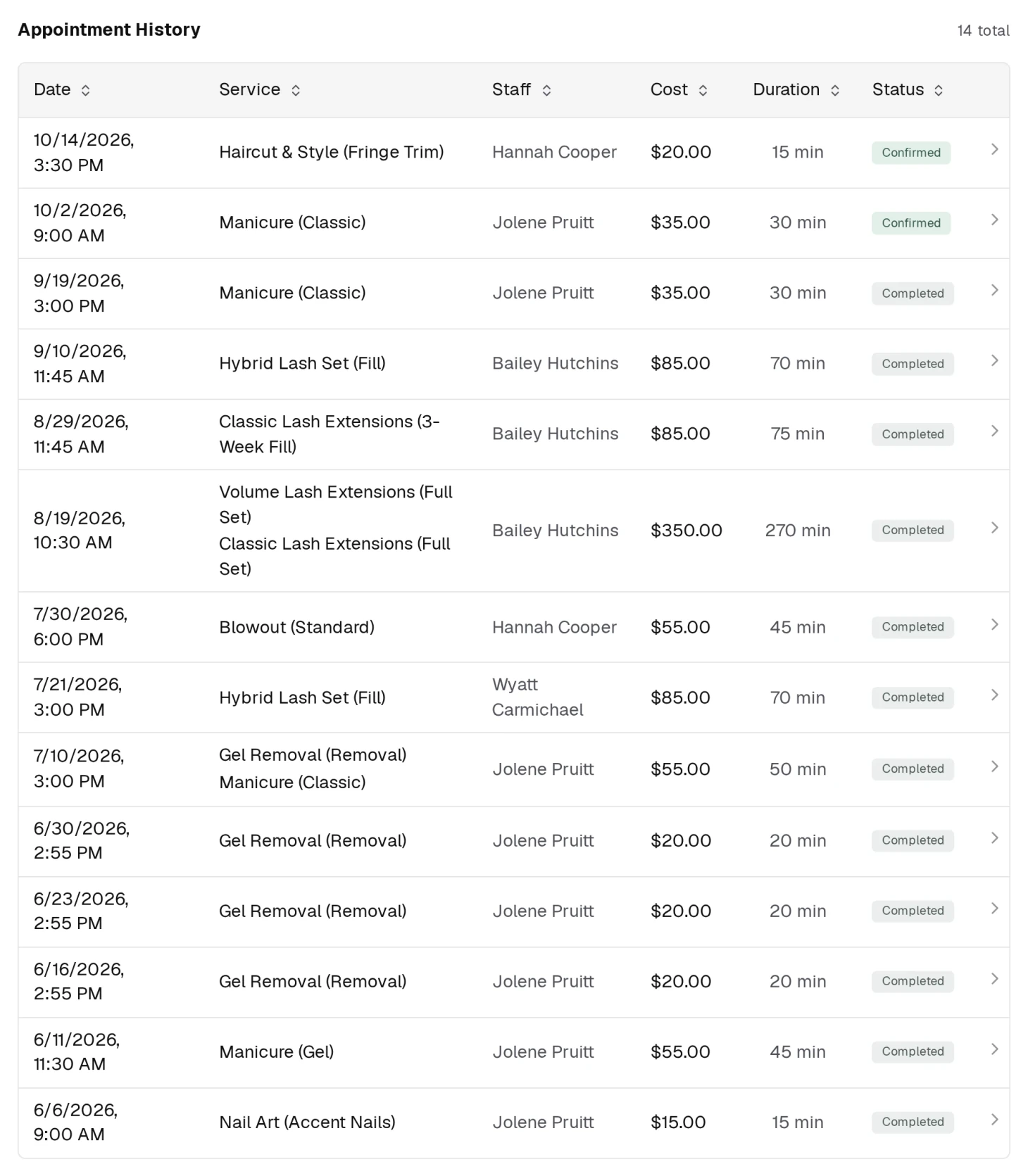
| Column | Description |
|---|---|
| Date | When the appointment is, or was |
| Service | The service booked. A visit with several services lists them all on one row. |
| Staff | Who performed or will perform it |
| Cost | Price for the whole visit |
| Duration | Length of the appointment |
| Status | Not confirmed, Confirmed, Declined, Cancelled, Arrived, Completed or No-show |
Every column sorts — click a header to reorder.
Click any row to jump straight to that appointment on the calendar. The chevron at the end of the row is the same thing; the whole row is the target.
The count beside the heading will not match Total Visits, and that is not a bug. "11 total" is every appointment on record. Total Visits in the summary counts only the ones that have already happened. A client with two bookings still ahead of them shows exactly that gap.
Messages
If any message threads exist for this client, they appear in a Messages section on the profile. Each thread shows the channel (SMS or Email), the destination address, and a preview of the last message. Click a thread to open it.
The page header carries up to two buttons, and each one appears only if you hold the contact detail it needs:
| Button | Needs | What it does |
|---|---|---|
| Call | A phone number | Dials, using whatever your device does with a phone link |
| Message | A phone number or an email address | Opens the message dialog. SMS or Email is a switch inside it, not a separate button |
Deleting a Client
Scroll to the bottom of the profile and click Delete client. You'll be asked to confirm before anything is removed.