Plus plan
The AI Receptionist
How the receptionist handles messages your clients send — what it answers on its own, what it brings to you, and how much rope you give it.
Client messages arrive at all hours — "are you free Friday?", "can I move my appointment?", "what do you charge for highlights?" — and answering every one yourself eats your day. The AI receptionist reads incoming messages, figures out what the client needs, and can either draft a reply for you to approve or send it straight away. You stay responsive without being glued to your phone.
Getting There
Go to Studio Configuration → AI Receptionist. That section only appears once your studio is on Plus.
The receptionist starts working the moment your studio moves to Plus, at Suggest: it drafts replies and nothing goes to a client until you send it. Pick a different level below whenever you are ready.
What the Receptionist Can Do
Bookings
- Books new appointments. It checks your real service menu and staff availability first, then books the earliest genuine opening in the window the client asked for. If the client is only browsing ("any openings Friday?"), it offers two or three real times instead of booking.
- Reschedules. Moving an appointment is a single move — it never cancels and rebooks. The service, length and price stay as booked. If the day they asked for is full, it offers the closest real openings rather than going quiet.
- Cancels and confirms. Against the client's actual appointment, with a warm note inviting them to rebook.
- Asks instead of guessing. When the client's words don't pin down one time, service or staff member, it hands the choice back rather than picking for them.
Answering questions
- Your hours, location and policies. It answers from your published cancellation and booking policy, your address, and your live working schedule — including whether a particular staff member works a given day.
- Your service menu. Real names, descriptions, categories, prices and durations, straight from your catalog. If a client asks about something by an unfamiliar name, it surfaces your closest real services instead of telling them you don't offer it.
- What their appointment is. Time, service and staff member, from their actual booking.
Learning
- It tells you when it doesn't know. Rather than guessing, it sends the client a short holding note and puts the question in your BukaTime inbox — see Knowledge Base below, where you teach it the answer once.
- It remembers client preferences. When a client says something durable — "I always see Elena", "I can't do Mondays" — it carries that into later conversations.
- It understands follow-ups. A one-word "yes", a staff name, or "9 works" lands correctly, because the receptionist knows what it last asked.
- It waits for the whole thought. Clients who text in fragments get one answer, not three.
What it won't do
Some things are deliberately always handed to you:
- Money. Refunds, deposits, fee waivers and disputed charges are never decided by the receptionist — it acknowledges warmly and passes them to you.
- Complaints. It won't apologise or promise a remedy on your behalf; it drafts something empathetic for you to approve.
- Someone else's appointment. If a partner or relative writes on a client's behalf, it won't confirm or cancel for them — it says you'll check with the client directly.
- Group bookings, waitlist requests, and anything it hasn't been told all go to a human.
It never messages a client out of the blue. It replies to what clients send you, or prepares what you have asked it for — see Telling the AI Assistant What to Do.
Automation Level
The Automation level setting controls how much the AI does on its own.
It is a four-stop slider, and each stop hands over one more part of the conversation.
| Level | What it does |
|---|---|
| Off | No automation. Messages still arrive in your inbox as normal and are marked "AI off", but nothing is read, classified, drafted or sent, and none of it counts against your usage. The Ask the assistant to write this helper in the composer still works — it is something you reach for, and at this level it can only word a reply from the conversation, not check your calendar. Each draft you ask for does count against your usage. |
| Suggest | It writes the reply and holds it for you. You read it, edit if needed, and press send. Nothing goes out without you. |
| Semi-auto | It answers on its own and acts on confirmations and cancellations. New bookings and reschedules are drafted but wait for your approval, as do the option cards it puts together when a client hasn't pinned down a service or staff member. |
| Full auto | It commits those too — it answers, books and reschedules on its own. |

At Semi-auto and Full auto alike, a turn the receptionist itself flags for a human always waits for you: anything it doesn't know, anything it refuses to do, and anything it wants to escalate. "Full auto" never means "answer anyway".
Whichever level you pick, the open conversation in Messages carries a badge naming it, so you can always tell from the thread what the receptionist is doing with it.
What Your Clients See
They are told once. The first text a client gets after the receptionist is switched on — a reminder, a confirmation, or a reply — ends with one extra line:
Replies here may come from our AI assistant; a person can step in any time.
It is added once per client, not to every message, so it does not keep using up your text allowance. A client you have switched the receptionist off for is never told.
They can always reach you. There is no special word to text. A client who asks for a person in their own words is handed to you, and the receptionist does not answer for them while it waits.
They can stop all texts. A client's first text from your studio ends with "Reply STOP to opt out." A client who replies STOP gets no more texts from your studio, reminders included.
Switching the receptionist off for one client
Some clients would rather only hear from you. Open their conversation in Messages, open Conversation details, and turn off AI receptionist. From then on the receptionist leaves that client to you, whatever your automation level. Turn it back on the same way.
Choosing Which Options Go Out
When a client hasn't pinned down what they want — which service, which staff member, which time — the receptionist doesn't guess. It puts a short list of real choices to the client instead. At Suggest and Semi-auto that list reaches you first, as a draft in the reply box, and you decide what the client gets to see. At Full auto the list goes out as the receptionist wrote it.
Each option is a tick box above the reply box, worded the way the client will read it, for example "Blowout Standard ($55, 45 min)". The draft sentence is already filled in with every option in it.
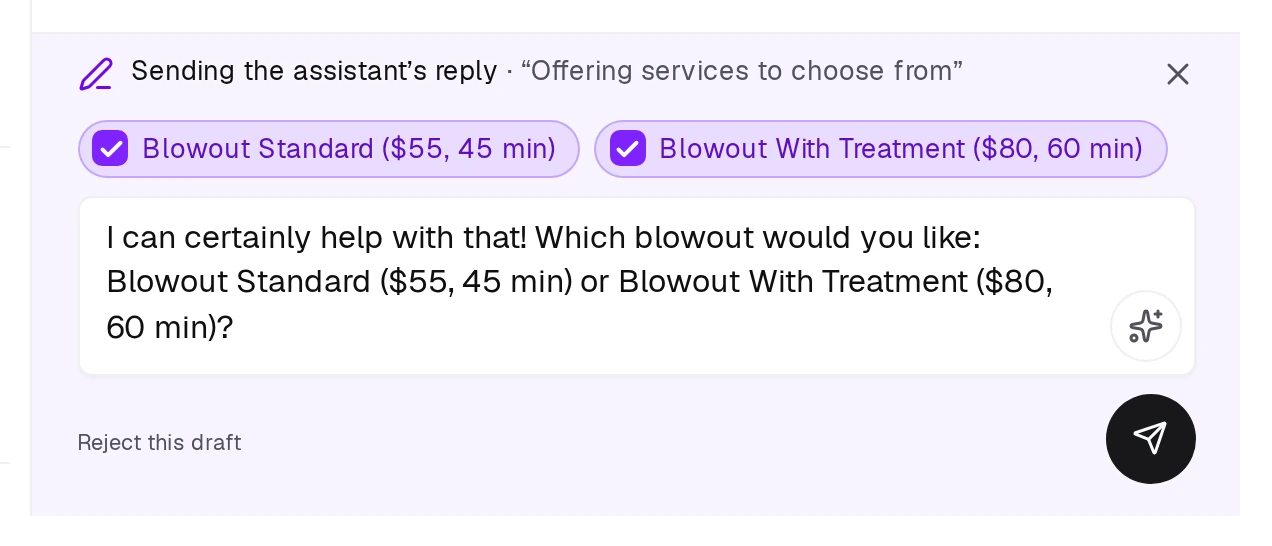
- Untick an option to leave it out. The sentence in the box rewrites itself, so what you see is exactly what the client receives.
- Tick it again to put it back.
- Offer & send sends the message with only the ticked options. The label names what you are approving; a card offering times or staff says the same.
- Reject this draft throws the draft away and sends nothing.
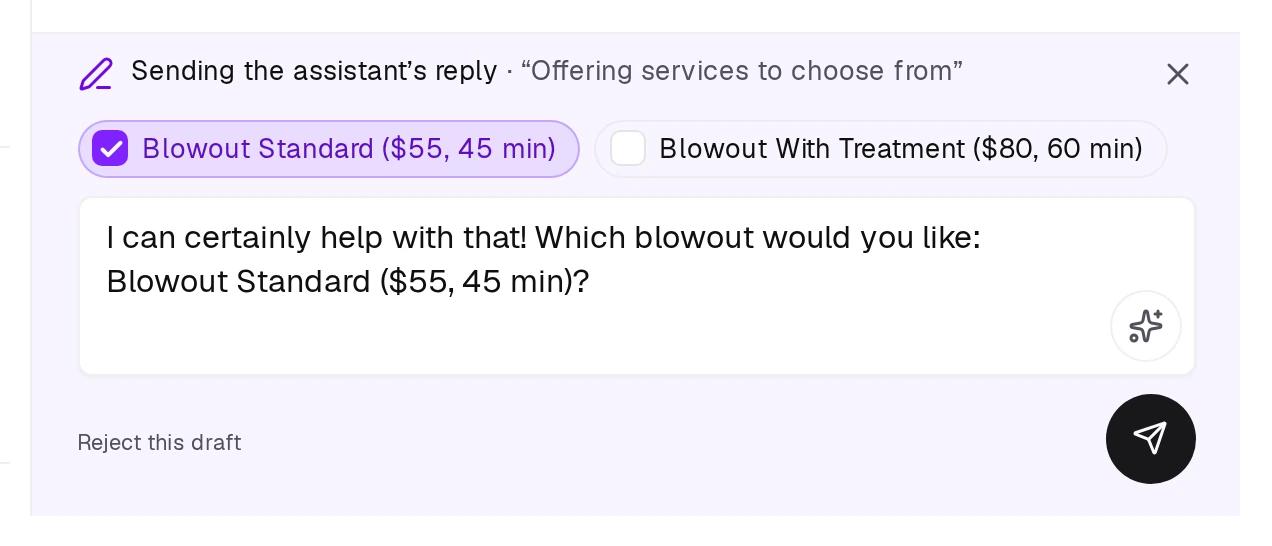
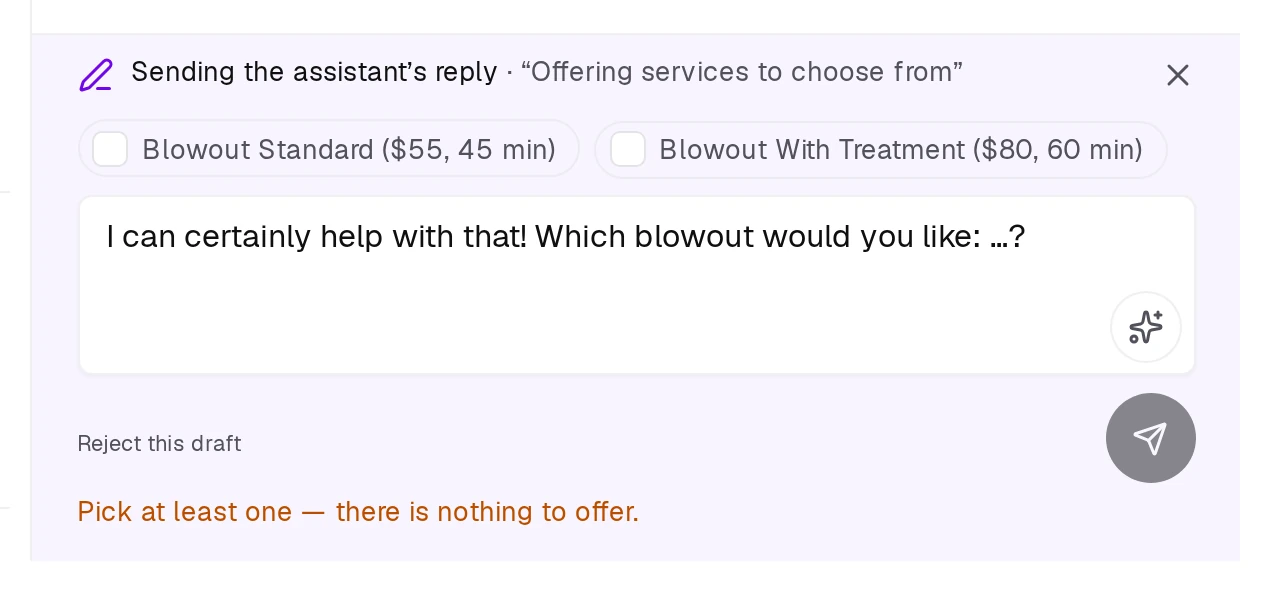
If you untick every option, a note reads "Pick at least one — there is nothing to offer." and the send button switches off. A list with nothing in it is never sent, so untick down to one or reject the draft.
You can also edit the sentence itself. If you type over the options, a note tells you the options will be added at the end of your message.
If you don't get to it
The draft waits on the conversation and nothing goes to the client while it does. If nobody acts on it for two days it expires and is never sent. The client keeps waiting, so reply yourself if you miss one.
There is no setting yet for sending option lists automatically after a delay. Whether an option list waits for you is decided by the Automation level alone.
Times to Offer
This is not an AI setting. Which openings get put forward is a booking rule, so it lives under Studio Configuration → Booking → Scheduling defaults. The AI Receptionist page links straight to it, and Booking Rules and Scheduling Defaults covers what your booking site does with it. What the receptionist texts:
| Option | What the receptionist offers |
|---|---|
| No preference | Times spread across the day — earlier, middle and later — so the client sees genuinely different choices. Your booking site lists every opening. |
| Spread across the day | The same spread, matching your booking site's Suggested group. |
| Soonest available | The first openings in chronological order, matching your booking site. |
| Fill gaps first | Times next to what is already booked, matching your booking site. |
Whichever you pick, a time the client asks for by name is still booked when it is free — the setting only decides which times get suggested.
How many times each option puts forward is set alongside it.
Health Questions
When a client's message turns on their own body — an allergy, a sensitivity, a pregnancy — you decide whether the receptionist may answer from your knowledge at all.
Go to Studio Configuration → AI Receptionist → Knowledge Base and use Answer health questions from this knowledge.
| Setting | What happens |
|---|---|
| Ticked | It answers from what you have written — your saved answers and your service descriptions. |
| Unticked | Every message touching a client's own body reaches you unanswered. |
This picks the sources, never what may be said. Either way the receptionist describes what a product contains, never tells a client how their body will react, and always offers to put them in touch with you.
Studio Voice
Studio voice picks how the receptionist sounds when it writes to a client. It is a fixed set of tones rather than a free-text brief — whatever it says here is handed to the model verbatim on every reply.
| Tone | How it writes |
|---|---|
| Default | Neutral and helpful. Clear, friendly and to the point. |
| Warm | Greets by name and keeps things conversational. |
| Brief | Answers in a sentence or two, no small talk. |
| Formal | Full sentences, no slang and no emoji. |
| Playful | Upbeat with a little personality, never pushy. |
| Reassuring | Acknowledges what the client raised before answering. |
| Detailed | Gives the whole answer and says why. |

Picking a tone fills the box above it with a description of how that tone writes, so you can read what it does before you save it. The box is read-only — the tones are the only way to set the voice, and the wording each one sends to the model is fixed by BukaTime rather than typed in here.
Usage This Month
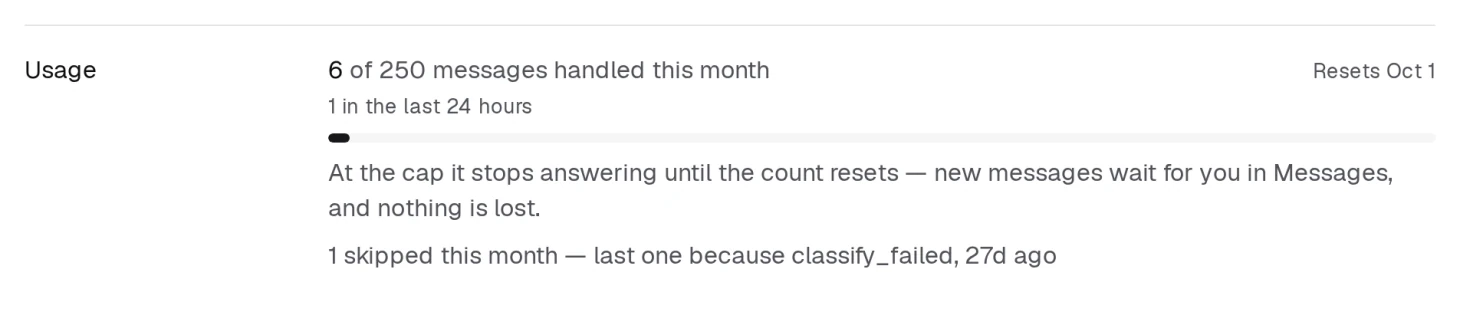
The usage panel shows how much of your monthly AI allowance you've used:
- Messages handled this month / limit — one count per inbound message the receptionist worked on, whatever it took internally.
- Last 24 hours — the same count for the past day.
- Resets — the date the month's count returns to zero.
A progress bar fills as you approach your limit. It turns amber at 80% and red at 100%. At the cap the receptionist stops answering until the count resets; new messages simply wait for you in Messages, and nothing is lost.
Messages left for you
If the receptionist had to leave a message for you rather than work on it, the most recent reason is shown under the bar:
- The monthly cap was reached — you've used the month's whole allowance.
- Too many arrived at once — a burst came in faster than it will run; it catches up shortly.
If you're hitting limits regularly, contact BukaTime about adjusting your quota.
Knowledge Base
Your receptionist only answers what it actually knows. When a client asks something it can't find — parking, payment methods, whether you do a particular technique — it sends a short holding reply, doesn't guess, and brings the question to you.
Then you teach it, once.
Teaching it an answer
There are two places to do this, and both do the same thing:
- From your BukaTime inbox. Unanswered questions appear as an Unanswered customer question alert with an Answer in conversation button, which opens the client's thread ready for your answer. See What Your BukaTime Alerts Mean.
- From the conversation. When you reply to the client yourself, you can teach the receptionist the same answer in the same step — no waiting for the alert to appear.
You don't have to write it twice. The receptionist takes the reply you wrote for that one client and turns it into the reusable version behind it — the prices, durations and conditions, without the greeting or that person's name. You can edit it before saving.
How long an answer stays true
When you save an answer you choose whether it's always true or expires on a date:
- Always true — prices, policies, techniques. It stays until you change it.
- Expires — holiday hours, a seasonal offer, a stand-in stylist. On that date the receptionist stops using it and goes back to asking you, so it can never quote something out of date. You'll get a reminder to update or re-confirm it.
Managing what it knows
Go to Studio Configuration → AI Receptionist → Knowledge Base. Everything the receptionist can answer from sits in one list, because that is how it reads them — one pool, not two.
Each answer is tagged with where it came from:
| Tag | Where it came from | What you can do |
|---|---|---|
| Written by you | You typed it here — cancellations, parking, aftercare | Edit the topic, question and answer in place, or delete it |
| Learned from a reply | Captured when you answered a client in the inbox | Read it or delete it. You cannot type one by hand — answer the question once in the inbox and it appears here |
Answers you wrote are read first, so if the same ground is covered twice, yours is the one that gets used. Deleting an answer puts that question back to "ask me" — nothing is lost, the receptionist just stops answering it on its own.
Use the All / Written by you / Learned from a reply filters above the list when it gets long. The count beside each one is how many answers it holds.
Questions about charges, refunds, medical or safety matters are never added to the knowledge base, however you answer them. Those always come to you.
Saving Your Settings
When you make a change, a Save changes button appears at the top of the page. Click it to apply. A confirmation appears once the settings are saved.
Related
- Telling the AI Assistant What to DoTurn the reply box around and instruct it — it prepares, you approve.
- What's Included in PlusThe two things Plus adds, and everything Basic already covers.
- Messaging ClientsRead and reply to client conversations.
- Setting Up Client NotificationsChoose which confirmations and reminders your clients receive.