Day to day
What the Appointment Statuses Mean
Every status an appointment can hold, what the colours and rails on the calendar mean, and who sets each one.
An appointment always carries exactly one status — a short label saying where it has got to, from freshly booked through to finished. The status drives the coloured dot next to the appointment, the chip in the appointment dialog, and some of the styling on the calendar grid.
This page is a reference. If you want to know how to change a status, see Creating and Managing Appointments.
The First Thing to Know About Calendar Colours
The colour of the block on your calendar comes from the service, not the status. A balayage is the colour you gave balayage, whether it is confirmed, finished, or a no-show.
Status is shown three other ways instead:
| Treatment | Meaning |
|---|---|
| Dashed left edge | Not confirmed — the client has not confirmed yet |
| Solid, thicker blue left edge | Arrived — the client is checked in and physically here |
| Faded block | Completed — the appointment is done |
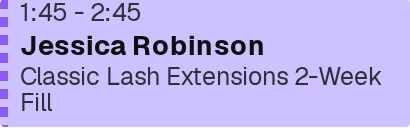

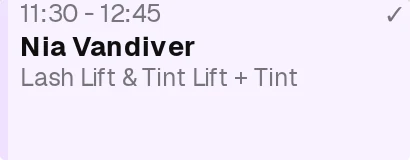
This trips people up constantly. If two appointments look the same colour but behave differently, you are looking at the service colour, not the status.
The Seven Statuses
| Status | Dot colour | What it means |
|---|---|---|
| Not Confirmed | Amber | Booked, but the client has not confirmed they are coming. This is where a new appointment starts. |
| Confirmed | Green | The client confirmed they are coming. |
| Declined | Pink-red | The client replied and said they cannot make it. |
| Canceled | Grey | The appointment was cancelled — by you or by the client. |
| Arrived | Blue | The client is here and checked in. |
| Completed | Purple | The appointment happened and is finished. |
| No-show | Red | The appointment time passed and the client never arrived. |

A Declined appointment does not appear on the calendar. Like a cancelled one, it frees its slot and drops off the grid. To find it, open Home and choose the Cancelled tab, which lists cancelled and declined appointments with a status on each row.
Declined and No-show are both reddish, and they are not the same thing. Declined means the client told you in advance. No-show means they said nothing and did not turn up.
Not Every Studio Sees All Seven
How many statuses you see depends on your Appointment tracking setting — chosen under that heading when you set your location up (see Creating and Configuring a New Location), and changeable at any time under Studio → Booking → Appointment tracking.
| Your choice | What you get |
|---|---|
| Completion and cancellation only | Confirmation statuses and check-in are hidden. Appointments show as Booked in neutral grey until you mark them completed or cancelled. No amber, no dashed edges, no no-show. |
| Client confirmations | The full confirmation cycle: Not Confirmed → Confirmed, plus Completed, Cancelled and No-show. |
| Client confirmations and check-in | Everything above, plus Check in so you can mark clients Arrived when they walk in. |
Every new studio starts on Client confirmations, whatever your team size. The size of your team is asked separately during signup and does not change this setting.
This setting changes what you see and do on the calendar — nothing else. Whether clients are asked to confirm, and what messages they get, are separate settings on the same Booking page.
Which Actions You Get, and When
The buttons offered on an appointment change with its status and the clock — you will not see all of them at once.
| Action | When it appears |
|---|---|
| Confirm | Only on a Not Confirmed appointment, and not on completion-and-cancellation-only tracking |
| Check in | Only with check-in tracking, from about an hour before the start time |
| Complete | Once the appointment has started, or once the client has arrived |
| No-show | Only after the start time has actually passed, and not on completion-and-cancellation-only tracking |
| Cancel | Any time, until the appointment reaches a final status |
No-show only becomes available once the start time has passed. Before that the system will refuse it — a client who checked in early is present, not absent.
Final Statuses
Cancelled, Declined, Completed and No-show are final. An appointment in one of these accepts no further actions — the buttons disappear. If you need to bring a cancelled appointment back, create a new one.
The Separate "Did They Reply?" Signal
Alongside the status you may see a second small label. This is not a status — it tracks whether a confirmation request you sent has been answered.
| Label | Meaning |
|---|---|
| Awaiting reply (grey) | A confirmation request went out and the client still has time to answer |
| No reply (amber) | The deadline passed with no answer |
It appears only when a request actually went out, and it disappears the moment the client answers either way. If you never see it, you probably have appointment reminders switched off — see Setting Up Client Notifications.
Common Mistakes
- Reading the block colour as the status. The block is the service's colour. Look at the dot, the left edge, and the fade.
- Expecting No-show before the appointment starts. It is deliberately unavailable until the start time has passed.
- Looking for Check in without check-in tracking. That button only exists if your location is set to Client confirmations and check-in.
- Confusing Declined with No-show. Declined is a reply. No-show is silence.