Day to day
Why a Client Didn't Get Their Reminder
A client says they never got a message. Work through these checks in order — the first two explain most cases.
A client insists they were never reminded. Before assuming something is broken, work down this list in order. The checks are arranged by how often they turn out to be the answer, so start at the top and stop when you find it.
If you want to change these settings rather than diagnose them, go to Setting Up Client Notifications.
Start Here: Look at What Actually Happened
You do not have to guess. Every message the system sends is recorded with its delivery outcome.
- Open Messages in the left sidebar.
- Switch the tab from Messages to Notifications.
- Find the client, then the message you are asking about.
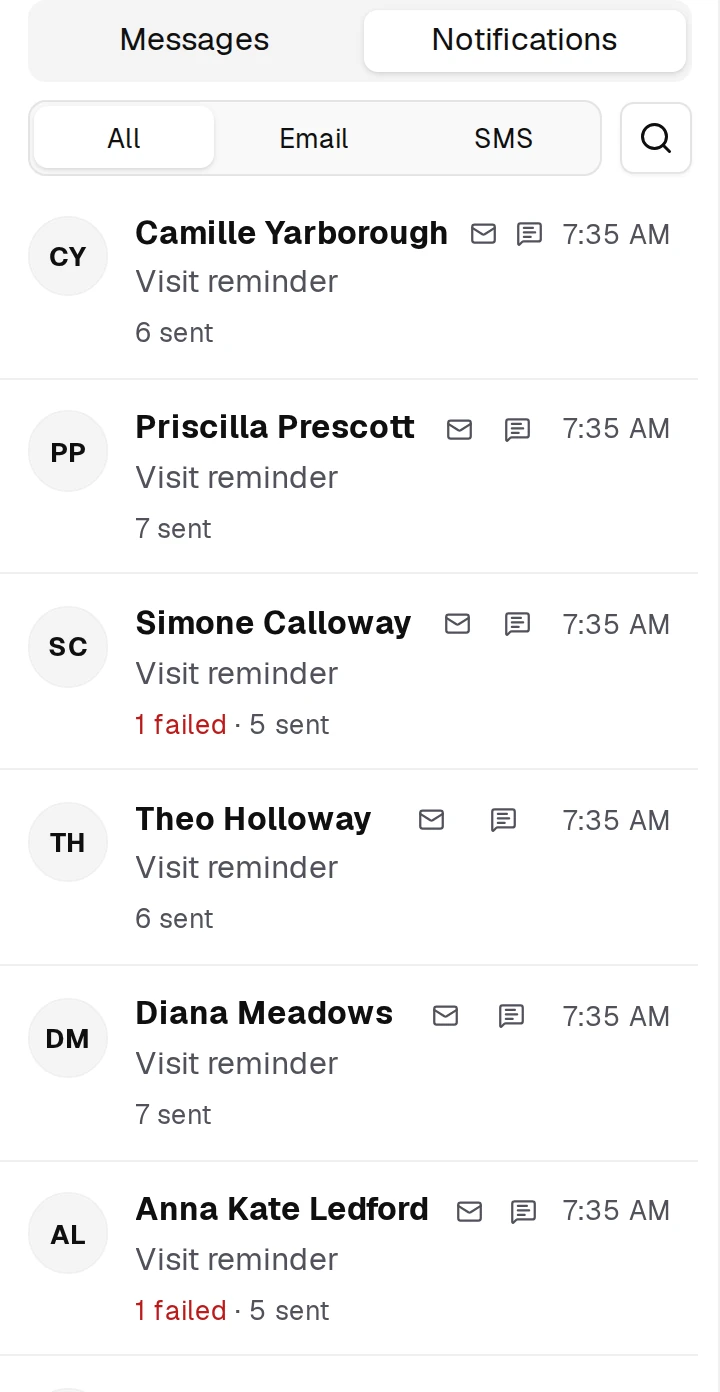
Click the client and you get every notification ever sent to them, oldest first, with anything still to come under Scheduled at the bottom.
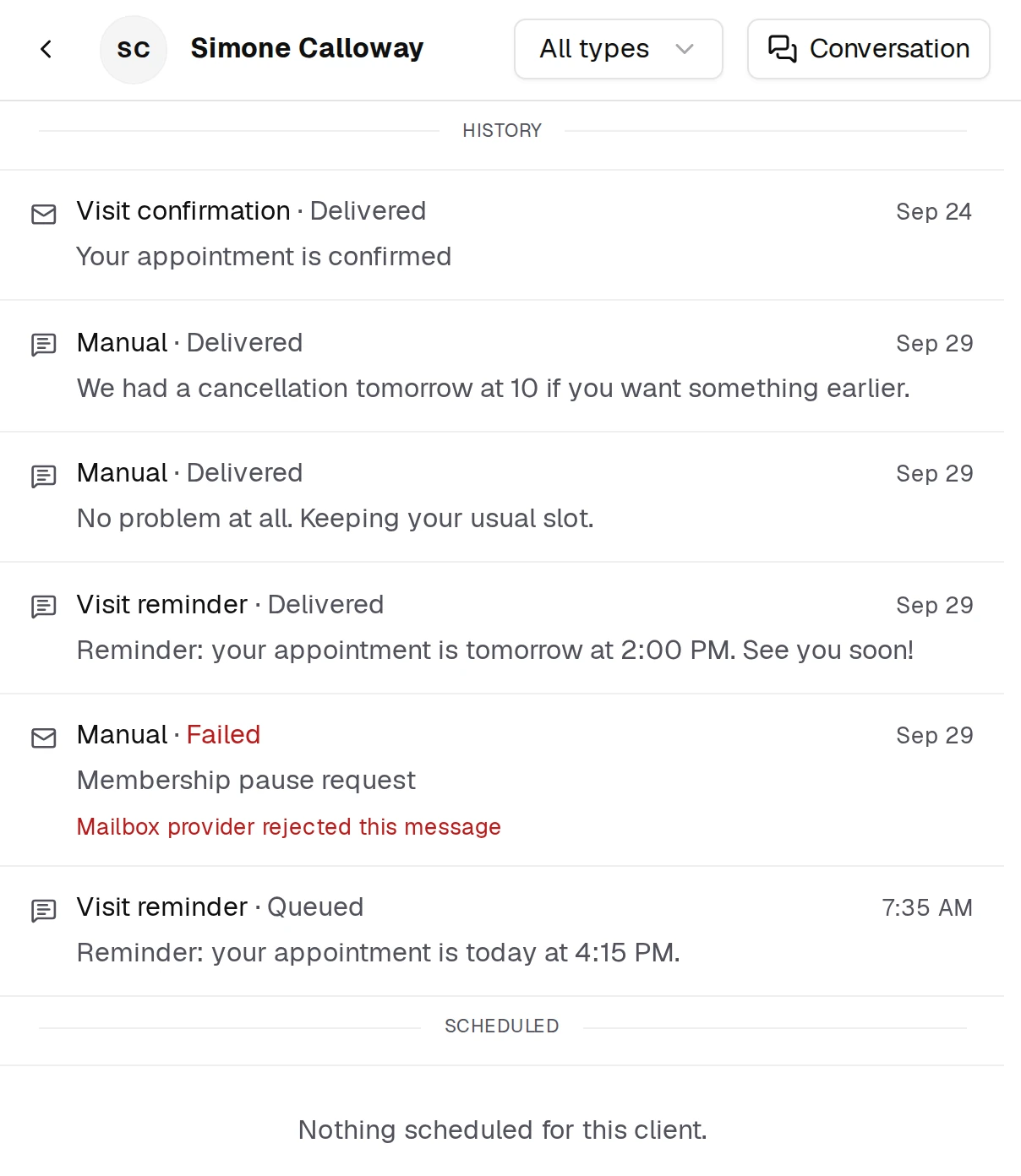
A failed row says why underneath it, in red — "Mailbox provider rejected this message" and the like. That line is the single most useful thing on this page; read it before doing anything else.
Use All types at the top to narrow the list to one kind of message, and Conversation to jump to what you and the client actually said to each other.
What you find there decides everything that follows:
| What you see | What it means | Where to go next |
|---|---|---|
| Delivered | It reached the client's phone or inbox | The message arrived. Check the number or address it went to, and ask them to look in spam. |
| Sent | Accepted by the provider, no delivery confirmation back yet | Give it a few minutes. |
| Failed | The carrier or mail server rejected it | Read the reason on the row, then check the client's phone number and email address. |
| Queued | Written and waiting its turn to go out | Normal. Look again shortly. |
| Waiting | Sending soon | Same — nothing to do. |
| Scheduled | Planned for a time that has not arrived | Check the timing rules below. |
| Cancelled | Unsent before dispatch — it never left BukaTime, usually because of a reschedule | Expected after a change. |
| No record at all | Nothing was ever created to send | Work through the checks below — this is the common case. |
No record is the most useful result. It means nothing failed in delivery; the message was never scheduled in the first place. That is almost always a settings question, not a technical fault.
Check 1: Are Appointment Reminders Actually On?
Appointment reminders are off by default. This is the single most common reason.
They are also a separate switch from booking confirmations and appointment-change notices. Having one on tells you nothing about the others — a studio can send booking confirmations perfectly while never sending a single reminder.
Go to notification settings and confirm Appointment reminders is on and saved.
Check 2: Is This Client Opted Out?
Reminders can be switched off for one individual client on their own profile — useful for regulars who ask not to be pinged, and easy to forget about months later.
Open the client's profile and check their notification preference before looking any further. See Client Profiles and Visit History.
Check 3: Does the Client Have the Right Contact Detail?
Your studio has a preferred channel — SMS or email. A client with no mobile number cannot receive an SMS, and a client with no email address cannot receive an email. The appointment looks perfectly normal either way.
Open the client record and check the detail for the channel you actually send on.
Check 4: Was the Appointment Booked Inside the Reminder Window?
The Send reminder setting is a number of hours before the appointment. If your reminder goes out 24 hours ahead and the client booked this morning for this afternoon, that moment has already passed. Nothing is sent, and nothing is wrong.
Short-notice bookings routinely produce "I never got a reminder".
Check 5: Did It Fall Inside Quiet Hours?
Quiet hours stop reminders going out overnight. A reminder whose scheduled moment lands inside that window is held rather than sent at 2am.
Check your quiet hours against the time the reminder was due.
Check 6: Did the Appointment Come From an Import?
Imported appointments are not messaged until you hand them over. Until you click Start sending from BukaTime on Studio Configuration → Data Import, reminders and change notices for imported appointments stay with your previous system. See Move Your Book into BukaTime.
This affects every appointment from that import, so it usually shows up as "none of my clients are getting reminders", not one client.
Check 7: Is the Address or Number Marked Dead?
If a client's email has hard-bounced or they have replied STOP to an SMS, the system stops sending to that address to protect your sending reputation. Future messages will not be attempted.
The Notifications log is where this shows: repeated Failed entries against the same client.
Still Nothing?
If the log shows Delivered and the client still says nothing arrived, the message left our side successfully. The usual culprits are a spam folder, a full mailbox, a blocked number, or a wrong digit in the phone number that happens to belong to somebody else.
Common Mistakes
- Assuming "Appointment changes" covers reminders. It covers reschedules, reassignments and cancellations only. Reminders are their own switch.
- Testing with a same-day appointment. If it falls inside your reminder lead time, nothing will ever send. Test with one several days out.
- Turning the setting on but not saving. The settings page needs saving before anything takes effect.
- Checking Conversations instead of Notifications. Reminders and confirmations deliberately never appear in the conversation thread — they live under the Notifications tab.
Related
- Setting Up Client NotificationsChoose which confirmations and reminders your clients receive.
- Messaging ClientsRead and reply to client conversations.
- What Your BukaTime Alerts MeanThe alerts in your inbox and the bell, what each one means, and what makes it go away.
- Creating and Managing AppointmentsCreate, edit, move, and cancel appointments on the calendar.