Setup & admin
Setting Up Client Notifications
Control which automated emails and texts your studio sends to clients when appointments are booked, changed, or coming up.
Keeping clients in the loop cuts down on no-shows and last-minute surprises. BukaTime can automatically tell clients when they're booked, when something about their appointment changes, and when it's coming up — but only when you're ready, and only through the channel you choose.
Accessing Notification Settings
- Go to Studio Configuration → Notifications.
You'll see two areas side by side: Client notifications, which controls what clients receive, and Staff notifications, which controls what your own team is alerted to (confirmations, declines, cancellations, reassignments, and reschedules, by email, phone push, or both). This article covers the client side.
Client Notifications
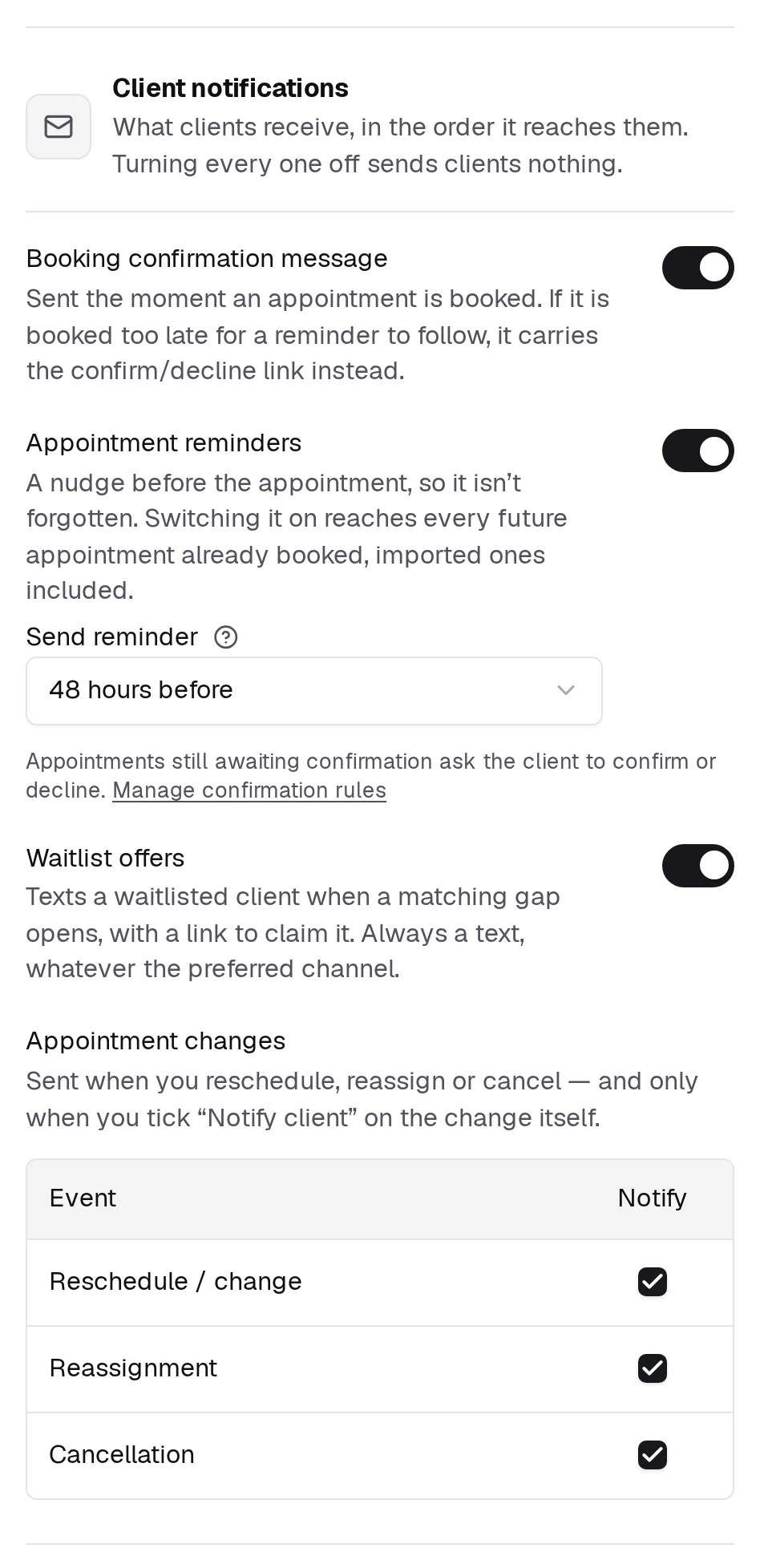
Client notifications is the card holding everything your studio sends to a client. There is no single master switch over it — each message type below carries its own, and turning every one of them off sends clients nothing.
Send to Clients
Four independent switches live in this card, so you can run any combination of them.
Booking confirmation message — an immediate "you're booked" message the moment an appointment is created. On by default.
Appointment reminders — a nudge before the appointment so it isn't forgotten, covered in its own section below. Off by default — it needs a bit of setup before it's useful. Switching it on reaches every future appointment already booked, imported ones included, and a Send reminder dropdown chooses how far ahead it goes.
Waitlist offers — texts a waitlisted client when a matching gap opens, with a link to claim it. Always a text, whatever the client's preferred channel.
Appointment changes — notices when staff reschedule, reassign, or cancel. This one is a small table rather than one switch: Reschedule / change, Reassignment and Cancellation are ticked separately. A change only reaches the client when you also tick Notify client on the change itself (more on that below).
These are separate switches. A studio can run change notices without reminders, or the other way around — nothing here implies the others.
What Reaches the Client for a Reschedule, Reassignment, or Cancellation
With Appointment changes turned on, a client is told about a change only when both of these are true:
- The change is a reschedule (new date or time), a provider reassignment, or a cancellation.
- The Notify client checkbox for that specific change is left checked when you save it.
An appointment already in the past never sends anything — moving or canceling it never notifies the client, no matter what's checked.
The checkbox itself only shows up in two places on the calendar:
- Moving an appointment — drag it to a new time, drag it into a different staff member's column to reassign it, or use the Reschedule button. Any of these opens a Confirm move? window with a Notify client checkbox, checked by default. See Creating and Managing Appointments for the full moving flow.
- Canceling an appointment — open it, select Edit, then Cancel appointment. A Cancel this appointment? window appears with a Note for the client (optional) field (anything you write here is included in the client's cancellation notice) and a Notify the client of this cancellation checkbox, checked by default. Select Cancel appointment in that window to confirm, or Keep appointment to back out.
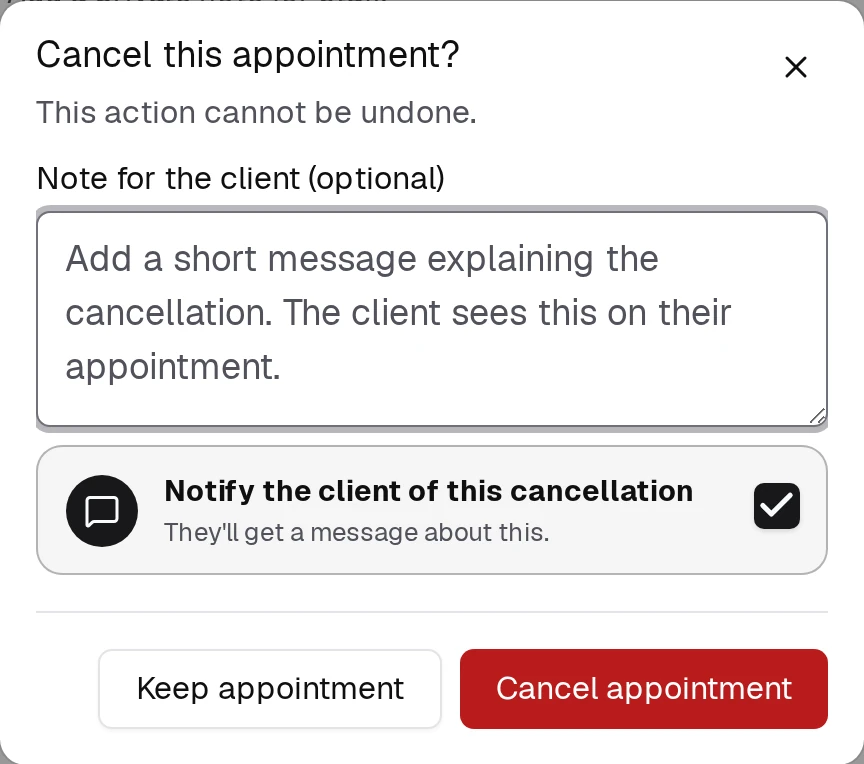
How you make the change matters. Changing an appointment's status to Canceled from the status list and clicking Save does not notify the client — that path never offers the checkbox, even with Appointment changes turned on. The same goes for reassigning a provider by changing the Provider field in the edit form and clicking Save, instead of dragging the appointment into that provider's column. If you want the client told about a cancellation or reassignment, use the Cancel appointment button, or drag-and-drop / Reschedule.
Delivery: Channel and Timing
Preferred Channel
Choose Email or SMS as your studio's preferred channel. This one choice applies across all three client message types — there's no separate channel setting per message.
- A client with both an email and a phone number gets your preferred channel only, never both.
- A client with just one contact method gets that one, regardless of your preference.
- If you prefer SMS and your studio's SMS sending allowance runs out, a message to a client who also has an email on file is sent by email instead automatically, so a reachable client is never skipped. A client with a phone number and no email on file could still be missed in that situation.
Email is free to send; SMS draws down your messaging allowance.
Change Notification Buffering
Off by default, so a saved change sends its notice right away. Turn on Change notification buffering to group several quick edits to the same appointment into one notice instead of several — useful if you tend to nudge an appointment's time more than once while sorting out a client's schedule. When it's on, pick a Buffer window of 1–10 minutes: further edits within that window reset the timer, and the client gets one consolidated "appointment updated" notice once it expires. With buffering off, the client hears about each save immediately.
Appointment Reminders
Appointment reminders prompt clients to confirm their upcoming appointment before it happens. This is separate from the change notices above — a reminder goes out on its own schedule regardless of whether anything was rescheduled or reassigned.
Enable Appointment Confirmation Reminders
Turn this on to activate reminder sending. When off, none of the timing settings below have any effect.
Per-client overrides are available on the individual client profile. This lets you turn off reminders for clients who prefer not to receive them.
Send Reminder
How many hours before the appointment the reminder is sent.
| Option | |
|---|---|
| 12 hours before | Same day, roughly |
| 24 hours before | One day ahead |
| 36 hours before | |
| 48 hours before | Two days ahead (default) |
| 72 hours before | Three days ahead |
Confirmation Deadline
How many hours before the appointment the client must confirm by.
| Option | |
|---|---|
| 6 hours before | |
| 12 hours before | |
| 24 hours before | One day before (default) |
| 48 hours before | Two days before |
Reminders for Imported Appointments
Importing appointments does not switch messaging on. Imported appointments stay with your previous system for reminders and change notices until you click Start sending from BukaTime on Studio Configuration → Data Import. The panel tells you how many appointments will be covered and how many are already too close for a reminder.
Appointment reminders must be switched on here first, or starting sends nothing. Full steps: Move Your Book into BukaTime.
Quiet Hours
Quiet hours pause reminders overnight so no one gets pinged at 2am.
- Turn on the Quiet hours switch.
- Set a Start hour and an End hour using the dropdowns (hourly increments, 00:00–23:00).
- Turn the switch off to send at any time.
Quiet hours apply in the studio's timezone, as set in Studio Configuration → General.
Saving Changes
A Save button appears in the page header whenever unsaved changes are detected. Click it to apply.
Common Mistakes
- Expecting a status change to notify the client. Setting an appointment's status to Canceled from the edit form and clicking Save keeps your records straight, but it doesn't tell the client anything. Use Cancel appointment instead if they need to hear about it.
- Reassigning a provider through the edit form. Changing the Provider field and clicking Save moves the appointment quietly. Drag the appointment into the new provider's calendar column instead if the client should be told.
- Assuming Appointment changes covers reminders too. It only covers reschedules, reassignments, and cancellations — turn on Appointment reminders separately if you also want pre-visit confirmation nudges.
Frequently Asked Questions
Why didn't my client get an email when I cancelled or reassigned their appointment? Either Appointment changes is off in these settings, the Notify client checkbox was unchecked at the time, the appointment was already in the past, or the change was made through a status/field edit rather than the Cancel appointment button or drag-and-drop — see "How you make the change matters" above.
Will the client be told if I move their appointment? Yes, if Appointment changes is on and you leave Notify client checked in the Confirm move? window. See Creating and Managing Appointments for the full moving flow.
Can I send appointment-change notices by text instead of email? Yes — set Preferred channel to SMS. It applies to booking confirmations and reminders too, not change notices alone.
Does a booking confirmation count as an appointment-change notice? No — they're separate message types with separate switches. A confirmation only fires when the appointment is first created.
Related
- Why a Client Didn't Get Their ReminderWork out why a message never arrived, in the order worth checking.
- Creating and Managing AppointmentsCreate, edit, move, and cancel appointments on the calendar.
- General SettingsYour studio's name, its web address, and where you are.
- Operating HoursWhen your studio is open, and how that shapes the calendar.
- Messaging ClientsRead and reply to client conversations.