Setup & admin
Managing Your Subscription
Managing your subscription plan and billing details.
Keeping track of what you owe — and why — shouldn't require a finance degree. The Billing page shows your estimated next charge, what's driving it, and gives you one place to update your plan, add providers, and download invoices.
Viewing Your Billing Overview
- Go to Settings → Billing.
- At the top you'll see your Next Bill — the estimated total due across all your active locations.
- Below that, the due date and a summary of active studios and billed providers.
If your payment is handled via Stripe, a Manage payment method button appears here. Click it to update your card and view receipts. To cancel, or to close a location, see Closing a Location or Cancelling Your Subscription.
Studio Subscriptions
Each location appears as a card showing:
- Studio name and initial
- Tier — your current feature tier, shown as a tag: Core or Plus
- Role tags for your own relationship to that studio — Admin, Billing — and Current on the studio you are working in
- A strip along the bottom with the tier, the price, the cycle and your seats

Seats read as a fraction — 5/6 means five of the six your plan pays for are in use. The right-hand button is Change plan, or Manage subscription while you are still on a trial, and only the billing contact sees it; everyone else gets a line saying so.
If active providers exceed your plan's limit, an Over limit notice appears on the card.
Changing Your Plan or Provider Count
You can adjust the plan or provider count directly from each location card:
- Go to Settings → Billing.
- Find the location you want to change.
- Use the plan controls at the bottom of the card to select a new provider count or tier.
- Click Update.
If the change requires an immediate payment (for example, upgrading mid-cycle), a confirmation dialog appears first showing:
- Current price vs. new price
- Credit for unused time on your current plan
- Amount due now
Confirm to apply the change and process the payment.
Billing Cycle
BukaTime bills monthly. Each location renews on the same date every month — the date sits under Next Bill at the top of the page, and the cycle is shown on the strip along the bottom of the location card. There is no annual plan to switch to.
Viewing Invoice History
- Go to Settings → Billing.
- Scroll to the Invoices section.
- Invoices are listed with studio name, billing period, amount, and status.
- For Stripe invoices, click View to open the hosted invoice or PDF to download it.
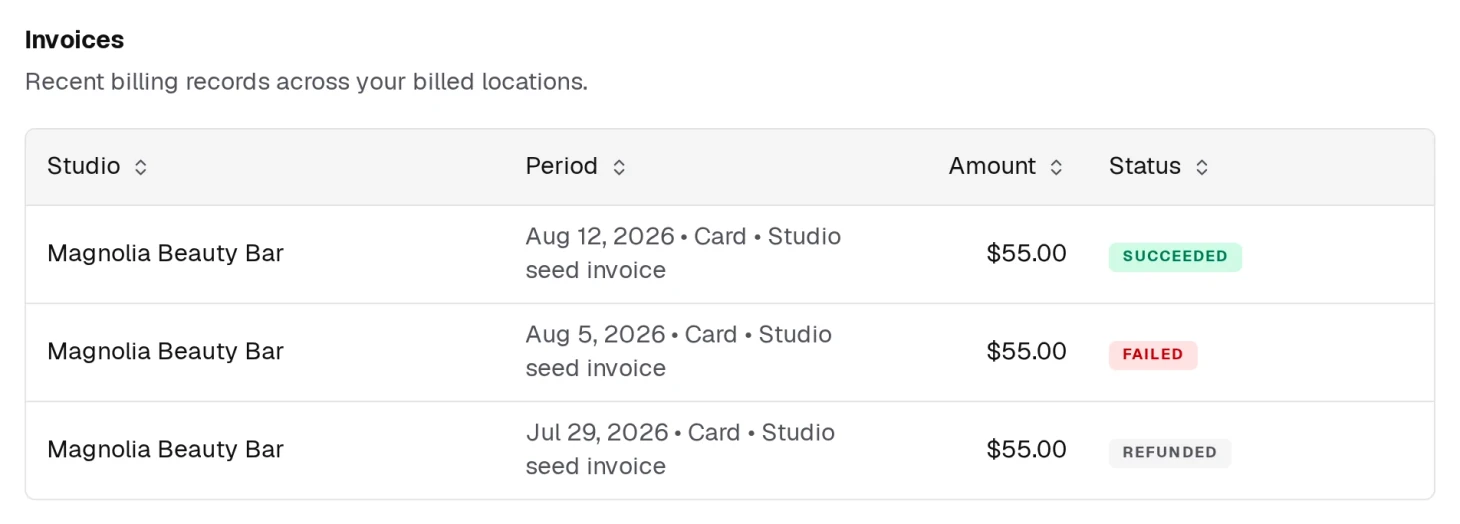
Status is worth reading rather than skimming: alongside Succeeded you may see Failed — the charge did not go through and needs a payment method that works — or Refunded.
Trials
If a location is on a trial, the card shows a trial banner with the number of days remaining and the date billing starts. No charge is made until the trial ends.
Multi-Location Billing
All your locations appear on a single Billing page — you don't need to switch studios to manage them. Each location is billed independently and shown as a separate card.
Related
- Billing for Staff ActivationWhat activating a team member costs, and who approves it.
- Closing a Location or Cancelling Your SubscriptionHow to stop paying, what happens to your studio and data, and who to ask about closing one location.
- Dashboard and AnalyticsRead your numbers and know which ones matter.