Setup & admin
Getting Your Studio Ready to Take Bookings
What a new studio sees after signing up: the three ways to start, the setup checklist, the guided tour, and what makes the studio bookable.
Once you have created your studio, the Home page is a setup screen rather than a report. It asks how you want to start, lists what stands between you and your first online booking, and can walk you through the steps. This page explains each part, and where to find it again.
Setup belongs to the studio's Admin. A provider who opens the Dashboard on a studio that is not live yet sees "This studio isn't live yet" and waits for the owner to finish. See Provider and Admin: Who Can Do What.
Choose How to Start
The first thing you see is How would you like to start?
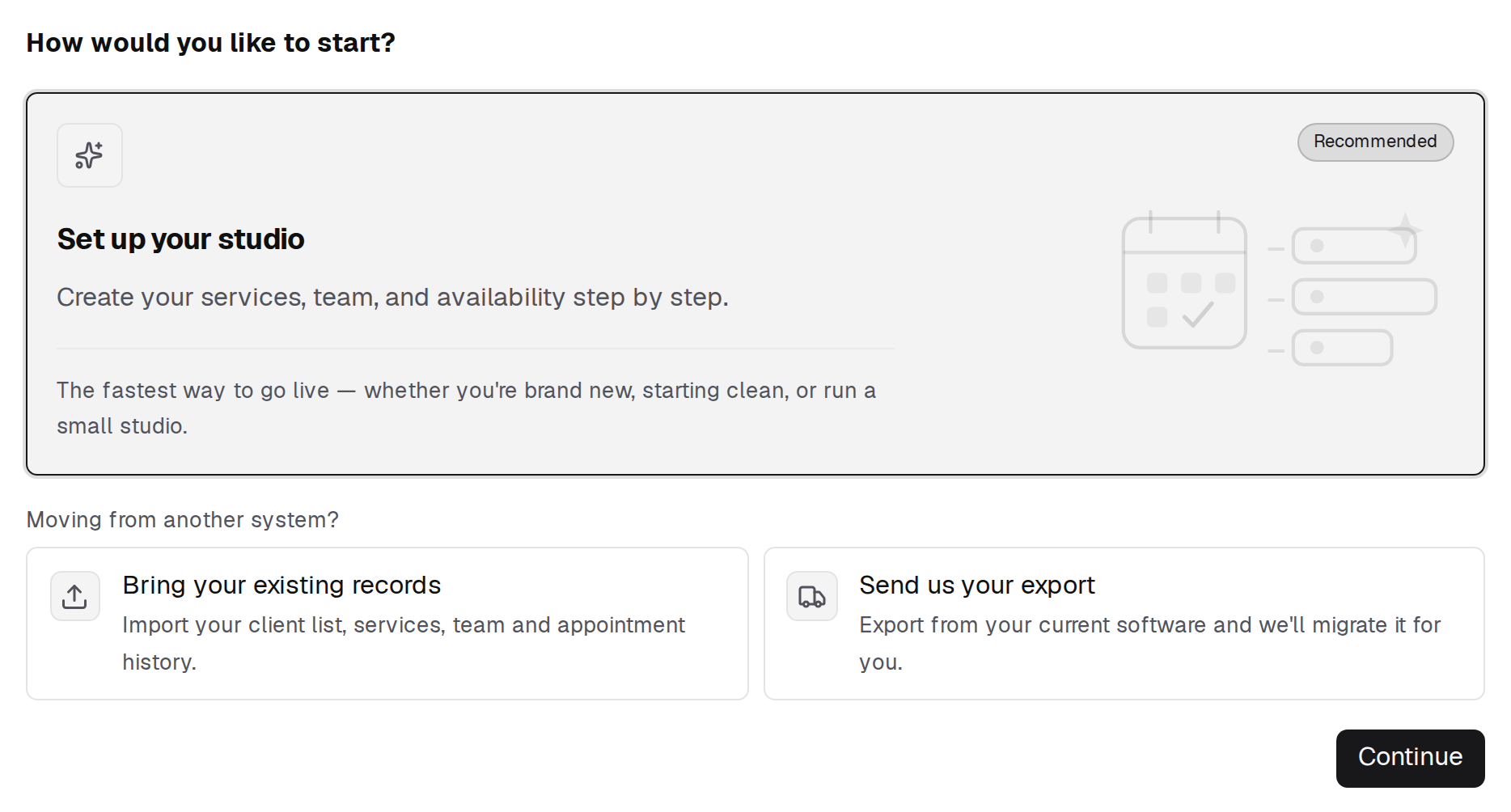
| Choice | For | What happens on Continue |
|---|---|---|
| Set up your studio (marked Recommended) | A new studio, a clean start, or a small studio | The setup checklist opens. This is the fastest way to go live. |
| Bring your existing records | Moving from another system, and doing the import yourself | Home tells you to start or finish your import first. Setup checks wait until the data is in. |
| Send us your export | Moving from another system, and you would rather we ran it | You go to the Contact page with the migration topic chosen. A phone number is required. |
Set up your studio is already selected. The two migration choices sit under Moving from another system?, and nothing is saved until you press Continue.
You can change your mind later. Once you have chosen, a line reading You chose: followed by your path has a Change link that opens the choices again. Cancel closes them without changing anything.
If you chose to import
Home shows a Start import button. Once an import exists it becomes Finish import review, Import in progress or Review failed import, depending on where the import stands. Move Your Book into BukaTime explains the choices and the order to import in; the steps themselves are in Importing Clients from a CSV and Importing Past Visits.
If you asked us to migrate for you
Home shows a card that follows the request:
- Let's migrate your data — the request has arrived. Upload your export takes you to the import page, and Ask us to run it to the Contact page.
- We've emailed you about your migration — we have written to you about sending the export.
- BukaTime is migrating your data — the move is under way. Ask us a question and View import options are there while you wait.
You do not need to set anything up by hand while help is open. When the migration is finished, Home switches to the setup checklist below, so you can finish whatever the import did not bring across.
The Setup Checklist
After you continue with Set up your studio, Home shows the Setup checklist, a progress bar, and a count such as 0 of 3 done.
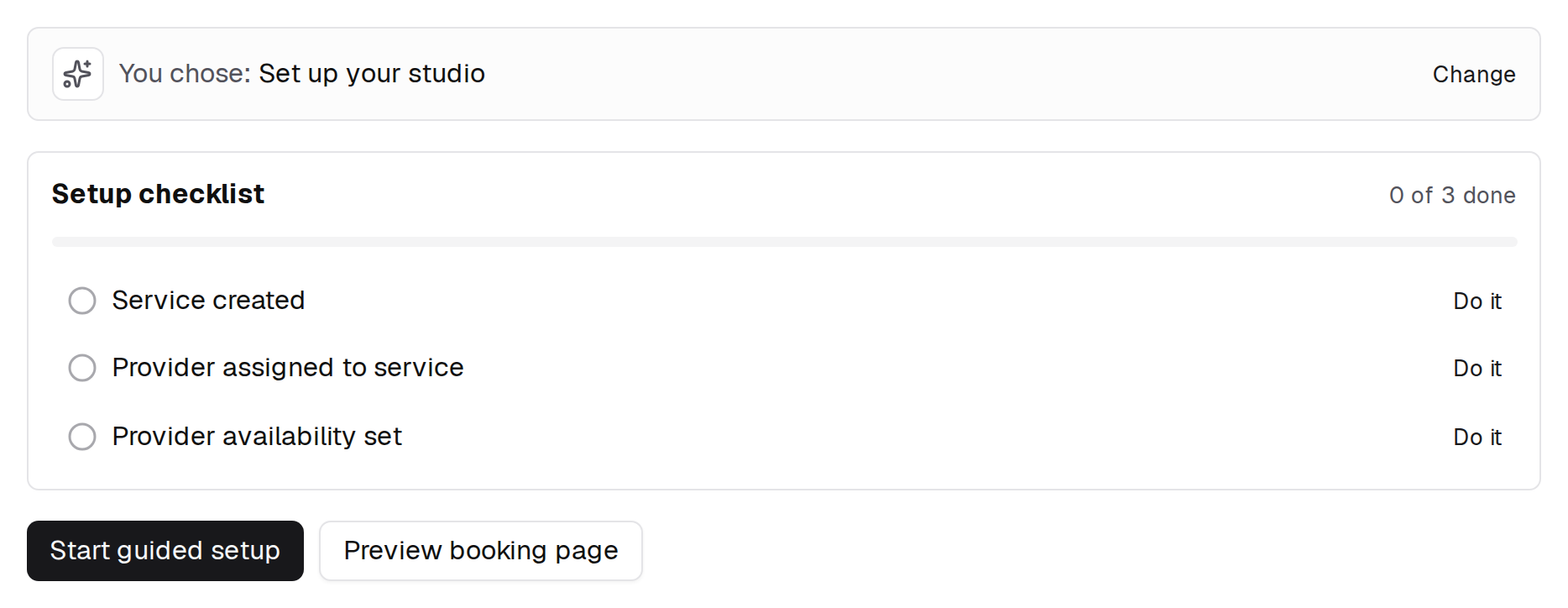
There are always three steps, and each row links to the screen where you do it. Click Do it, or the row itself.
| Step | What it needs | Where it is taught |
|---|---|---|
| Service created | At least one service on your menu | Creating Services and Variants |
| Provider assigned to service | At least one team member who performs a service | Assigning Services to Staff |
| Provider availability set | A bookable team member who has working hours | Managing Staff Availability and Hours and Operating Hours |
A finished step is ticked and crossed out. The list never grows and rows never disappear, so the count only moves forward. The Start guided setup button changes to Resume setup once you have finished a step.
Preview booking page opens your public booking page in a new tab, so you can see what a client will see.
Things BukaTime does for you
Three things also have to be true before clients can book, and BukaTime handles them when the studio is created: your studio gets a booking web address, you are switched on as the first provider, and every bookable option is checked for a provider. They are not on your checklist because there is nothing for you to do.
If one of them stops being true while you are still setting up, an amber notice appears above the checklist with a Fix link to the right screen. Your web address can be changed in General Settings.
The Guided Tour
Start guided setup dims the page and points at the next thing to click. You can keep using the page normally while it runs, and every card has a Skip guide link.
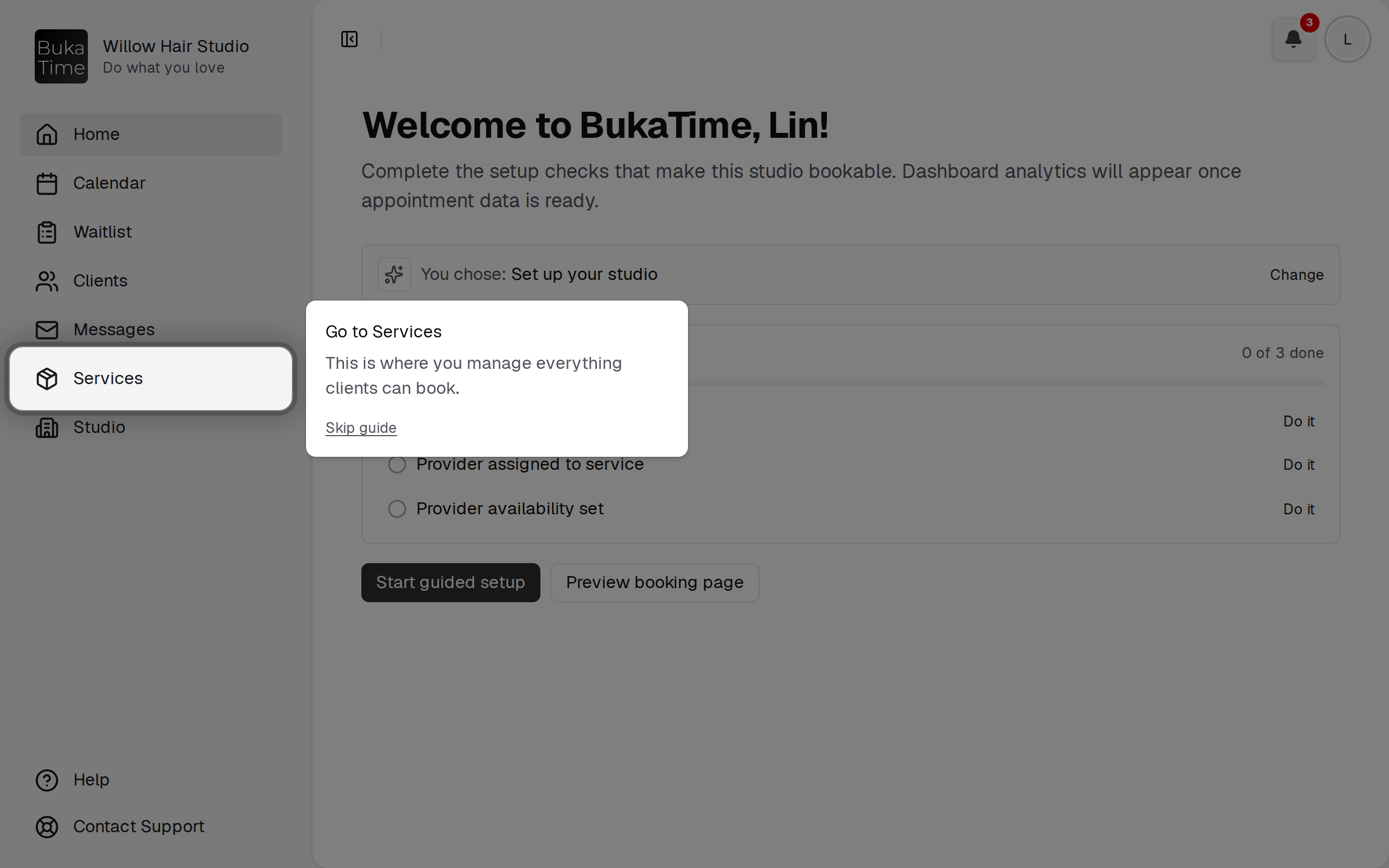
The tour has two parts. It starts with your first service:
- Let's create your first service and Go to Services — opens the menu and points at Services.
- Create a new service — points at the New button.
- Give it a name, Pick a category, Set a price and How long does it take? — one card per field. Each waits for you to fill the field in and press Next.
- Who performs this service? — tick the team members who offer it. Only assigned providers can be booked.
- All set — create it — creates the service.
Then it moves on to opening hours:
- Now let's set your availability and Open Studio settings — points at Studio, which holds the Hours tab.
- Choose your opening hours — open at least one day. The tour waits until you have.
- Save and go live — appears once there is something to save. Saving sends you back to Home.
If you skip the tour, or leave halfway, the checklist stays where it was. Press Start guided setup (or Resume setup) on Home to run it again.
The tour is for the Set up your studio path only. Studios that chose to import or asked us to migrate are not walked through creating services, because the import brings them in.
What "Bookable" Means
A studio is bookable when clients can pick a service, a provider and a time on your booking page. That takes:
- a service,
- a provider who performs it, and
- working hours for that provider.
Until all three exist, the booking page has nothing to offer, and Home shows setup instead of the Dashboard's analytics.
When the last step is done, the checklist gives way to You're live — your studio can take bookings!
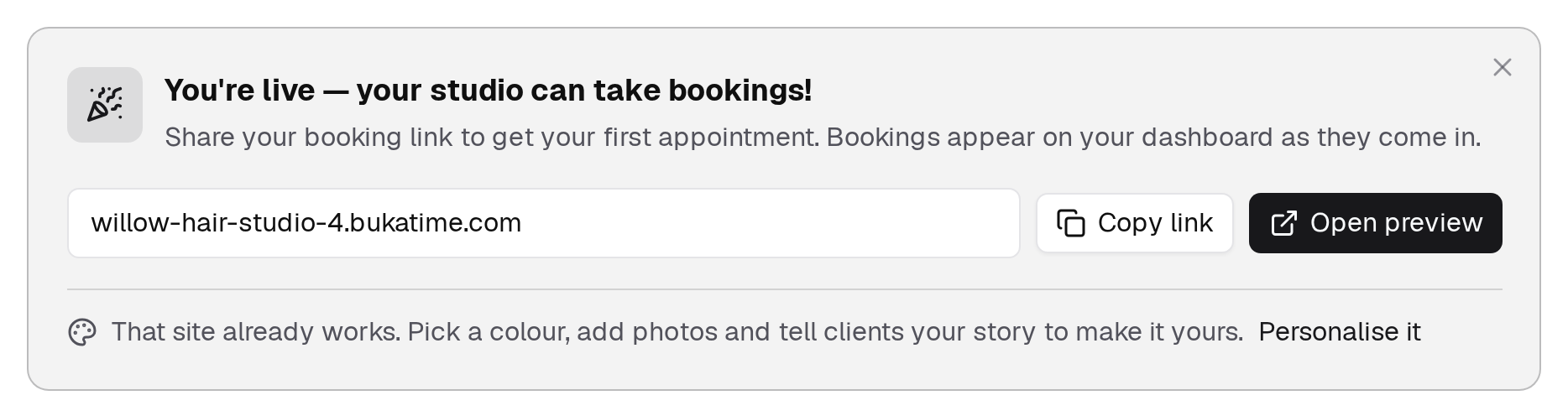
The card shows your booking link with Copy link and Open preview, and a Personalise it link to Your BukaTime Website, where you pick a colour, add photos and tell clients your story. The card stays for five days, or until you close it with the X in its corner.
After You Are Live
Home becomes your Dashboard, described in Dashboard and Analytics.
Setup is not gone for good. If something later stops clients booking, for example your only bookable provider is switched off, Home shows Some clients may not be able to book above the Dashboard. Each line says what is wrong, such as No active provider, Availability not set or Some options have no provider, and a Fix link opens the right screen.
Once you are live, the next things worth doing are Booking Rules and Scheduling Defaults and Setting Up Client Notifications.
The product tour
Separately from setup, BukaTime offers a one-minute tour of where everything lives, once, after you go live.

Start tour begins it. Not now ends the offer. Either way you can take the tour whenever you like from Product tour at the bottom of the sidebar.
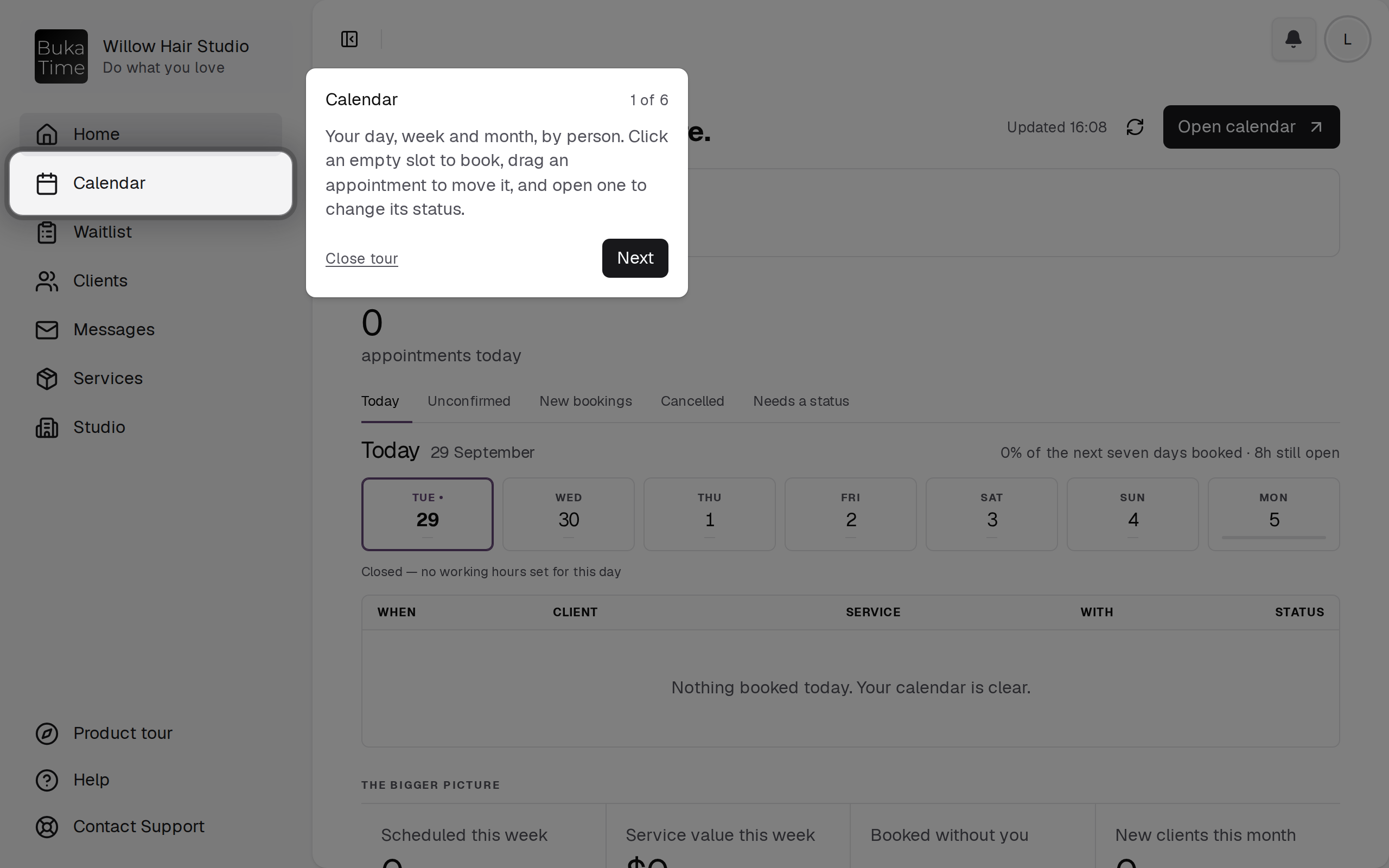
It has six stops: Calendar, Clients, Services, Messages, Studio and Notifications. Use Next and Back, or close it any time with Close tour or the Escape key.
Common Questions
I can't see the setup checklist. You have either not pressed Continue yet, or you chose an import path, which shows import actions instead. Choose Change to switch to Set up your studio.
Why is Provider assigned to service not ticked when I have a service? The service exists, but nobody who performs it has been assigned. Assign a team member in Assigning Services to Staff.
Can I use the calendar while I set up? Yes. Setup is a set of prompts, not a lock.
Related
- General SettingsYour studio's name, its web address, and where you are.
- Creating Services and VariantsBuild your menu with prices, durations, and variants.
- Assigning Services to StaffDecide who can perform which service, and what that changes.
- Managing Staff Availability and HoursSet when each team member works.
- Operating HoursWhen your studio is open, and how that shapes the calendar.
- Booking Rules and Scheduling DefaultsHow much notice you need, how far ahead clients can book, how tightly the day packs, and who has to confirm.
- Your BukaTime WebsiteEvery studio gets a working site on day one — here is how to make it yours.
- Move Your Book into BukaTimeBring your clients, services, team and appointments across from another system, choose how, and know when your clients start hearing from BukaTime.
- Dashboard and AnalyticsRead your numbers and know which ones matter.