Setup & admin
Move Your Book into BukaTime
Bring your clients, services, team and appointments across from another system, choose how, and know when your clients start hearing from BukaTime.
Moving to a new booking system does not mean starting again. Your client list, your service menu, your team and your appointments, past and upcoming, can all come across, either by uploading exports yourself or by asking the BukaTime team to do it for you.
Everything starts on one page: Studio Configuration → Data Import. This article covers the choices on that page, the order to bring things in, how to follow an import once it is running, and the one step that switches on reminders for the appointments you brought with you.
Choose how to move
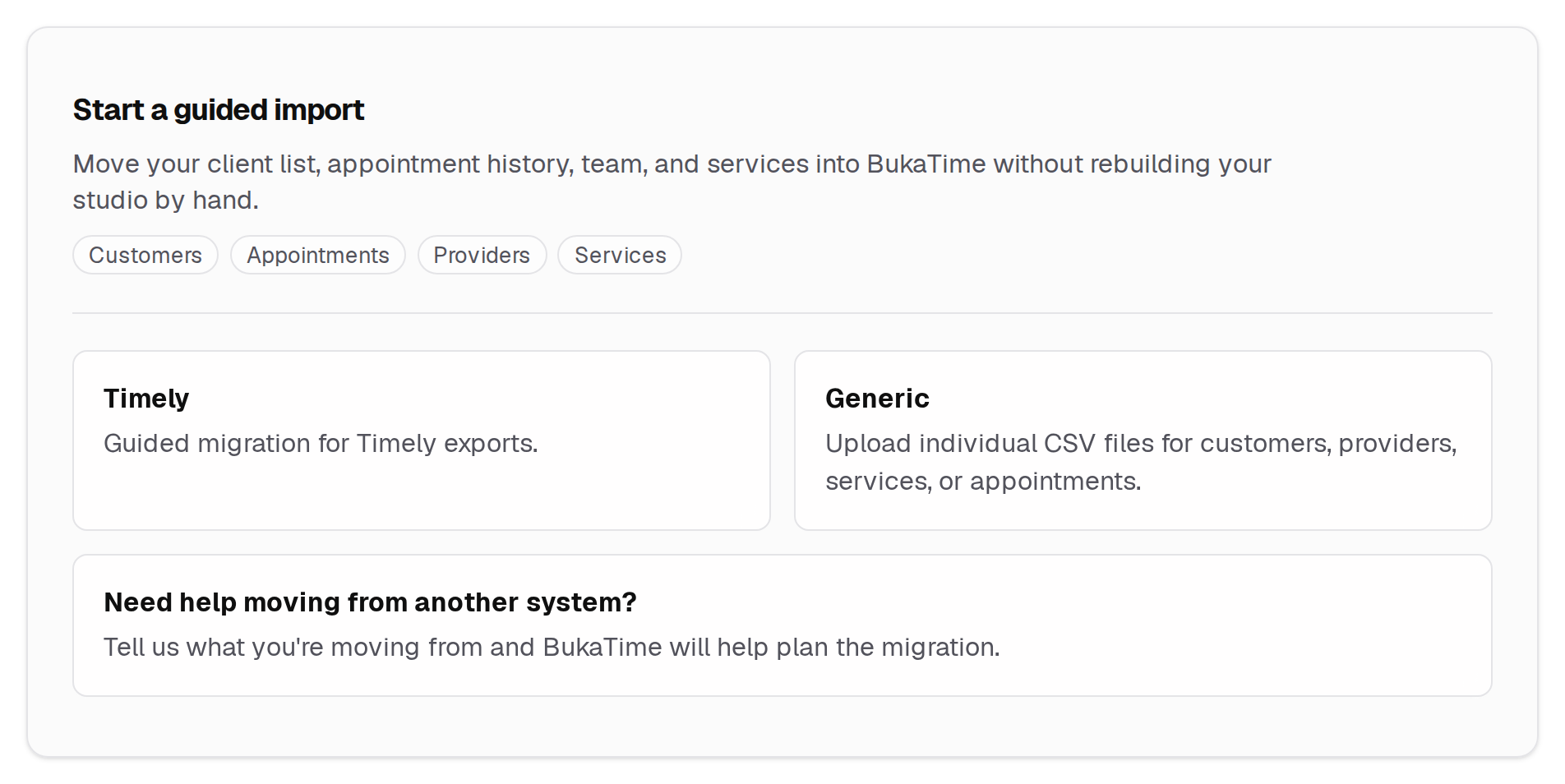
The Start a guided import panel offers three routes:
| Choice | Best when | What happens |
|---|---|---|
| Timely | You are leaving Timely | Upload two Timely exports and BukaTime brings clients, services, team members and appointments across together. |
| Generic | You are leaving anything else and have your own spreadsheets | Upload one CSV at a time for clients, services, providers or appointments. |
| Need help moving from another system? | You would rather not do it yourself, or you are not sure what to export | Sends BukaTime a request. The team tells you what to export and runs the import for you. |
The steps for the first two live in their own guides: Importing Clients from a CSV for the Generic route, and Importing Past Visits for the Timely route and appointment files.
The order to bring things in
Timely does this for you. It reads clients and appointments together, adds the services it finds, and asks you to match each staff member before anything is written.
With Generic, the four panels on the page are laid out in the order to use them:
- Upload Clients CSV
- Upload Services CSV
- Upload Providers CSV
- Upload Appointments CSV
Appointments come last because each row points at a client, a service and a provider that must already exist. The panel says as much: use it "after clients, services, and staff are already in place." If a service or provider in your file cannot be matched, the import stops for your decision instead of guessing. See Watching an import below.
New to the services and team side? Set them up first, or import them, then bring the appointments: creating services and adding your team.
Ask BukaTime to do it for you
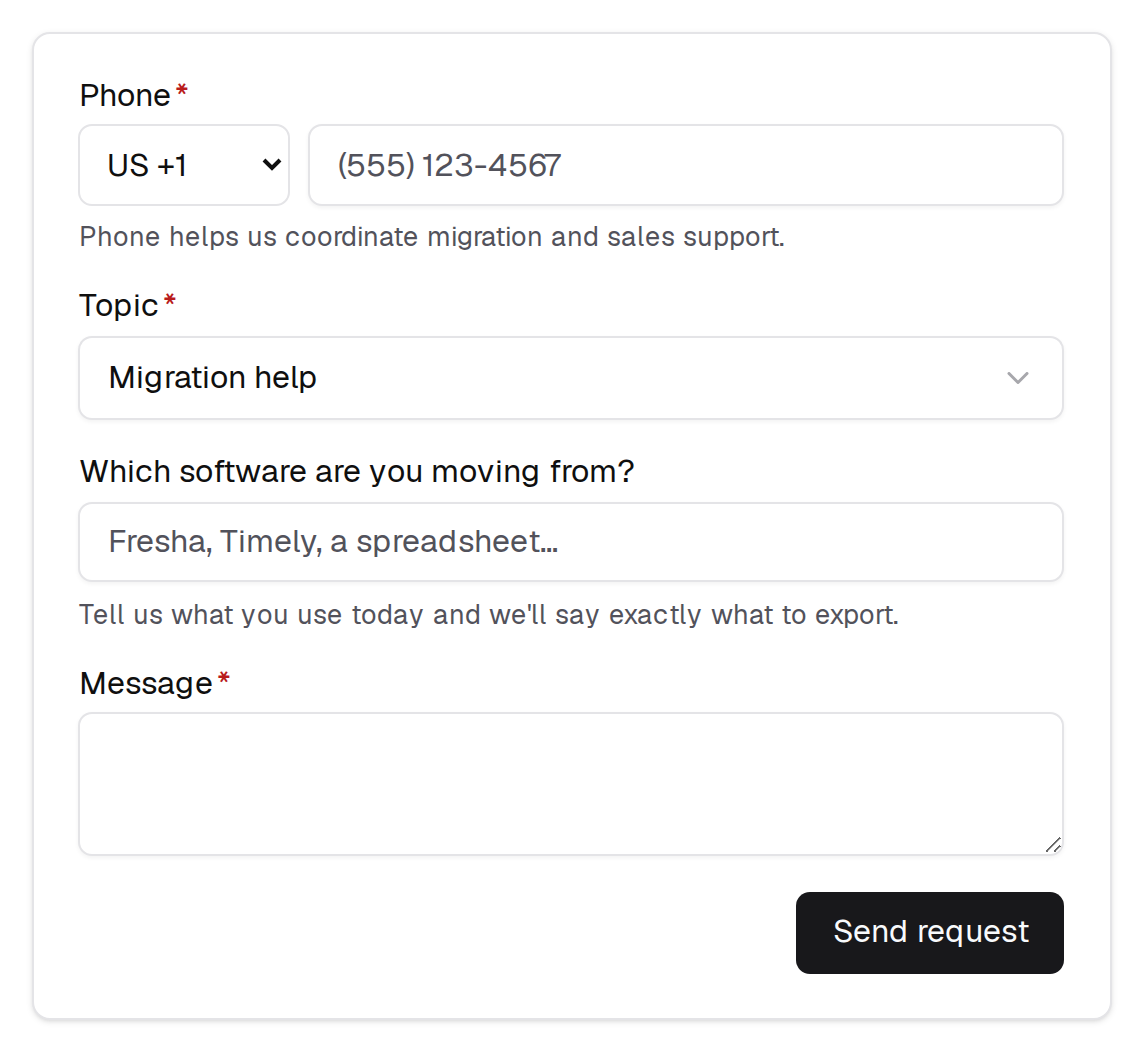
Click Need help moving from another system?. The request form opens with Topic already set to Migration help.
- Enter your Phone. It is required for migration requests because the team uses it to coordinate with you.
- Under Which software are you moving from?, say what you use today, for example Fresha, Timely or a spreadsheet. The form promises the team will tell you exactly what to export.
- Write your Message, then click Send request.
From here a BukaTime team member takes over. They email you to say what to send, run the import on your studio, and email you again when it has landed. While a request is open, your dashboard shows where it stands: Let's migrate your data, then We've emailed you about your migration, then BukaTime is migrating your data.
You can still upload files yourself at any point. The request does not lock the page. Whichever way the data arrives, it shows up in the same import history and follows the same reminders step at the end.
Watching an import
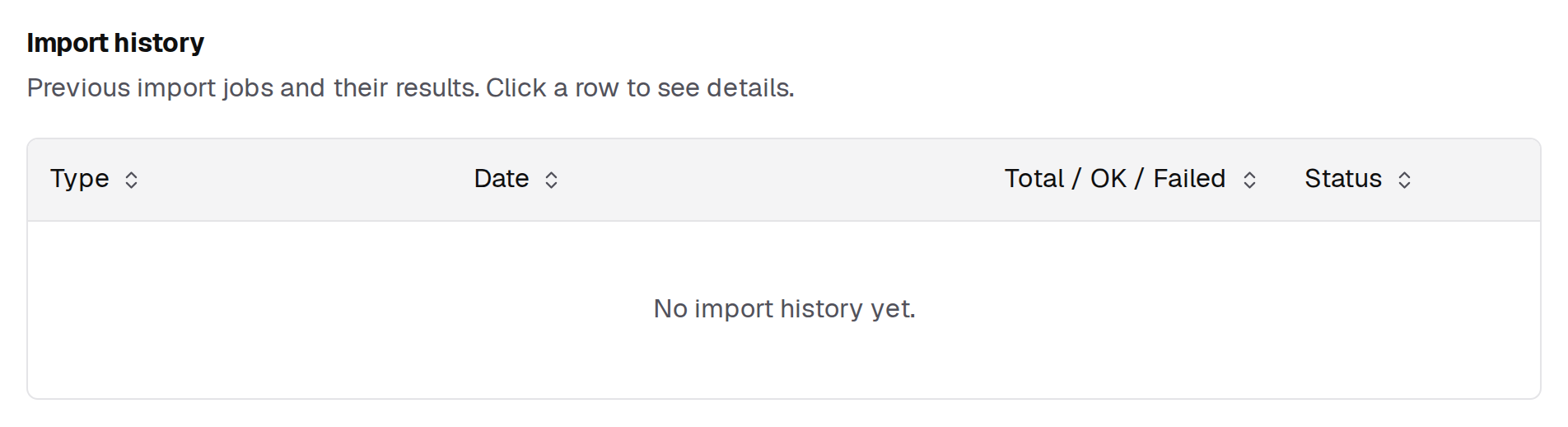
The Import history table at the bottom of the page lists every import for your studio, whether you ran it or the team did. It is empty until your first import. Click any row to open that import's details.
| Column | What it shows |
|---|---|
| Type | What was imported: client, visit, staff or service files show their kind. A Timely migration shows as Other Provider. |
| Date | When the import was started. |
| Total / OK / Failed | Rows in the file, rows that worked, rows that did not. A dash appears while an import is waiting for your review and nothing has been counted yet. |
| Status | Where the import is now. |
What each status means
| Status | Meaning | What to do |
|---|---|---|
| Pending | Uploaded and waiting its turn. | Nothing. It starts on its own. |
| Processing | BukaTime is reading the file or creating records. | Wait. The details page updates as it goes. |
| Review | The import needs a decision from you before it writes anything. | Open the row and decide, see below. |
| Done | Finished. | Check the counts, and open the row to see any rows that failed and why. |
| Failed | The import could not finish. | Open the row for what was saved and what was not, or contact support. |
Review happens in two cases. A Timely migration asks you to match each Timely staff member to an existing team member or invite them by email. An appointments CSV asks about any service or provider it could not match on its own. For each one you pick a match, or choose Import unassigned for a provider. BukaTime never assigns a provider at random. When everything is settled, click Confirm & Import.
A finished Timely migration also offers View calendar (all staff) so you can check the result.
Start sending messages for your imported appointments
Importing never contacts your clients. Appointments that arrive from an import stay with your previous system as far as messages go, and nothing is sent about them until you say so. That protects clients from getting a reminder from both systems.
While any imported appointments are waiting, a panel appears at the top of the Data Import page titled with the count, for example "12 appointments still with your previous system".
- Click Start sending from BukaTime.
- Read the summary. It says how many appointments BukaTime will send reminders and change notices for, and how many are already too close for a reminder, so you can message those clients yourself.
- Click Yes, start sending, or Not yet to come back later.
Two things to know before you click:
- It cannot be undone. There is no way to hand those appointments back to your previous system, so switch your old system's reminders off first if it is still running.
- Past appointments are never messaged. Your imported history is not affected.
If appointment reminders are switched off for your studio, the panel says so and starting sends nothing. Turn them on under Studio Configuration → Notifications first. See Setting Up Client Notifications for what each reminder setting does, and Why a Client Didn't Get Their Reminder if one does not arrive afterwards.
Once you have confirmed, the panel becomes "BukaTime is looking after these appointments", and reminders go out as each appointment gets close. Nobody hears anything the same day.
Tips
- Do a small file first if you are unsure. A handful of clients shows you the columns and any problems before the full list goes in.
- Keep the original exports. If a row fails, fix it in the file and upload it again.
- Import clients before appointments so every appointment finds its client.
- Not sure what to export? Send the migration request instead of guessing.
Common mistakes
- Uploading appointments first. Rows fail or stop for review because their clients and services do not exist yet.
- Expecting reminders to start by themselves. They start when you click Start sending from BukaTime.
- Clicking that button while your old system still sends reminders. Clients then hear from both.
FAQ
Will my clients be told about the move? No. Nothing goes to clients when you import. They only hear from BukaTime after you start sending, and then only through the normal reminders.
Can I run more than one import? Yes. Each one gets its own row in Import history.
Related
- Importing Clients from a CSVBring your existing client list across.
- Importing Past VisitsBring visit history across so client records aren't empty.
- Setting Up Client NotificationsChoose which confirmations and reminders your clients receive.
- Why a Client Didn't Get Their ReminderWork out why a message never arrived, in the order worth checking.
- Creating Services and VariantsBuild your menu with prices, durations, and variants.
- Creating and Activating a Staff MemberInvite someone to your team and switch them on for bookings.