Setup & admin
Assigning Services to Staff
Decide who can perform which service, why it is set per variant, and the two places you can change it.
Assignments decide which team members can be booked for which services. They matter more than they look: a service nobody is assigned to cannot be booked by anyone, and a staff member with no assignments will never appear as an option on your booking page.
Assignment Happens Per Variant, Not Per Service
This is the part worth understanding first. If a service has variants — a 30-minute and a 60-minute massage, say — capability is recorded for each variant separately. Someone can be assigned the 30-minute one and not the 60-minute one.
Assigning "the whole service" simply ticks every one of its variants at once. There is no separate service-wide setting underneath.
Two Places to Set It
The Assignments Matrix — for your whole menu
- Go to Services in the left sidebar, then Assignments.
- You get a grid with your services down the left and your staff across the top.
- Tick a cell to assign that person to every variant of that service. Untick to remove them from all of them.
- Click a service's name, at the start of its row, to assign everyone to it at once — or, if everyone already has it, to remove everyone.
- To set individual variants, click the arrow beside a service — or Show all variants above the grid — and tick the variant rows that open underneath.
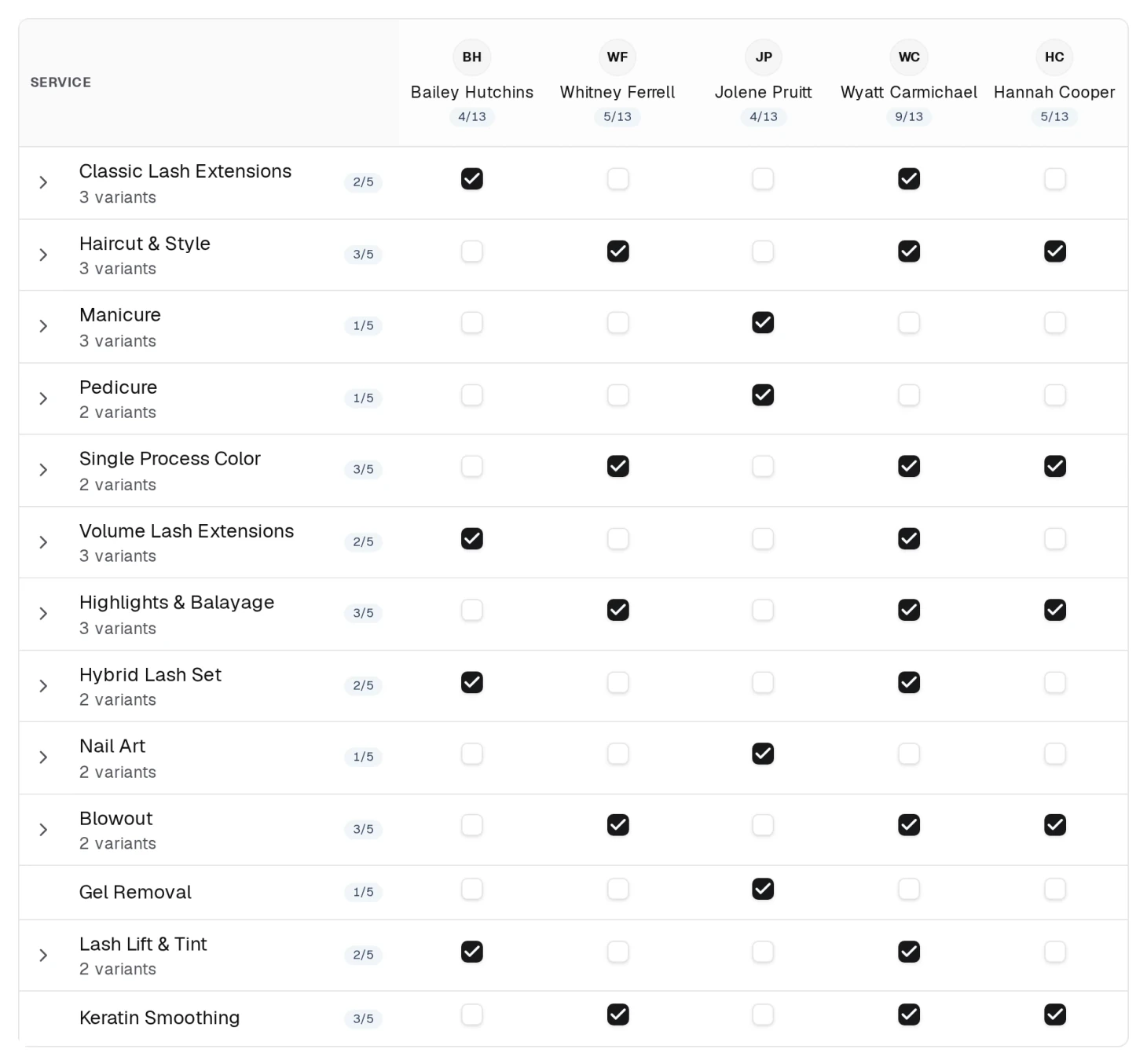
A ticked cell means "this provider offers all variants of this service"; a dash means they offer only some. Ticking a dashed cell completes the set.
On a phone the grid would not fit, so the page shows one provider at a time instead: pick them from the row of names at the top, tick their services, and tap the arrow on a service to choose its variants.
The Service Detail Page — one service at a time
- Go to Services, then click the service you want.
- You will find your staff listed with a checkbox per variant.
- Tick exactly the variants each person performs. Assign all and Unassign all at the top do the whole service in one go, and each person has an All toggle for their own row.
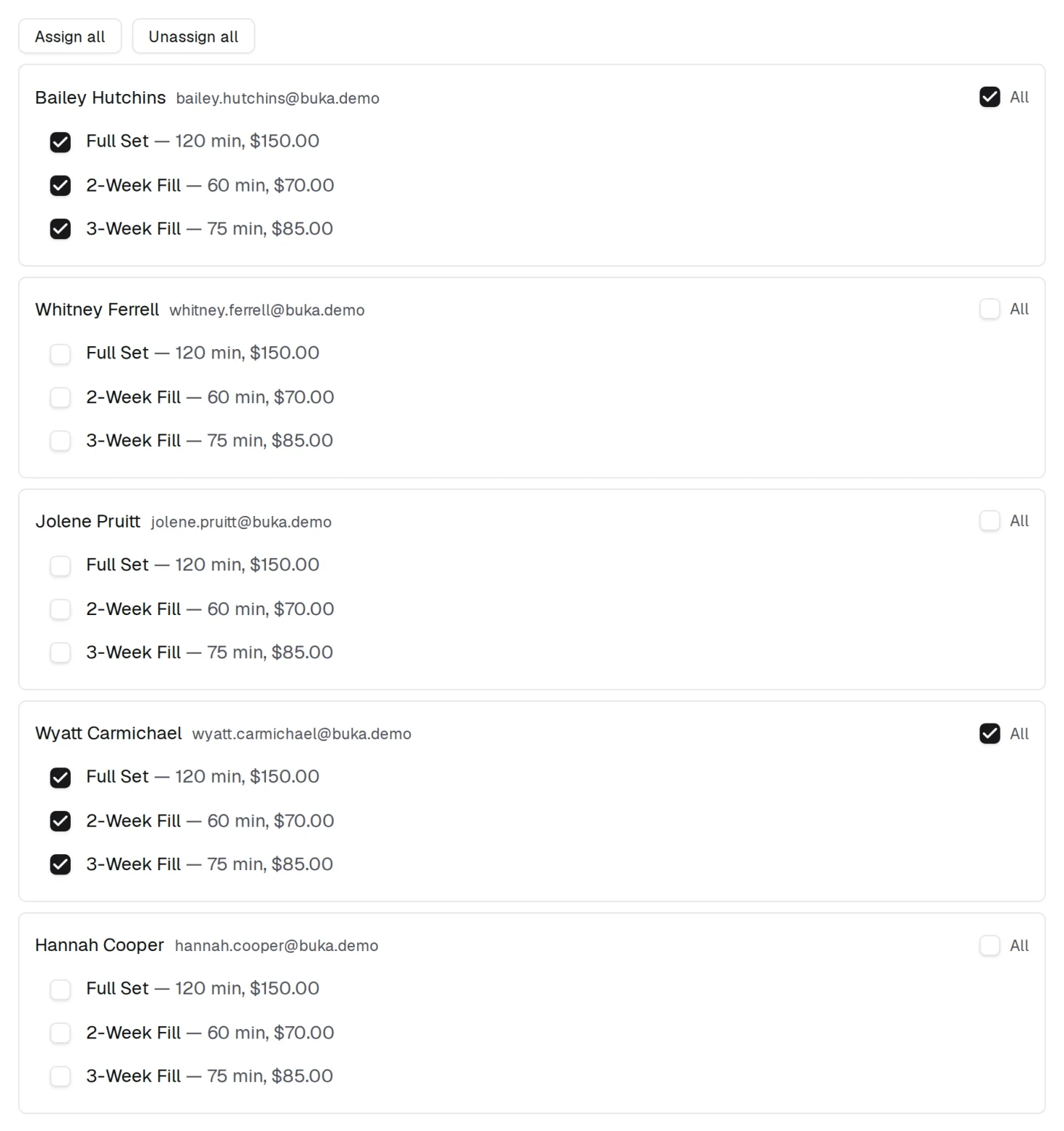
Use it when you are already editing a service — for instance right after adding a variant.
Only Activated Staff Can Be Assigned
The matrix only lists staff who are active (bookable). On a service's detail page, an inactive teammate shows an activate in Billing & studios link instead of checkboxes.
That ordering is deliberate: activate first, then assign services, then set hours. Doing it in another order leaves you looking for checkboxes that are not there yet. See Creating and Activating a Staff Member.
What Assignments Change
- The calendar. When you pick services on a new appointment, the staff list narrows to people who can perform them.
- Your booking page. Clients only see staff who are assigned to the service they chose.
- "Any provider" bookings. When a client does not care who they see, the system picks from the assigned, available staff.
Common Mistakes
- Adding a new service and forgetting to assign anyone. It will exist in your menu and be bookable by nobody. Adding a service is not finished until someone is assigned to it.
- Adding a variant to an existing service. New variants start unassigned, even if your team is assigned to every other variant of that service. Go back and tick them.
- Looking for assignments before activating. Checkboxes only appear for active staff.
- Ticking a service cell when you meant one variant. A service's cell covers every variant; open the service's arrow to tick a single one.