Setup & admin
Booking Rules and Scheduling Defaults
How much notice you need, how far ahead clients can book, how tightly the day packs, and who has to confirm.
Every surface that offers a time — your own booking site, the booking widget on your website, and the AI receptionist — reads the same set of rules. Set them once here and all three behave the same way.
Go to Studio Configuration → Booking.
One thing worth knowing before you start: the limits on this page apply to clients booking online, not to you. Staff booking from the calendar is never blocked by minimum notice or the booking horizon. If a regular rings up wanting to come in an hour from now, you can still put them in.
Booking Policy
Your cancellation notice, no-show rule, deposit terms, late-arrival policy — whatever a client should agree to before they book.
- Tick Show booking policy.
- Write it in the Booking policy box (up to 4,000 characters).
It then appears in three places at once: during booking, in appointment emails, and in front of the AI receptionist, which answers policy questions from it. Turning the tick off takes it away from all three.
Good things to cover: cancellation notice, no-shows, late arrivals, deposits, refunds, prep or aftercare, allergies and contraindications, sickness, guests, and whether you take minors.
Scheduling Defaults
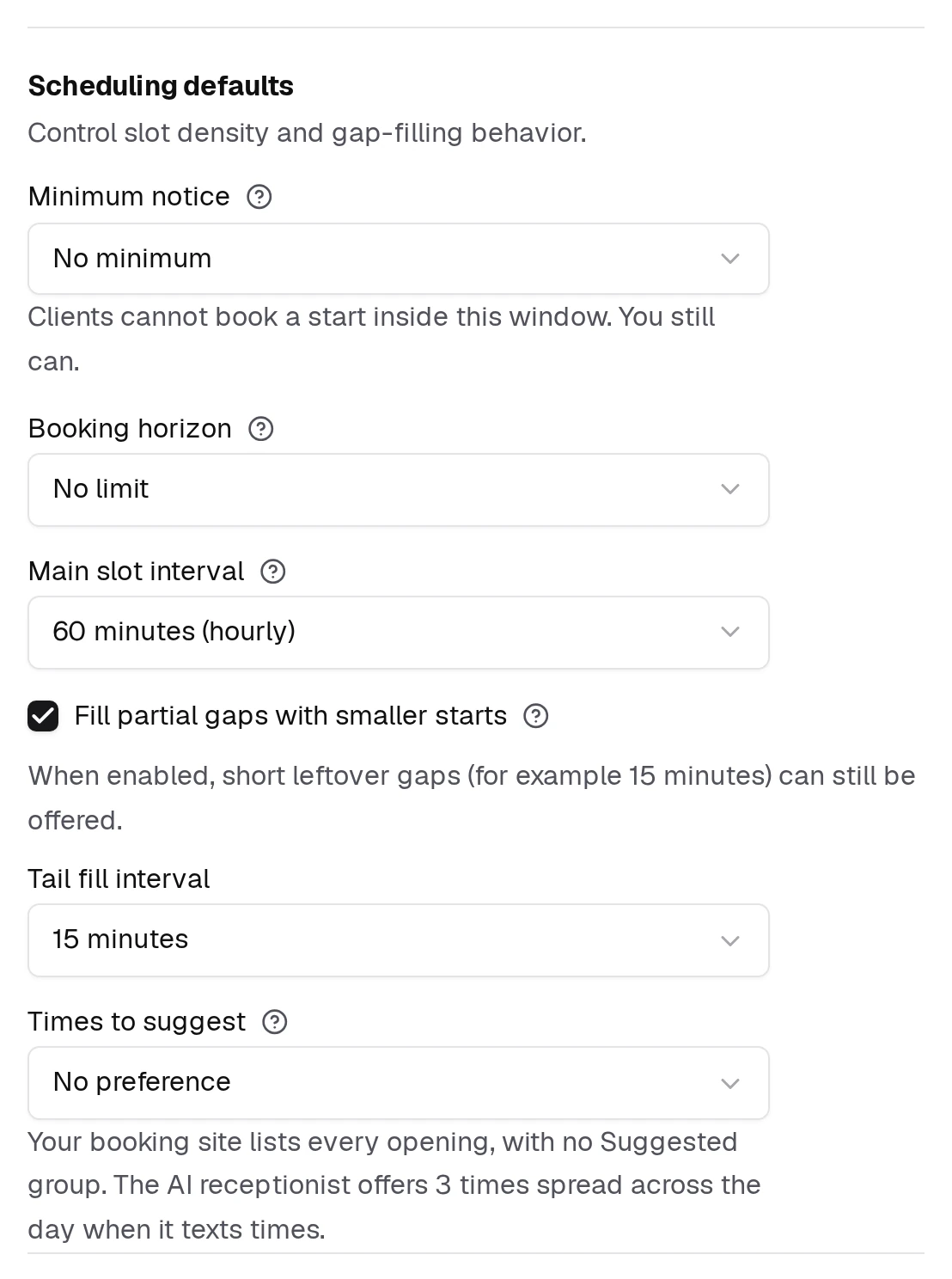
Minimum notice
How much warning you need before an online booking starts. Choose No minimum, 30 minutes, 1, 2, 4, 12 or 24 hours, or 2 days.
This is the setting that stops same-day or within-the-hour bookings arriving online. Set it to 24 hours and a client cannot book tomorrow morning tonight — but you still can.
Booking horizon
How far ahead clients may book online: No limit, 30, 60, 90 or 180 days, or 1 year. Useful if you do not want a diary full of appointments nine months out that half the clients will have forgotten about.
Main slot interval
The base booking grid. 60 minutes (hourly) means starts at 9:00, 10:00, 11:00. Also available: 30, 15 or 5 minutes.
A coarser grid keeps the day tidy. A finer one fits more in, at the cost of odd-looking start times.
Fill partial gaps with smaller starts
Tick this and short leftover windows are offered with denser starts, using the Tail fill interval you pick (15 or 5 minutes).
This is how you rescue the awkward 40 minutes between two bookings on an hourly grid: the main day stays on the hour, and only the leftovers get the finer treatment.
Times to suggest
Where a limited set of times is put forward rather than the whole day listed, this decides which ones. Your booking site shows them as a Suggested group above the full list, and every opening stays bookable either way.
| Option | What happens |
|---|---|
| No preference | Your booking site lists every opening, with no Suggested group. |
| Spread across the day | A Suggested group of times from earlier, middle and later in the first day with openings, so the client sees genuinely different choices. |
| Soonest available | A Suggested group of the first openings in chronological order, so the day fills front to back. |
| Fill gaps first | A Suggested group of times next to what is already booked, so the free time left over stays in usable blocks. |
Fill gaps first is the one to reach for if you keep ending the week with unbookable twenty-minute holes.
You also set how many times get suggested.
Confirmation
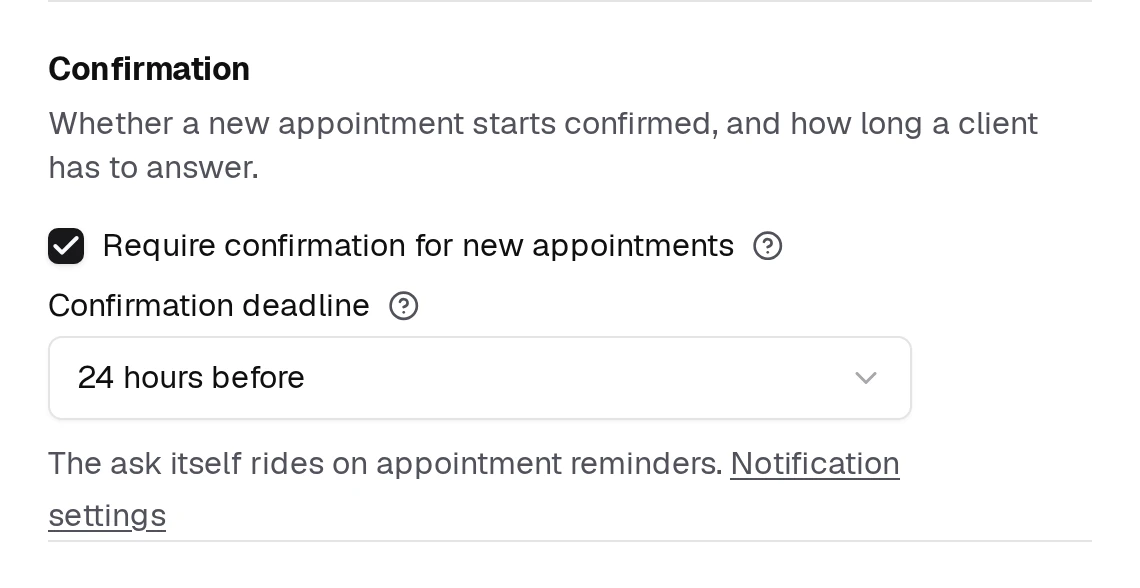
Require confirmation for new appointments
Applies to every new appointment, however it was created — online or by your own staff. Turn it off and appointments start confirmed, and reminders carry no confirm-or-decline ask.
Confirmation deadline
How many hours before the appointment the client should have confirmed by.
Appointments waiting on a client sit at Not confirmed until they answer — see What the Appointment Statuses Mean.
Staff Visibility
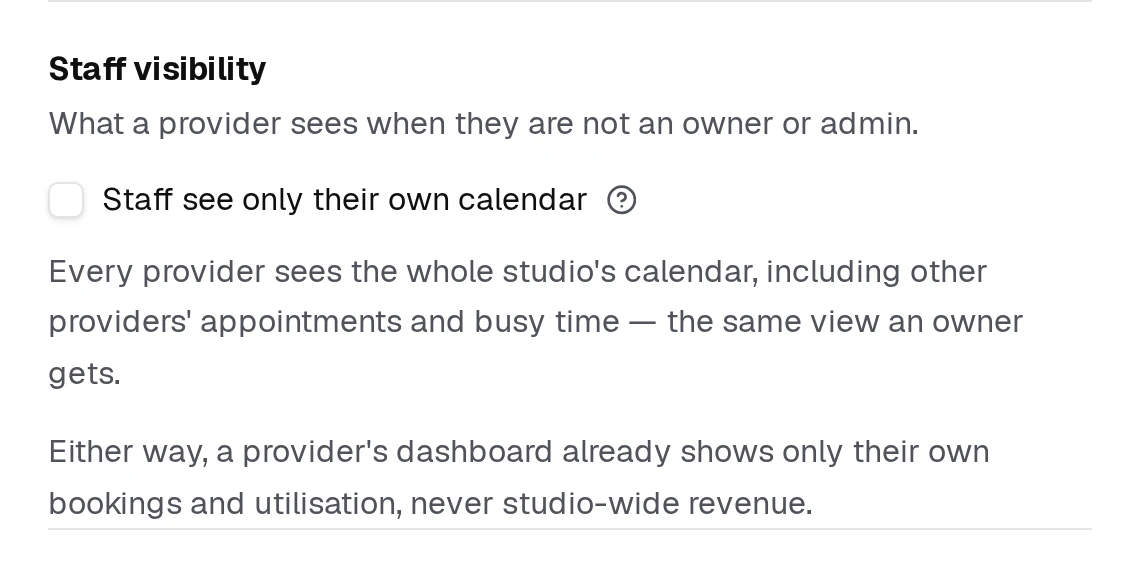
Staff see only their own calendar
The line under the checkbox always describes what providers can see as it stands, so you never have to work out which way round the tick means.
On by default. A provider sees only their own appointments, busy time and availability on the day, week and month calendar — never another provider's.
Owners, admins and front desk always see the full calendar, whatever this is set to. Turn it off when your team is small enough that everyone covering for everyone is the point.
Client Details
Require a phone number to book online
Clients who signed in with an email are asked for a phone number on the booking confirmation step, and when they join the waitlist.
The number is saved as your contact detail for that client. It does not become a way for them to sign in.
Related
- Operating HoursWhen your studio is open, and how that shapes the calendar.
- What the Appointment Statuses MeanEvery status an appointment can hold, what each one means, and who sets it.
- The AI ReceptionistHow it handles the messages your clients send, and how much it does on its own.
- Adding the Booking Widget to Your WebsiteDrop the booking widget onto your own site in minutes.