Setup & admin
Billing for Staff Activation
How staff seats are billed when activated.
Activating a staff member as bookable allows them to appear in the calendar and on your public booking page. This action may affect your subscription cost depending on your plan.
You want your team in BukaTime, but you also don't want a surprise charge. This page explains exactly when and how billing changes happen when you activate or deactivate a staff member, so there are no unexpected invoices.
How Staff Billing Works
BukaTime charges per active (bookable) staff member per location. When you activate a staff member as bookable, the system:
- Shows you a billing preview — the cost impact before you confirm.
- Applies any proration for the remainder of the current billing period.
- Updates your subscription accordingly.
Activating a Staff Member as Bookable
- Go to Billing & Staff (Studio → Billing & Staff in the left sidebar). The People table lists everyone in your studio, with an Inactive status pill next to anyone not yet bookable.
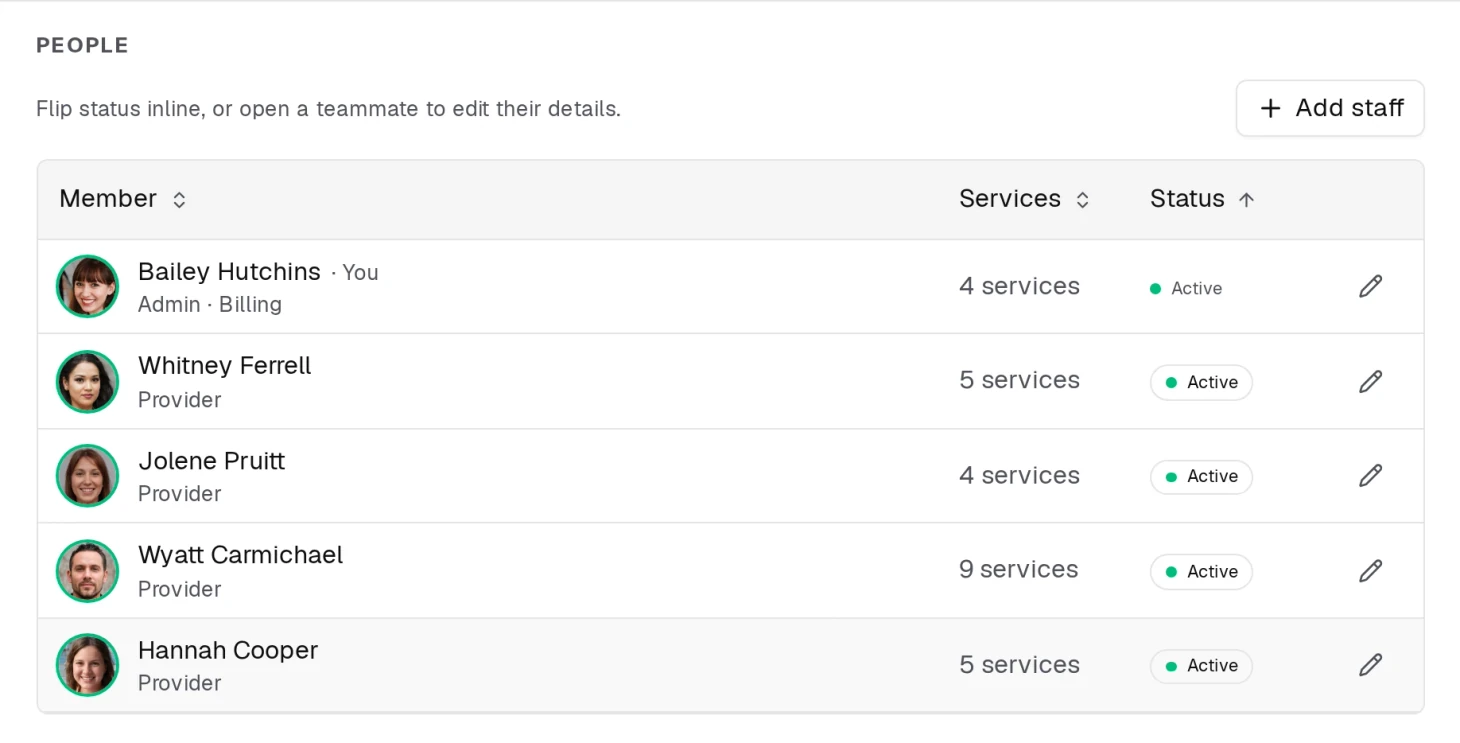
- Click that Inactive pill to activate them — there's no separate profile page to open first.
- If activating them would increase what you pay, a billing dialog appears: Confirm Provider Upgrade if you're able to approve it yourself, or Billing Approval Needed (naming your billing admin) if you're not.
- Review the breakdown:
- Providers paid for and Bookable after save
- Additional providers (shown as a "+N" badge)
- Recurring total — your current price crossed out next to the new price
- Charge now — the prorated amount, with a note on when it's charged or when the new price takes effect
- Check the confirmation checkbox and click Approve and save.
If activating them doesn't change your bill, they're activated immediately and no dialog appears at all.
Deactivating a Staff Member
If a staff member is no longer working or you want to reduce costs:
- On the Billing & Staff page, click the person's Active status pill.
- Confirm Deactivate in the dialog that appears. It's a plain confirmation — no billing preview — and it warns that they'll no longer appear in the booking calendar, though existing appointments are kept.
- If they still have appointments booked in the future, a Resolve upcoming appointments dialog opens first: reassign those appointments to another provider, unassign them, or cancel them before the deactivation can go through.

Deactivating doesn't lower your bill by itself — your seat count is a plan you choose, not a meter that follows headcount, so freeing up a seat just makes it available for someone else. The strip at the bottom of your studio card is where that fraction lives: 5/6 seats means one is free to fill without paying more. To actually pay less, lower your provider count on the Billing page (see Managing Your Subscription). The staff member's past appointments and data are retained.
Who Is the Billing Contact?
Each studio location has one billing contact. This person:
- Receives billing emails and invoices.
- Shows a · Billing label next to their role in the People table (and gets an outline Billing badge on their own studio card).
- Can transfer the role to another admin.
Changing the Billing Contact
- Go to Billing & Staff, find the admin you want to make the billing contact, and click their Edit action to open their details.
- In the Studio role area, click Make billing contact, then Confirm transfer.
This option only shows up for teammates with the Admin role who aren't already the billing contact, and only the current billing contact can start a transfer.
Related
- Creating and Activating a Staff MemberInvite someone to your team and switch them on for bookings.
- Provider and Admin: Who Can Do WhatThe two roles, the eight things only an Admin can do, and why role is not the same as bookable.
- Managing Your SubscriptionChange plan, update payment details, and read your invoices.