BukaTime lets you define tax rates at the studio level and apply them to individual services. This allows flexible tax configurations — for example, different rates for different service types or locations.
Most studios charge tax on their services, and the rules vary by region. Instead of baking the tax into every price by hand, you define your rates once here and then pick the right one when setting up each service. Change a rate later and it updates everywhere it's used.
How Tax Works in BukaTime
- Tax rates are defined per studio (location) in Studio Configuration → Taxes.
- Each service (or service variant) can have one tax rate assigned.
- The tax rate is a percentage applied on top of the service price.
- Tax appears in appointment and billing summaries.
Step 1: Open Tax Rates
- Go to Studio in the left sidebar.
- Click Taxes.
The Taxes page shows a table of your studio's tax rates.
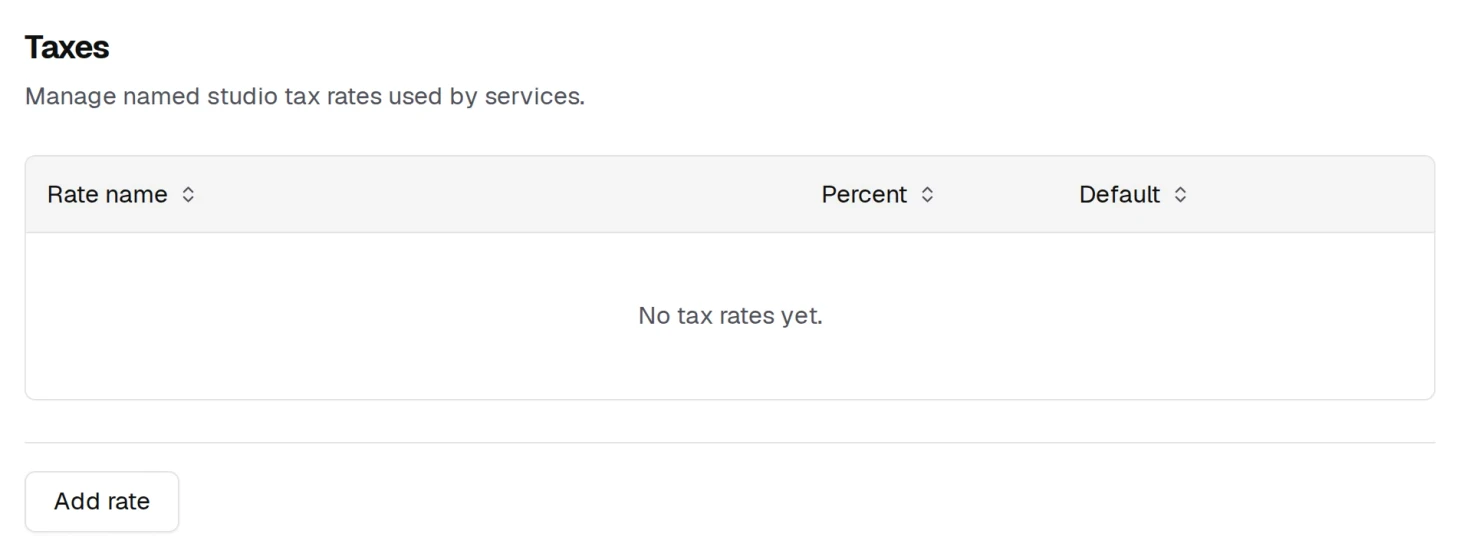
Step 2: Add a Tax Rate
- Click Add rate at the bottom of the Taxes page.
- A new row appears in the table.

Fill in:
- Rate name — A descriptive label (e.g., "GST 10%", "State Sales Tax", "VAT 20%").
- Percent — The percentage value (e.g.,
10for 10%). - Default — Whether this is the rate a service gets unless you say otherwise. Your first rate is ticked as the default for you, and only one rate can hold it: ticking another moves it.
- Click Save (top right — appears once you have unsaved changes).
You can add as many rates as you need before saving. Nothing is stored until you do, so a row you added by mistake goes away if you leave the page — or use the bin at the end of the row.
Step 3: Apply a Tax Rate to a Service
- Go to Services and open a service.
- In the Tax section, check Charge tax.
- Select the applicable rate from the dropdown.
- Click Save.
If no tax rates exist yet, the dropdown offers a Create tax rate shortcut so you can add one without leaving the service page.
Services without a tax rate assigned are treated as tax-exempt (0%).
Common Tax Configurations
Single National Rate
Create one rate (e.g., "VAT 20%") and apply it to all taxable services.
Multiple Rates by Service Type
Create separate rates for each category:
- "Reduced Rate – 5%" for basic services
- "Standard Rate – 20%" for premium services
Assign the appropriate rate to each service.
Tax-Exempt Services
Leave the Charge tax checkbox unchecked for services that are not taxable.
Editing or Deleting a Tax Rate
- Go to Studio Configuration → Taxes.
- Find the rate in the table.
- Click the name or rate field directly to edit the value inline.
- Click the delete icon to mark it for removal.
- Click Save to apply all changes.
Deleting a tax rate removes it from any services it was assigned to. Review your service tax assignments after deleting a rate.