Setup & admin
Operating Hours
The days and times your studio is open — the outer boundary every booking has to fit inside.
Studio hours define when clients can book. Without open days, your booking page shows no available slots — so this is the first thing to set up when going live.
Go to Studio Configuration → Hours.
Setting Your Weekly Schedule
The weekly schedule is the default recurring template for your studio:
- For each day of the week, toggle the day on (open) or off (closed).
- For open days, set the opening time and closing time.
- Click Save.
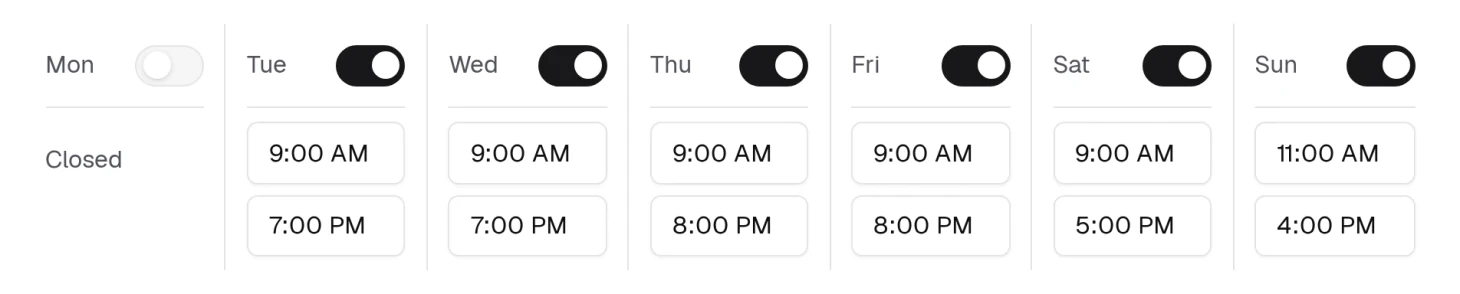
A day switched off shows Closed in place of its two time fields, so you can see the shape of the week at a glance.
How Studio Hours Relate to Staff Hours
- Studio hours set the outer boundary — the booking page won't offer slots outside these hours.
- Staff hours set the inner boundary — an individual provider can work shorter hours within the studio window.
- An appointment can only be booked when it fits inside both.
- Studio hours alone do not create public booking slots. A slot also needs an active bookable staff member with effective availability.
- If no studio days are open, the public booking page has no available slots.
The Staff hours list sits directly below the weekly grid on this same page. A provider with no custom week simply follows the studio's hours, which is the right setting for most people — see Managing Staff Availability and Working Hours.
Everything Else Lives on the Booking Page
Slot intervals, gap filling, minimum notice, the booking horizon, confirmation and the booking policy are not on this page. They are on Studio Configuration → Booking, and they have their own article: Booking Rules and Scheduling Defaults.
This page is only the shape of your week.